
Nero 12 supported operating systems are
• Windows® 8 (32/64 bit)
• Windows® 7 SP1 Home Premium, Professional or Ultimate (32/64 bit)
• Windows Vista® SP2 or later (32/64 bit)
• Windows® XP SP3 (32 bit)
• Windows® 8 (32/64 bit)
• Windows® 7 SP1 Home Premium, Professional or Ultimate (32/64 bit)
• Windows Vista® SP2 or later (32/64 bit)
• Windows® XP SP3 (32 bit)
The problem is not caused by Nero directly.
Usually it is caused by a missing VCRedist module.
To solve the “atl100.dll is missing” problem on your system, it will be sufficient to install Microsoft Visual C++ 2010 SP1 manually. You can download Microsoft Visual C++ 2010 SP1 from following link:
http://www.microsoft.com/download/en/details.aspx?id=8328
After the manual installation, the error message will not appear again.
Usually it is caused by a missing VCRedist module.
To solve the “atl100.dll is missing” problem on your system, it will be sufficient to install Microsoft Visual C++ 2010 SP1 manually. You can download Microsoft Visual C++ 2010 SP1 from following link:
http://www.microsoft.com/download/en/details.aspx?id=8328
After the manual installation, the error message will not appear again.
The error 1158 appears during the extraction of the installation file already,
not during the actual installation process. This error can be caused by either an incomplete or damaged
download of the installation file or by a compatibility problem.
First, please download the Nero 12 installation file to your hard drive again.
Disconnect your internet connection and disable your antivirus software.
Press right mouse tab onto the .exe file you downloaded.
Select “Properties” in the context menu.
Choose the “Compatibility” tab in order to change the “Compatibility Mode” to:
“Windows XP SP3" if you are using Windows XP or Windows Vista
"Windows 7" if you are using Windows 7.
Confirm your settings with “apply” and press “OK”
Start the installation again.
In case the extraction fails again with the message „error 1158“, please contact our Technical Support Team for further assistance.
not during the actual installation process. This error can be caused by either an incomplete or damaged
download of the installation file or by a compatibility problem.
First, please download the Nero 12 installation file to your hard drive again.
Disconnect your internet connection and disable your antivirus software.
Press right mouse tab onto the .exe file you downloaded.
Select “Properties” in the context menu.
Choose the “Compatibility” tab in order to change the “Compatibility Mode” to:
“Windows XP SP3" if you are using Windows XP or Windows Vista
"Windows 7" if you are using Windows 7.
Confirm your settings with “apply” and press “OK”
Start the installation again.
In case the extraction fails again with the message „error 1158“, please contact our Technical Support Team for further assistance.
The following Nero products are compatible with Windows® 8:
Nero 12 Platinum
Nero 12
Nero Video 12
Nero Burning ROM 12
Nero BackItUp 12
Nero Recode 12
Nero BurnExpress 2
Nero Kwik Media
Sadly we have to inform you that any version of Nero prior to Nero 12 will not officially be supported with Windows® 8.
Nero does not plan to add Windows® 8 support for any older versions.
Nero 12 Platinum
Nero 12
Nero Video 12
Nero Burning ROM 12
Nero BackItUp 12
Nero Recode 12
Nero BurnExpress 2
Nero Kwik Media
Sadly we have to inform you that any version of Nero prior to Nero 12 will not officially be supported with Windows® 8.
Nero does not plan to add Windows® 8 support for any older versions.
Yes, Nero 12 can be installed side-by-side with Nero 11 or any other Nero product on the same system.
This error can be caused by a compatibility problem.
First, please download the Nero 12 installation file to your hard drive again.
Disconnect your internet connection and disable your antivirus software.
Press right mouse tab onto the .exe file you downloaded.
Select “Properties” in the context menu.
Choose the “Compatibility” tab in order to change the “Compatibility Mode” to:
“Windows XP SP3" if you are using Windows XP or Windows Vista
"Windows 7" if you are using Windows 7.
Confirm your settings with “apply” and press “OK”
Start the installation again.
In case the installation fails again with the above error message, please contact our Technical Support Team for further assistance.
First, please download the Nero 12 installation file to your hard drive again.
Disconnect your internet connection and disable your antivirus software.
Press right mouse tab onto the .exe file you downloaded.
Select “Properties” in the context menu.
Choose the “Compatibility” tab in order to change the “Compatibility Mode” to:
“Windows XP SP3" if you are using Windows XP or Windows Vista
"Windows 7" if you are using Windows 7.
Confirm your settings with “apply” and press “OK”
Start the installation again.
In case the installation fails again with the above error message, please contact our Technical Support Team for further assistance.
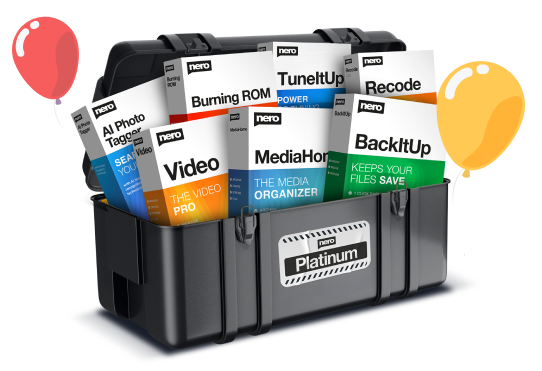
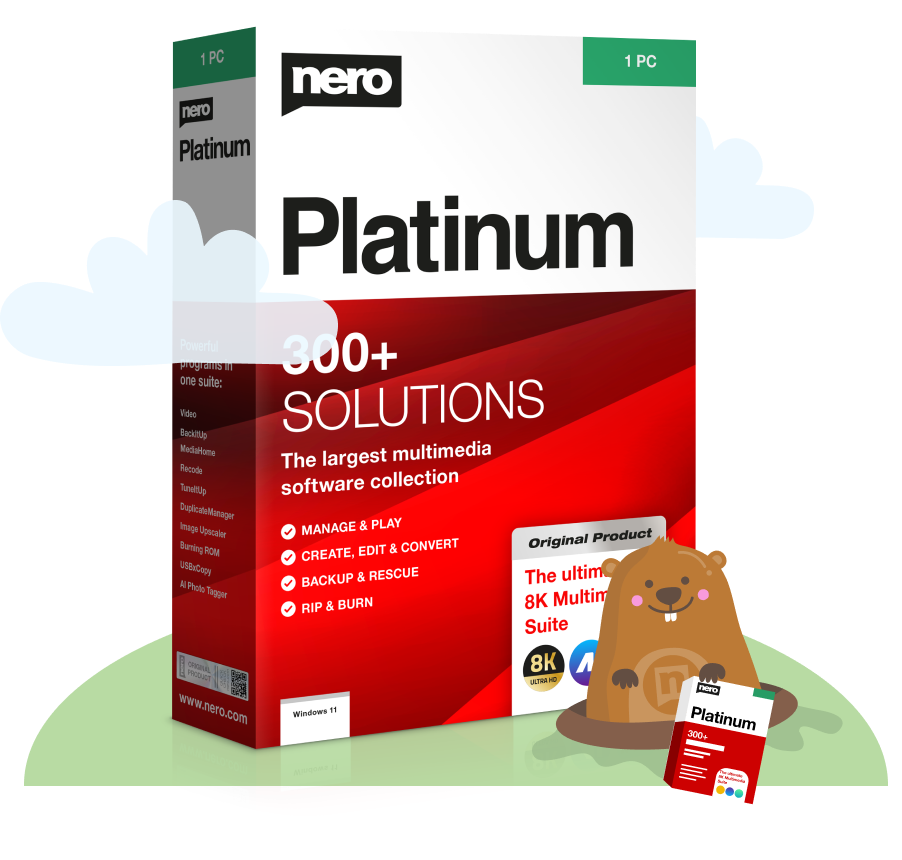
Nero 12 Platinum is a multimedia software suite that lets you capture, convert and consume your movies, music and photos for the best HD home entertainment experience. Nero 12 Platinum was built to support Windows 8 and provides the best experience for enjoying Blu-ray Discs. With Nero 12 Platinum, it is fast and easy to achieve the results you want by working seamlessly across the applications in the suite. Nero 12 Platinum supports the latest video formats and has everything you need to convert, edit, burn, stream and enjoy your movies, music and photos in high-definition.
Some of the exciting capabilities offered in Nero 12 Platinum include:
• Rip and convert Blu-ray Discs, AVCHD and DVD-Video to watch on any device
• Easily convert your digital or analog movies to Blu-ray Disc, DVD or virtually any file format
• Use AVCHD 2.0 full frame progressive HD formats for the best quality viewing experience
• Burn long-lasting, high-quality Blu-ray Discs, DVDs and CDs that can even start playing automatically
• Span data across several Blu-ray, DVD or CD discs to use your disc space most efficiently
• Stream and enjoy your HD movies, music and photos on any device in your home
• Enhance your home movies with a full set of video effects, including slow and fast motion, video stabilization, high quality cinema style film effects, as well as all-new retro-style movie theme templates
• Routinely and automatically back up your entire PC (including the operating system), your media library, or individual files or folders, now with support for hard drives larger than 2 TB and USB 3.0
Some of the exciting capabilities offered in Nero 12 Platinum include:
• Rip and convert Blu-ray Discs, AVCHD and DVD-Video to watch on any device
• Easily convert your digital or analog movies to Blu-ray Disc, DVD or virtually any file format
• Use AVCHD 2.0 full frame progressive HD formats for the best quality viewing experience
• Burn long-lasting, high-quality Blu-ray Discs, DVDs and CDs that can even start playing automatically
• Span data across several Blu-ray, DVD or CD discs to use your disc space most efficiently
• Stream and enjoy your HD movies, music and photos on any device in your home
• Enhance your home movies with a full set of video effects, including slow and fast motion, video stabilization, high quality cinema style film effects, as well as all-new retro-style movie theme templates
• Routinely and automatically back up your entire PC (including the operating system), your media library, or individual files or folders, now with support for hard drives larger than 2 TB and USB 3.0
Please check the following points if Nero does not accept your serial number:
You cannot install Nero 9 using a Nero 8 serial number. Nero serial numbers are structured as follows:
Nero 9/Nero Move it/Nero BackItUp 4/Nero MediaHome 4: 9Mxx-xxxx-xxxx-… or 2Mxx-xxxx-xxxx-…
Nero 8: 1K2x-xxxx-xxxx-… or 2K2x-xxxx-xxxx-…
Nero 7: 1Cxx-xxxx-xxxx-… or 4Cxx-xxxx-xxxx-…
Nero 6: 1Axx-xxxx-xxxx-…
Nero 5: 15xx-xxxx-xxxx-…
If Nero does not accept your Nero serial number, please contact our Customer Service team providing your Nero serial number as well as a proof of purchase.
- Make sure that the latest update of your Nero version is installed.
- Make sure that you're not having any typing errors.
- Make sure that the correct Nero version is installed on your PC.
You cannot install Nero 9 using a Nero 8 serial number. Nero serial numbers are structured as follows:
Nero 9/Nero Move it/Nero BackItUp 4/Nero MediaHome 4: 9Mxx-xxxx-xxxx-… or 2Mxx-xxxx-xxxx-…
Nero 8: 1K2x-xxxx-xxxx-… or 2K2x-xxxx-xxxx-…
Nero 7: 1Cxx-xxxx-xxxx-… or 4Cxx-xxxx-xxxx-…
Nero 6: 1Axx-xxxx-xxxx-…
Nero 5: 15xx-xxxx-xxxx-…
If Nero does not accept your Nero serial number, please contact our Customer Service team providing your Nero serial number as well as a proof of purchase.
It's likely that installation problems are caused by a previous version which is or was installed on your system. If you are experiencing any download problems please download the Nero Cleantool from our website and use it for removing all Nero files from your computer. After that proceed to install the latest available update for your Nero version.
If you will still experience problems please contact our technical support and provide the following information:
• Send a screenshot which shows the exact error message you get.
• Send the installation log files by using our GetSupportFiles tool.
Download the tool GetSupportFiles and perform the following steps:
Extract the zipped file on your hard drive using WinZip or WinRAR. Start the tool by double-clicking on the EXE-file. Once the tool ran successfully, you will find a file called "NeroSupport.cab" on your desktop. Please attach the file "NeroSupport.cab" to your e-mail.
The following information will be collected in the NeroSupport.cab:
Nero Infotool, Nero log files (including installer log files), Nero Registry Keys, MSInfo, DXDiag
If you will still experience problems please contact our technical support and provide the following information:
• Send a screenshot which shows the exact error message you get.
• Send the installation log files by using our GetSupportFiles tool.
Download the tool GetSupportFiles and perform the following steps:
Extract the zipped file on your hard drive using WinZip or WinRAR. Start the tool by double-clicking on the EXE-file. Once the tool ran successfully, you will find a file called "NeroSupport.cab" on your desktop. Please attach the file "NeroSupport.cab" to your e-mail.
The following information will be collected in the NeroSupport.cab:
Nero Infotool, Nero log files (including installer log files), Nero Registry Keys, MSInfo, DXDiag
I have purchased a Nero 8 serial number
Enter your serial number as follows:
Launch Nero StartSmart and open Nero ControlCenter.
To do so, double-click the Nero StartSmart icon on your desktop.
• Nero StartSmart will open.
Click the Nero StartSmart icon in the left corner at the bottom and select Toolbox – Nero ControlCenter.
Nero ControlCenter will open.
If you do not have a shortcut to Nero StartSmart on your desktop, open Nero StartSmart as follows:
Click Start to open the Windows start menu.
Then select All Programs -Nero 8- Nero ToolKit – Nero ControlCenter.
• Nero Control Center will open.
Click the Licence icon on the left side and then the Add button.
• The Nero ControlCenter window will open.
Enter your Nero 8 serial number into the input field and click the Add button.
• The Nero trial version is changed into the full version of Nero 8.
I have purchased a Nero 7 serial number
Enter your serial number as follows:
Launch Nero StartSmart.
To do so, double-click the Nero StartSmart icon on your desktop.
If you do not have a shortcut to Nero StartSmart on your desktop, open Nero StartSmart as follows:
Click Start in the Windows® Start menu.
Then select Programs-Nero 7 Premium-Nero StartSmart
• Nero StartSmart will open.
Click the "Nero" logo in the upper left corner of the Nero StartSmart window.
• The Nero ProductSetup will open.
Click the Licence icon on the left side and then the Add button.
• The Nero ProductSetup window will open.
Enter your Nero 7 serial number into the input field and click the Add button.
• Your Nero trial version is changed into the full version of Nero 7.
I have purchased a Nero 6 serial number
Enter your serial number as follows:
Launch Nero StartSmart.
To do so, double-click the Nero StartSmart icon on your desktop.
If you do not have a shortcut to Nero StartSmart on your desktop, open Nero StartSmart as follows:
Click Start to open Windows® Start menu.
Then select Programs-Nero 6 – Nero StartSmart.
Nero StartSmart will open.
Click the Nero logo in the upper left corner of the Nero StartSmart window.
Nero ProductCenter will open.
Click the Serial Number tab to see the entered serial number.
The entered serial number is displayed.
Please delete the present Nero serial number using the red sign beside it, and add your personal serial number by clicking the Add button.
The Nero trial version is changed into the full version of Nero 6.
Enter your serial number as follows:
Launch Nero StartSmart and open Nero ControlCenter.
To do so, double-click the Nero StartSmart icon on your desktop.
• Nero StartSmart will open.
Click the Nero StartSmart icon in the left corner at the bottom and select Toolbox – Nero ControlCenter.
Nero ControlCenter will open.
If you do not have a shortcut to Nero StartSmart on your desktop, open Nero StartSmart as follows:
Click Start to open the Windows start menu.
Then select All Programs -Nero 8- Nero ToolKit – Nero ControlCenter.
• Nero Control Center will open.
Click the Licence icon on the left side and then the Add button.
• The Nero ControlCenter window will open.
Enter your Nero 8 serial number into the input field and click the Add button.
• The Nero trial version is changed into the full version of Nero 8.
I have purchased a Nero 7 serial number
Enter your serial number as follows:
Launch Nero StartSmart.
To do so, double-click the Nero StartSmart icon on your desktop.
If you do not have a shortcut to Nero StartSmart on your desktop, open Nero StartSmart as follows:
Click Start in the Windows® Start menu.
Then select Programs-Nero 7 Premium-Nero StartSmart
• Nero StartSmart will open.
Click the "Nero" logo in the upper left corner of the Nero StartSmart window.
• The Nero ProductSetup will open.
Click the Licence icon on the left side and then the Add button.
• The Nero ProductSetup window will open.
Enter your Nero 7 serial number into the input field and click the Add button.
• Your Nero trial version is changed into the full version of Nero 7.
I have purchased a Nero 6 serial number
Enter your serial number as follows:
Launch Nero StartSmart.
To do so, double-click the Nero StartSmart icon on your desktop.
If you do not have a shortcut to Nero StartSmart on your desktop, open Nero StartSmart as follows:
Click Start to open Windows® Start menu.
Then select Programs-Nero 6 – Nero StartSmart.
Nero StartSmart will open.Click the Nero logo in the upper left corner of the Nero StartSmart window.
Nero ProductCenter will open.Click the Serial Number tab to see the entered serial number.
The entered serial number is displayed.Please delete the present Nero serial number using the red sign beside it, and add your personal serial number by clicking the Add button.
The Nero trial version is changed into the full version of Nero 6.
Unfortunately, your license for Nero only allows you to use the Nero suite on one PC at a time. This message most likely indicates that you are attempting to use your Nero-licensed product on more than one PC. Please follow the dialog box in the activation window in order to obtain an additional license for your Nero software at a special discount price.
We appreciate your interest in our software!
Due to a new Nero installer technology previous Nero versions can coexist with current Nero versions on the same system.
The current demo version of Nero can be downloaded from the Nero website:
http://www.nero.com/ena/downloads.html
Due to a new Nero installer technology previous Nero versions can coexist with current Nero versions on the same system.
The current demo version of Nero can be downloaded from the Nero website:
http://www.nero.com/ena/downloads.html
This is a common error message when you have a corrupted download. This can be caused by Firewall or Anti-Virus protection. Please disable these first, and then download and install our latest releases of our software.
You may want to download from another system and then bring over to your
system and install.
You may want to download from another system and then bring over to your
system and install.
Please send an e-mail to patent.activation@nero.com and explain the problem in detail. Do not forget to include your Nero software serial number in your e-mail.
If more than 30 days have elapsed since your initial use of your Nero software, and you have not yet activated the required patent, you will not be able to use certain features. Though you are able to install these software components without any limitation, you must register them within 30 days of your first usage. After the 30 days have expired, you must activate the patent in order to continue to access the respective features.
If you own only one serial number for Nero you are allowed to install the software on only one PC / laptop. You can find this information in the EULA:
http://www.nero.com/ena/end-user-agreement.html
To install it on a second PC / laptop you need to buy a second license.
We currently have a special offer for you:
If you decide to order the second license now you will get a special rebate code for your second Nero serial number.
In case you are interested in a second license, please contact our sales department directly to receive an individual proposal:
Customers from the USA, Canada, Mexico and Latin America please use the following link:
http://www.nero.com/enu/customer-service-form.html
Customers from Australia and Asia please use the following link:
http://www.nero.com/ena/customer-service-form.html
Customers from all other countries please use the following link:
http://www.nero.com/eng/customer-service-form.html
http://www.nero.com/ena/end-user-agreement.html
To install it on a second PC / laptop you need to buy a second license.
We currently have a special offer for you:
If you decide to order the second license now you will get a special rebate code for your second Nero serial number.
In case you are interested in a second license, please contact our sales department directly to receive an individual proposal:
Customers from the USA, Canada, Mexico and Latin America please use the following link:
http://www.nero.com/enu/customer-service-form.html
Customers from Australia and Asia please use the following link:
http://www.nero.com/ena/customer-service-form.html
Customers from all other countries please use the following link:
http://www.nero.com/eng/customer-service-form.html
Please contact technical support.
You can register your Nero software within the My Nero community. When creating a My Nero account you will be able to enter your serial number and register your software.
Please click here to get to the product registration page.
This can happen when the display is connected via HDMI. At the end of the NVidia 3D setup, the option “Set a 3D resolution when setup is finished” will be displayed. Uncheck that option before finishing the wizard. If the setup has already finished, change your Windows screen resolution manually, by right clicking on the desktop, and setting the “Screen resolution” to “1920 x 1080”.
Still not working? Please check your basic NVidia- or AMD- settings.
The Nero trial versions can be tested for 15 days starting from the date of installation.
AVCHD authoring and playback as well as MPEG-4 and BD-AV formats are not supported in the Nero trial versions.
If you like our product, and you want to use the software without restrictions even after the trial period, you are welcome to place your order directly in our shop:
http://www.nero.com/ena/store.html
AVCHD authoring and playback as well as MPEG-4 and BD-AV formats are not supported in the Nero trial versions.
If you like our product, and you want to use the software without restrictions even after the trial period, you are welcome to place your order directly in our shop:
http://www.nero.com/ena/store.html
In some cases our servers could be down, or we may have an unusual amount of traffic on our website at the time you have attempted a download. In these instances, all you need to do is try again at a later time that same day. If it's over the weekend and the server is down, wait till the following Monday and we will have the problem resolved. We do provide up to 6 servers to download from. It's unlikely all 6 are down at the same time.
In most cases, the problem is not at our end of the connection. To resolve issues at your end, you should do the following:
- Disable any anti-virus program, Norton Protection or similar programs.
- If you are at work, you may need to approach your IT administrator, as you may have a firewall preventing such downloads.
- Contact your Internet Service Provider.
- Try downloading from another computer.
- Any kind of popup blocker could also cause problems. Please disable them while you download.
In most cases, the problem is not at our end of the connection. To resolve issues at your end, you should do the following:
- Disable any anti-virus program, Norton Protection or similar programs.
- If you are at work, you may need to approach your IT administrator, as you may have a firewall preventing such downloads.
- Contact your Internet Service Provider.
- Try downloading from another computer.
- Any kind of popup blocker could also cause problems. Please disable them while you download.
The burn problem can be caused by the following:
1. Outdated firmware of your recorder
2. Poor media quality (e.g. CD or DVD)
3. Write speed set too fast
Please proceed with the following steps to solve your problem:
1. Please proceed as follows to find out the exact name of your recorder and your firmware version - you can use the Nero InfoTool to find this information.
Download the file "InfoTool.zip" and save this file to your desktop.
Extract the zipped file on your hard drive using WinZip or WinRAR.
Double-click on the EXE file to start the Nero InfoTool.
The window "Nero InfoTool - Retrieving Information" will open.
Please wait until the progress bar has moved completely to the right.
The window "Nero InfoTool" will open.
Click on the "Drive" tab.
The manufacturer and the model of the recorder are being displayed.
If necessary, use the drop-down menu at the top right margin of the window to select your recorder.
In the top right corner you will see the firmware version.
Compare the displayed version with the information available on the website of the manufacturer of the recorder to see if a firmware update is available for
your recorder.
If you do not have the current version, please contact the manufacturer of your recorder to get the latest firmware for your model.
Please note that an old firmware can cause compatibility problems as well as burn failures.
Firmware updates for your recorder are provided only by the manufacturer of your recorder.
All firmware updates and support for updating the firmware of your recorder must be provided by either the recorder manufacturer or the OEM you purchased
your recorder bundle from. We are sorry not to be able to assist you in this.
Legal disclaimer:
"Nero AG is not liable for firmware updates as these updates are not offered by Nero AG. All updates are performed at one’s own risk. Nero AG will not be liable for the legality of the firmware."
2. Use another brand of media:
Try more than one brand of media. For Example: TDK, Verbatim, Imation, Yamaha, HP, etc.
Also contact the manufacturer of your recorder drive and ask for tested and recommended recordables for your recorder drive.
3. Change the write speed settings to a lower speed.
If the burn problem still persists, please contact Nero Technical Support and send the following information/files:
4. A step-by-step description on how you proceeded
5. Error messages as a screenshot
6. The Log archive NeroSupport.cab
4.
A step-by-step description on how you proceeded
Please explain in detail how you proceeded.
Which application of Nero do you use, what exactly do you want to do?
5.
Error messages as a screenshot
Do you get any error messages? If so, what does the message tell you?
To enable us to analyze the problem, we need a screenshot which will support us in finding a solution.
Click here to find detailed instructions on how to create a screenshot.
6.
The Log archive NeroSupport.cab
Click here to find detailed instructions on how to create the Log archive Nero Support.cab.
1. Outdated firmware of your recorder
2. Poor media quality (e.g. CD or DVD)
3. Write speed set too fast
Please proceed with the following steps to solve your problem:
1. Please proceed as follows to find out the exact name of your recorder and your firmware version - you can use the Nero InfoTool to find this information.
Download the file "InfoTool.zip" and save this file to your desktop.
Extract the zipped file on your hard drive using WinZip or WinRAR.
Double-click on the EXE file to start the Nero InfoTool.
The window "Nero InfoTool - Retrieving Information" will open. Please wait until the progress bar has moved completely to the right.
The window "Nero InfoTool" will open. Click on the "Drive" tab.
The manufacturer and the model of the recorder are being displayed. If necessary, use the drop-down menu at the top right margin of the window to select your recorder.
In the top right corner you will see the firmware version. Compare the displayed version with the information available on the website of the manufacturer of the recorder to see if a firmware update is available for
your recorder.
If you do not have the current version, please contact the manufacturer of your recorder to get the latest firmware for your model.
Please note that an old firmware can cause compatibility problems as well as burn failures.
Firmware updates for your recorder are provided only by the manufacturer of your recorder.
All firmware updates and support for updating the firmware of your recorder must be provided by either the recorder manufacturer or the OEM you purchased
your recorder bundle from. We are sorry not to be able to assist you in this.
Legal disclaimer:
"Nero AG is not liable for firmware updates as these updates are not offered by Nero AG. All updates are performed at one’s own risk. Nero AG will not be liable for the legality of the firmware."
2. Use another brand of media:
Try more than one brand of media. For Example: TDK, Verbatim, Imation, Yamaha, HP, etc.
Also contact the manufacturer of your recorder drive and ask for tested and recommended recordables for your recorder drive.
3. Change the write speed settings to a lower speed.
If the burn problem still persists, please contact Nero Technical Support and send the following information/files:
4. A step-by-step description on how you proceeded
5. Error messages as a screenshot
6. The Log archive NeroSupport.cab
4.
A step-by-step description on how you proceeded
Please explain in detail how you proceeded.
Which application of Nero do you use, what exactly do you want to do?
5.
Error messages as a screenshot
Do you get any error messages? If so, what does the message tell you?
To enable us to analyze the problem, we need a screenshot which will support us in finding a solution.
Click here to find detailed instructions on how to create a screenshot.
6.
The Log archive NeroSupport.cab
Click here to find detailed instructions on how to create the Log archive Nero Support.cab.
Please send your serial number to the address: legal@nero.com.
We appreciate to verify your serial number and help you with the problem.
Those offers can be so called OEM versions (Nero 5 or 6) or Essentials (Nero 7). These versions do not have the full functionality of a full Nero version. The sale of these versions is allowed in Germany, Austria, Eastern Europe and China. According to the current legal situation, the sale in other countries is not allowed without the bundled hardware (e.g. recorders or pc systems).
It is also possible that very cheap versions are illegal ones. Please don’t hesitate to send the offer (link, screenshot, etc.) to legal@nero.com so we can check the offer for you.
Reselling of your version is regulated in our EULA and is possible under fulfilment of the requirements stated in the EULA.
Proceed by sending us your serial number, e-mail address and first and last name to sales@nero.com if you have registered under www.nero.com. We will then erase your registration. Please note that you must uninstall Nero from your computer when selling your Nero product. Furthermore, it is permitted to sell a Nero version only once.
It is not allowed to resell versions for which the serial number is attained per e-mail (download version/e-mail version) due to legal reasons. These are versions which did not include a physical data carrier. See verdict from January 19, 2006, AZ 7 O 2337/05, Munich District Court.
Proceed by sending us your serial number, e-mail address and first and last name to sales@nero.com if you have registered under www.nero.com. We will then erase your registration. Please note that you must uninstall Nero from your computer when selling your Nero product. Furthermore, it is permitted to sell a Nero version only once.
It is not allowed to resell versions for which the serial number is attained per e-mail (download version/e-mail version) due to legal reasons. These are versions which did not include a physical data carrier. See verdict from January 19, 2006, AZ 7 O 2337/05, Munich District Court.
Nero Recode allows you to recode non-copy-protected DVD movies to DVD or hard drive while maintaining optimal quality. You can recode entire DVDs while retaining the original menus, recode the main movie, or convert DVD movies to Nero Digital™.
You may be sure that our software does not contain any viruses or spyware. Our web versions are checked for viruses before they are uploaded to our web page and there is a permantent virus scan running on our ftp servers. Therefore we can rule out the probability that your PC got infected by our files. If you will get a virus warning please check that your virus scanner has the latest updates or virus definitions installed.
If you still get a warning message during the installation, please deactivate your virus scanner for the installation process of Nero. Disconnect from the internet prior to deactivating your virus scanner.
Do you have questions about your order? Help is available!
Before you contact our technical support, please take a look to see if a resolution to your problem is published here.
Nero’s Online Shop is managed by Asknet AG.
Please click here to find FAQs about ordering as well as customer service contacts for Asknet.
Before you contact our technical support, please take a look to see if a resolution to your problem is published here.
Nero’s Online Shop is managed by Asknet AG.
Please click here to find FAQs about ordering as well as customer service contacts for Asknet.
If you only wish to encode the files without copying the files directly to your PSP, Nero Recode will start transcoding without having the PSP connected to your computer. If you want to copy the files directly to your PSP, the device has to be connected to your computer. Please follow the steps below:
Your PSP must be connected to your PC
- Please launch Nero Recode 2. The start screen of Nero Recode 2 will appear.
- Please click on the button Recode DVDs and Videos to Nero Digital in order to transfer DVDs and Videos onto your PSP. The Screen My Nero Digital Disc will appear.
- Please click on the dropdown menu Profile Category and choose Sony Memory Stick Video so that Nero Recode is able to detect the optimum Playback quality for the video.
- Please click on the dropdown menu Profile and choose Memory Stick Video (PSP). You will produce smaller files with little quality loss.
- Click on the button Import files. The window Import Title will be opened.
- Select the video files you wish to encode and transfer to your PSP.
- Click on the button Add Title. Nero Recode 2 will automatically fit the video quality to the playback possibilities of the PSP. The first image of the first selected video will be shown.
- Click on the Button Close. The selected video files are ready for the transfer to the PSP.
- Select the audio settings under the Tab Audio
- Please click on the button Next. The Burn Settings screen will appear.
- Assure that the Sony PSP is selected in the drop down menu Destination. Please select the option „Create Sony Memory Stick folder structure“
- Please press the button Burn. The encoded videofiles will be directly transfered to your PSP.
To change the details in your My Nero registration, please proceed as follows:
- Login with your registered e-mail address and your password to the following website:
http://my.nero.com/index.php?event=login - Click the My Home tab and then the My Profile entry.
- Select the different entries on the navigation bar and change your personal details.
In order to activate the patent, the file “neropatent.exe” needs to access the Internet. Please ensure that Nero’s activation is allowed to pass your firewall; it is safe.
Letterbox refers to an aspect ratio transferring method with which, e.g. a video file with 16:9 aspect ratio is adjusted for the 4:3 television aspect ratio. Black bars are placed above and below the picture.
If your paid version is shown as illegal, then please send your Nero serial number and your proof of purchase to legal@nero.com. Gladly we will help you in this case.
Encoding refers to creating a video in a defined video format, e.g. MPEG-2 or Nero Digital™
(MPEG-4) through data compression. A corresponding encoder is required for each video format.
Please send any information to legal@nero.com. We handle all details confidently and contact the user or the seller.
Bicubic interpolation is an image processing method. If an image is enlarged beyond its original size, not only are the four neighboring pixels analyzed to calculate the new resulting pixel, but other nearby pixels are analyzed as well. This way, the new pixel is interpolated based on eight neighboring pixels.
Advance Audio Coding is an audio compression method defined under the MPEG-4 standard. AAC has a higher compression ratio than other comparable formats (e.g. MP3) and achieves high audio quality starting at 64 kbit/s already. This encoding format is used, e.g. in online music stores and online radios.
The security of confidential data using our web shop is of particular importance to us. The payment takes place on a special secure server. We warrant the data protection and the integrity of the data with this procedure.
Lanczos interpolation refers to an image enlargement method. The method was developed according to an algorithm created by Cornelius Lanczos. This interpolation method provides high quality and good sharpness levels. However, the actual visual resolution of the images is not increased.
Bilinear interpolation refers to an image processing method. If a picture is enlarged beyond its original size, the resulting new image pixels are calculated based on the average between the four neighboring pixels. The more a picture is enlarged with this method, the less sharp it becomes.
Advanced Video Coding is a video compression standard. AVC was developed for maximum encoding efficiency and makes it possible to produce good quality video compression at low bit rates. It is one of the mandatory video compression methods for high-definition television transmissions and for mobile devices (e.g. cell phones, PDA's).
The frame rate denotes the number of pictures, which are shown per second. The unit is fps (frames per second). The higher the relationship the more fluid the movements become.
Interested in receiving news Nero products, as well as great offers and special discounts?
Click here and sign up for Nero newsletter.
The abbreviation "EULA" represents "End User License agreement". The content describes your rights as user of our software and also the standard usage of our software. You can read and print the "EULA" in every supported languages which is stored in the following directory;
C:Program Files\Common Files\Nero\AdvrCntr5
The DVD-Video disc format uses the MPEG-2 video codec for compressing video files onto a DVD. This compression allows a 4.38 GB DVD-R/-RW/+R/+RW to hold up to 135 minutes of video with significantly higher quality than that achieved with a VHS video or with a video CD. The disc can be played on most DVD players, which means, for example, that you can store home videos with very high quality. Computer DVD drives with appropriate software can also play DVD-Video. A DVD-DL disc (DL = double layer) doubles the storage capacity of a disc and, as a result, the space for a DVD-Video.
The deinterlacing process converts interlaced video files into complete frames (progressive), since computer displays and modern televisions do not work with the deinterlaced system anymore, but rather with complete frames.
You don't want to receive the Nero newsletter anymore?
To unsubscribe, click here and enter your e-mail address.
The Nero Gracenote Plug-in puts you in full control of your music library with advanced song and CD file information such as titles, album name, and track number, plus album art for over 80 million songs on 6 million CDs!
The interlacing process, which is used to display a TV picture in PAL standard, displays two half frames in succession. As the frame is generated, only the odd lines from the output device are displayed for the first half frame. When this is complete, the second half frame is generated from the even lines. The two frames are encoded separately. The relatively high refresh frequency means that the eye picks this up as a single frame.
A macroblock refers to a block consisting of 16x16 pixels, and constitutes the basic unit in the MPEG standard, on which motion encoding is based as well. A macroblock contains information regarding the brightness and color distribution of a video picture.
A Group of Pictures refers to a group of consecutive individual pictures in the picture flow of a video file. Each movie or video flow consists of consecutive GOP's. The viewable individual pictures are generated from them.
The national television system Committee Standard is a standard for video and TV in the USA and Japan. NTSC has more individual frames (29.97 frames per second) than PAL, but has fewer horizontal lines (525 lines).
Streaming refers to the continuous transmission of data that can already be played during the transmission procedure. This means that it is not necessary to wait until a media file has been transmitted completely before it can be played back. A TV channel can be received and displayed at the same time without it first having to be saved to the hard drive.
P-frames (predicted frames) refer to predicted pictures in MPEG compression. They are based on predictions and guesses from previous intra-frames (I-frames) and P-frames. They only include the change information in comparison the the previous frame. Since P-frames feature a higher compression ratio than I-frames, the compressed data volume is smaller, since only the changes are saved in the frame.
Context Adaptive Binary Arithmetic Coding refers to an encoding method for digital video files. CABAC is an integral part of the H.264/MPEG-4 AVC encoding standard. Instead of variable-length bit strings, a different arithmetic encoding method that makes it possible to reduce the bit rate between 10% and 20% (and therefore reduces space requirements) is used.
What are cookies?
Cookies are safe! They are short pieces of data that are sent to your computer when you visit a website. If your web browser is set to refuse cookies from our website, you will not be able to complete a purchase or take advantage of certain features on our web site, including storing items in your Shopping Cart and receiving personalized recommendations.
Why do I need to enable cookies?
Cookies data lets the Nero Online Shop recognize you automatically whenever you visit our site. This allows us to offer you more personalized service as well as fraud prevention.
How do I activate cookies?
To activate cookies, see the online help in your web browser. If you enable cookies and experience further problems, please check that your browser’s security settings are not set at too high a level and that you don’t have a firewall blocking cookies or javascript.
Store
Cookies are safe! They are short pieces of data that are sent to your computer when you visit a website. If your web browser is set to refuse cookies from our website, you will not be able to complete a purchase or take advantage of certain features on our web site, including storing items in your Shopping Cart and receiving personalized recommendations.
Why do I need to enable cookies?
Cookies data lets the Nero Online Shop recognize you automatically whenever you visit our site. This allows us to offer you more personalized service as well as fraud prevention.
How do I activate cookies?
To activate cookies, see the online help in your web browser. If you enable cookies and experience further problems, please check that your browser’s security settings are not set at too high a level and that you don’t have a firewall blocking cookies or javascript.
Store
The general terms and conditions of trade are previously rewarded business conditions. They are part of the sales contract that you have to agree when ordering using our web shop. Please read them before you order the product. If you have questions please contact legal@nero.com.
The general terms and conditions of trade are available here.
Please find detailed information about personal data and privacy protection here.
If you have questions please don’t hesitate to contact us: legal@nero.com
Multithreading refers to a processor's capability of processing several tasks simultaneously. In the field of software, it also refers to the distribution of computing work for a certain task among several processors.
Updates
Updates within one Nero version are free of charge.
For example if you already own a copy of Nero 12, you can update for free to all upcoming Nero 12 updates, no matter if you own a full version of Nero 12 or a Nero 12 Essentials version.
Upgrades
If you use a Nero Essentials version or any older version of Nero like version 10 or 11, you can upgrade to Nero 12 or Nero 12 Platinum at a very reasonable price. If you use a Nero 12 standard version, you can upgrade to the Platinum version.
Please visit our Upgrade - Info Page for information and pricing.
Upgrades are available as serial number only. If you want to receive an installation disc, please add the Backup DVD to your cart. We do not offer retail CD packages as upgrade.
Updates within one Nero version are free of charge.
For example if you already own a copy of Nero 12, you can update for free to all upcoming Nero 12 updates, no matter if you own a full version of Nero 12 or a Nero 12 Essentials version.
Upgrades
If you use a Nero Essentials version or any older version of Nero like version 10 or 11, you can upgrade to Nero 12 or Nero 12 Platinum at a very reasonable price. If you use a Nero 12 standard version, you can upgrade to the Platinum version.
Please visit our Upgrade - Info Page for information and pricing.
Upgrades are available as serial number only. If you want to receive an installation disc, please add the Backup DVD to your cart. We do not offer retail CD packages as upgrade.
The Ask Toolbar is a tremendously powerful and totally customizable toolbar that installs directly onto your Web browser. Its design allows you to:
The Ask Toolbar is free to download and free to use.
- Search the Web with Ask.com directly from your browser
- Block annoying pop-ups automatically
- Save pages and searches, and access them from anywhere
- Get Direct Answers to many popular searches like dictionary lookups and stock quotes
The Ask Toolbar is free to download and free to use.
The new Movie Themes is a high quality template library with special themes for Kids & Family, Holidays, Movies & Cinema, Sports, and more. Each contains matching Menu Templates that adds effects, transitions, text, background music and more!
Video, Nero Vision, FAQ,
Nero Vision allows adding a maximum of 1000 imported clips (video, photo, audio or combinations) to the ‘My Media’ asset library.
Video, Nero Vision, FAQ,
Yes. With Nero Vision Xtra you can transfer VHS, VHS-C, SVHS, SVHS-C, Video 8 and Hi-8 video tapes to your PC or Laptop. For this functionality, please make sure that you output the proper video (Composite or S-Video) and audio signal from your VCR/Camcorder and plug it into the proper signal inputs in your video capture card in your PC or Laptop. Please make sure you have the latest drivers for your capture card installed, and that it is set up correctly as described in the hardware owner’s manual.
Video, Nero Vision, FAQ,
Yes, Nero DiscSpan and Nero DiscMerge are exclusive Nero technologies that allow you split oversized files to multiple discs or merge back the split data. Nero Burning ROM is currently the only software that lets you use different media types to burn into one such compilation.
Users can choose incremental or differential backups. Incremental backups back up only the data that has been modified or added since the last backup, whether the previous back up is a full backup or an earlier incremental backup. A differential backup refers to a type of backup update or extension. With a differential backup, only the data that has been modified or added since the first full backup is backed up.
Even though Nero Vision supports the creation of an unlimited number of video and audio tracks, it is recommended not to exceed five (5) video tracks in one project. Five video tracks containing Full HD clips with transition effects produce a complex timeline that can compromise system performance during editing, playback and exporting. User experience will vary depending on system configuration and operating system installed.
Video, Nero Vision, FAQ,
The “Nero Digital Subtitle Settings” window in Nero Recode allows you to create your own subtitle track. You can also import a subtitle track that is already available. In order to be able to import the track, the file must be saved in one of the following formats: SUB, SRT, SMI, SSA, ASS, PSB.
You can only insert your own subtitle track if you have selected the Nero Digital or AVC profile category and, accordingly, one of the following profiles for encoding: Standard, Cinema, or HDTV.
Please note that your player (i.e. stand alone DVD-Player) has to support Nero Digital to be able to play back the file.
You can only insert your own subtitle track if you have selected the Nero Digital or AVC profile category and, accordingly, one of the following profiles for encoding: Standard, Cinema, or HDTV.
Please note that your player (i.e. stand alone DVD-Player) has to support Nero Digital to be able to play back the file.
No. Nero Recode does not support the NVIDIA® CUDA™ technology; only Nero Vision supports NVIDIA® CUDA™ for transcoding.
Full drive access is only possible for users with administrative rights. Please make sure to log-in with a user account that offers full administrative rights to you.
The following file conversions are supported for SmartEncoding in Nero Vision Xtra:
MPEG 1
MPEG 2 SD
MPEG 2 HD
MPEG 2 HD 24p
AVCHD
AVCHD 24p
MPEG 2 HD to Blu-ray Disc
MPEG 2 HD 24p to Blu-ray Disc
AVC to Blu-ray Disc
AVC 24p to Blu-ray Disc
MPEG 1
MPEG 2 SD
MPEG 2 HD
MPEG 2 HD 24p
AVCHD
AVCHD 24p
MPEG 2 HD to Blu-ray Disc
MPEG 2 HD 24p to Blu-ray Disc
AVC to Blu-ray Disc
AVC 24p to Blu-ray Disc
Video, Nero Vision, FAQ,
A key frame is a term taken from animation and filmmaking and is used in video editing in a similar sense. Basically key frames define the starting point and the end point of a transition that is to take place in a film sequence. Within a sequence you can set a number of key frames i.e. for the start and end of a fade in of a video sequence, or a change of colour, or the change in size of a picture within a picture. These key frames are set on a time line and are tied to single frames (pictures).
Once you have set the key frames and defined the appearance of the result in the end key frame, the software will calculate the changes that have to take place in between these key frames, so that a transition will appear smoothly.
Nero BurnExpress is the easy, wizard-guided CD, DVD and Blu-ray Disc burning, copying and ripping solution for your data, photos, music and home videos. Nero BurnExpress includes a wizard-style interface with advanced features and security options for full control of your burning projects.
This feature identifies music clips in a movie and automatically removes everything but the music; making it easy to join the pieces to a single music video clip and inserting the music into your videos. You can also simply save the audio track of the single music video as mp3 or WAV and add it to your music archive.
Video clips captured from TV and other analog or digital video in your media library whether in Standard or High Definition formats, are scanned for audio-visual pattern changes (light, frame speed, sound level, etc.) and segmented into new clips or scene chapters for later use in video projects.
Yes, follow these steps on your PC:
a. Access the Nero ControlCenter by clicking on the Windows® Start button, then select All Programs/Nero/Nero 10/Nero ControlCenter.
b. Click the Update tab to display the corresponding screen.
c. Click the Check for updates button to display any available updates.
d. If there is an update available click the Update Now button to begin the download and automatic update.
e. The update will automatically install.
a. Access the Nero ControlCenter by clicking on the Windows® Start button, then select All Programs/Nero/Nero 10/Nero ControlCenter.
b. Click the Update tab to display the corresponding screen.
c. Click the Check for updates button to display any available updates.
d. If there is an update available click the Update Now button to begin the download and automatic update.
e. The update will automatically install.
Yes! With Nero BurnExpress, you can burn or copy your data to CD, DVD or Blu-ray Disc.
Yes, all CD, Combo, DVD and Blu-ray Disc recorders manufactured since 1997 are supported by Nero BurnExpress through our SmartDetect™ technology, which dynamically detects and supports new drives.
No, Only Nero Burning ROM includes the technology that allows you to convert many different audio file formats.
Yes, Nero BurnExpress fully supports Windows® XP (Service Pack 3 or higher), Windows® Vista (Service Pack 1 or higher) and Windows® 7 (Home Premium, Professional, Enterprise, Ultimate).
Installation problems with the respective package like VC Redist or Framework, can sometimes fail if there is already another version installed on the system. If these Windows component are already installed on your system, we can try to skip this step in the Nero 10 installation.
First download the current Nero 10 version from our website:
http://www.nero.com/eng/downloads-nero10-update.php
Then run the downloaded installer until the extraction process is complete and click on cancel to abort the installation. Open your temp directory by entering %temp% into the address field of the Windows Explorer and navigate to the extracted Nero folder NeroInstallFIles/Nero20100x (x for version). Open this folder and execute there the Nero.MultimediaSuite.MSI. Nero 10 should now get installed on your system.
First download the current Nero 10 version from our website:
http://www.nero.com/eng/downloads-nero10-update.php
Then run the downloaded installer until the extraction process is complete and click on cancel to abort the installation. Open your temp directory by entering %temp% into the address field of the Windows Explorer and navigate to the extracted Nero folder NeroInstallFIles/Nero20100x (x for version). Open this folder and execute there the Nero.MultimediaSuite.MSI. Nero 10 should now get installed on your system.
Installation problems with the respective package like VC Redist or Framework, can sometimes fail if there is already another version installed on the system. If these Windows component are already installed on your system, we can try to skip this step in the Nero 10 installation.
First download the current Nero 10 version from our website:
http://www.nero.com/eng/downloads-nero10-update.php
Then run the downloaded installer until the extraction process is complete and click on cancel to abort the installation. Open your temp directory by entering %temp% into the address field of the Windows Explorer and navigate to the extracted Nero folder NeroInstallFiles/Nero20100x (x for version). Open this folder and execute there the Nero.MultimediaSuite.MSI. Nero 10 should now get installed on your system.
First download the current Nero 10 version from our website:
http://www.nero.com/eng/downloads-nero10-update.php
Then run the downloaded installer until the extraction process is complete and click on cancel to abort the installation. Open your temp directory by entering %temp% into the address field of the Windows Explorer and navigate to the extracted Nero folder NeroInstallFiles/Nero20100x (x for version). Open this folder and execute there the Nero.MultimediaSuite.MSI. Nero 10 should now get installed on your system.
Installation problems with the respective package like VC Redist or Framework, can
sometimes fail if there is already another version installed on the system. If these Windows component are already installed on your system, we can try to skip this step in the Nero BurnExpress installation.
First download the current Nero BurnExpress version from our website:
http://www.nero-mirror.com/support/Nero_BurnExpress-10.0.11100.exe
Then run the downloaded installer until the extraction process is complete and click on cancel to abort the installation. Open your temp directory by entering %temp% into the address field of the Windows Explorer and navigate to the extracted Nero folder NeroInstallFiles/Nero20100x (x for version). Open this folder and execute there the
Nero.BurnExpress.MSI. Nero BurnExpress should now get installed on your system.
sometimes fail if there is already another version installed on the system. If these Windows component are already installed on your system, we can try to skip this step in the Nero BurnExpress installation.
First download the current Nero BurnExpress version from our website:
http://www.nero-mirror.com/support/Nero_BurnExpress-10.0.11100.exe
Then run the downloaded installer until the extraction process is complete and click on cancel to abort the installation. Open your temp directory by entering %temp% into the address field of the Windows Explorer and navigate to the extracted Nero folder NeroInstallFiles/Nero20100x (x for version). Open this folder and execute there the
Nero.BurnExpress.MSI. Nero BurnExpress should now get installed on your system.
Installation problems with the respective package like VC Redist or Framework, can
sometimes fail if there is already another version installed on the system. If these Windows component are already installed on your system, we can try to skip this step in the Nero BurnExpress installation.
First download the current Nero BurnExpress version from our website:
http://www.nero-mirror.com/support/Nero_BurnExpress-10.0.11100.exe
Then run the downloaded installer until the extraction process is complete and click on cancel to abort the installation. Open your temp directory by entering %temp% into the address field of the Windows Explorer and navigate to the extracted Nero folder NeroInstallFiles/Nero20100x (x for version). Open this folder and execute there the
Nero.BurnExpress.MSI. Nero BurnExpress should now get installed on your system.
sometimes fail if there is already another version installed on the system. If these Windows component are already installed on your system, we can try to skip this step in the Nero BurnExpress installation.
First download the current Nero BurnExpress version from our website:
http://www.nero-mirror.com/support/Nero_BurnExpress-10.0.11100.exe
Then run the downloaded installer until the extraction process is complete and click on cancel to abort the installation. Open your temp directory by entering %temp% into the address field of the Windows Explorer and navigate to the extracted Nero folder NeroInstallFiles/Nero20100x (x for version). Open this folder and execute there the
Nero.BurnExpress.MSI. Nero BurnExpress should now get installed on your system.
AACS stands for “Advanced Access Content System”, which is a standard for content distribution and digital rights management. This standard has been adopted as the access restriction scheme for Blu-ray discs (BD).
Effective April 19th 2011, the application “Nero MediaHub” in Nero 10 has been renamed into “Nero Kwik Media”. While this FAQs refers to “Nero MediaHub", it is also valid for “Nero Kwik Media”.
If you want to change the language of the playback in Nero MediaHub, select the Player menu button > respective entry on the lower right of the screen.
It will display all languages available for audio playback.
If you want to change the language of the playback in Nero MediaHub, select the Player menu button > respective entry on the lower right of the screen.
It will display all languages available for audio playback.
Effective April 19th 2011, the application “Nero MediaHub” in Nero 10 has been renamed into “Nero Kwik Media”. While this FAQs refers to “Nero MediaHub", it is also valid for “Nero Kwik Media”.
If you want to display subtitles in Nero MediaHub, select the Player menu button > respective entry on the lower right of the screen. You can choose from all available subtitle languages.
Effective April 19th 2011, the application “Nero MediaHub” in Nero 10 has been renamed into “Nero Kwik Media”. While this FAQs refers to “Nero MediaHub", it is also valid for “Nero Kwik Media”.
Playback controls are displayed on the lower task bar of Nero MediaHub.
The option “Secondary Video” enables/disables video commentaries which are played back (picture in picture) while a certain scene plays. Secondary video information must be available on the respective disc to benefit from this feature.
Playback controls are displayed on the lower task bar of Nero MediaHub.
The option “Secondary Video” enables/disables video commentaries which are played back (picture in picture) while a certain scene plays. Secondary video information must be available on the respective disc to benefit from this feature.
Effective April 19th 2011, the application “Nero MediaHub” in Nero 10 has been renamed into “Nero Kwik Media”. While this FAQs refers to “Nero MediaHub", it is also valid for “Nero Kwik Media”.
Playback controls are displayed on the lower task bar of Nero Media Hub.
The option “secondary Audio” enables/disables audio commentaries which are played back while a certain scene plays. Secondary audio information must be available on the respective disc to benefit from this feature.
Playback controls are displayed on the lower task bar of Nero Media Hub.
The option “secondary Audio” enables/disables audio commentaries which are played back while a certain scene plays. Secondary audio information must be available on the respective disc to benefit from this feature.
BD-J (Blu-ray Disc Java) is a specification supporting Java ME.
With a BD-J bonus content on Blu-ray Disc titles to be far more sophisticated than bonus content provided by standard DVD, including network access, picture-in-picture and access to expanded local storage. Collectively, these features (other than internet access) are referred to as "Bonus View", and the addition of internet access is called "BD Live." BD-J was developed by the Blu-ray Disc Association. All Blu-ray Disc players supporting video content are required by the specification to support BD-J.
BDMV or BD-MV (Blu-ray Disc Movie) is a Blu-ray video format with menu support. Commonly used for movie releases (commercial blu-ray discs)
BDAV or BD-AV (Blu-ray Disc Audio/Visual) is a consumer-oriented Blu-ray video format. It is used for audio/video recording (selfmade blu-ray discs)
BD-Live features includes automatic firmware updates, transmission of all usage data to the manufacturer (including all Blu-ray Discs played), checking each time the device is switched on to see if it has been tampered with and reports of the same, Internet chats, scheduled chats with the director, Internet games, downloadable featurettes, downloadable quizzes, and downloadable movie trailers.
BD-Live requires the Blu-ray Disc player to have an Internet connection to access Internet-based content.
HDCP (High-bandwidth Digital Content Protection) is a form of digital copy protection developed by Intel Corporation to prevent copying of digital audio and video content as it travels across DisplayPort
Nero Vision, Nero Video, FAQ, Blu-ray, Audio,
HDMI (High-Definition Multimedia Interface) is a compact audio/video interface for transmitting uncompressed digital data.
Nero Multimedia Suite 10 Platinum HD includes Blu-ray Disc Authoring for cinema-quality Blu-ray Disc and HD videos in Nero Vision. The new Picture-in-Picture effects generator makes adding overlays to high resolution video projects easy, and Nero Background Rendering allows for smooth, uninterrupted video previewing when creating complex HD videos.
From Blu-ray Disc to HD video, if you want to create your own digital videos, this solution makes it easy to create lasting memories. Use the latest AVCHD or MPEG-2 HD camcorders and save hours of editing time with Nero AVCHD and MPEG-2 SmartEncoding. SmartEncoding only renders those parts of your video that were modified during a recent edit (e.g. with transitions or effects) and leaves the other sequences untouched. The result will save you a lot of time when publishing your finished movie.
Nero Multimedia Suite 10 Platinum HD supports Blu-ray Disc and AVCHD playback, import, editing, and publishing to AVCHD or Blu-ray Disc. Additionally Nero Multimedia Suite 10 Platinum HD supports DV and HDV formats and includes a tape scan feature that allows you to quickly and easily preview and select scenes from your DV or HDV tape. Capture the pre-selected scenes and save time managing your video project and save hard disc space, too.
If you’re using mixed standard definition and High Definition footage in one project, Nero Video HD gives you an SD to HD conversion filter that boosts the picture quality to make it look like HD. Nero Multimedia Suite 10 Platinum HD also supports AVCREC playback.
From Blu-ray Disc to HD video, if you want to create your own digital videos, this solution makes it easy to create lasting memories. Use the latest AVCHD or MPEG-2 HD camcorders and save hours of editing time with Nero AVCHD and MPEG-2 SmartEncoding. SmartEncoding only renders those parts of your video that were modified during a recent edit (e.g. with transitions or effects) and leaves the other sequences untouched. The result will save you a lot of time when publishing your finished movie.
Nero Multimedia Suite 10 Platinum HD supports Blu-ray Disc and AVCHD playback, import, editing, and publishing to AVCHD or Blu-ray Disc. Additionally Nero Multimedia Suite 10 Platinum HD supports DV and HDV formats and includes a tape scan feature that allows you to quickly and easily preview and select scenes from your DV or HDV tape. Capture the pre-selected scenes and save time managing your video project and save hard disc space, too.
If you’re using mixed standard definition and High Definition footage in one project, Nero Video HD gives you an SD to HD conversion filter that boosts the picture quality to make it look like HD. Nero Multimedia Suite 10 Platinum HD also supports AVCREC playback.
Please check the points below to find your Nero 10 serial number:
1. You have registered your copy of Nero
2. Nero 10 is still installed on your system
3. Nero 10 is not installed on your system. You own a Nero 10 box version
4. Nero 10 is not installed on your system. You have purchased a download version (serial number) in the Nero Online Shop
5. Nero 10 is not installed on your system. You have purchased a new PC/Laptop, Nero was pre-installed on your system, or it came with a new DVD recorder, and Nero was bundled with this new drive
1. You have registered your copy of Nero
Login to the following website using your registered e-mail address and your password:
http://my.nero.com
Click the "My Profile" tab and then the "Serial" entry.
The "Registered Nero serials" window will open.
Click the "Display" link behind the product name of the registered serial number.
Your serial number will be displayed.
2. Nero 10 is still installed on your system
You can find the serial number in the registry.
Please proceed as follows:
Click Start to open the Windows XP or Vista start menu.
Select Run from the menu
The Run window will open.
Enter "regedit" in the "Open" text field and click the "OK" button.
The Registry Editor window will open.
You will find your serial number on the left side in the navigation tree.
On 32bit-systems please follow the path:
HKEY_LOCAL_MACHINE\SOFTWARE\Nero\Shared\NL10
On 64bit-systems please follow the path:
HKEY_LOCAL_MACHINE\SOFTWARE\Wow6432Node\Nero\Shared\NL10
Your serial number is displayed next to the "Serial10" entry. It is structured as follows:
xXxx-xxxx-xxxx-xxxx-xxxx-xxxx-xxxx-xxxx
Write down your serial number.
3. Nero 10 is not installed on your system. You own a Nero 10 box version
You can find the serial number for the Nero 10 retail version on the inside cover of the Nero DVD case.
4. Nero 10 is not installed on your system. You have purchased a download version (serial number) in the Nero Online Shop
Login to our online shop with your e-mail address and password:
https://shopping.nero.com/cgi-bin/pages/login/ml=EN
Click the "Resend order mail" link and you will receive the order confirmation e-mail again including your Nero 10 serial number.
If you do not remember the password you can request a new one.
5. Nero 10 is not installed on your system. You have purchased a new PC/Laptop, Nero was pre-installed on your system, or it came with a new DVD recorder, and Nero was bundled with this new drive
Computers and laptops with pre-installed Nero software are delivered with a Nero 10 Essentials version.
You have received a Nero 10 installation disc.
The Nero 10 Essentials serial number is either printed on the paper sleeve or your copy of Nero 10 Essentials has an embedded serial number. In this case you will not have to enter a serial number during the installation. Simply start the installation directly from your Nero 10 Essentials installation disc
1. You have registered your copy of Nero
2. Nero 10 is still installed on your system
3. Nero 10 is not installed on your system. You own a Nero 10 box version
4. Nero 10 is not installed on your system. You have purchased a download version (serial number) in the Nero Online Shop
5. Nero 10 is not installed on your system. You have purchased a new PC/Laptop, Nero was pre-installed on your system, or it came with a new DVD recorder, and Nero was bundled with this new drive
1. You have registered your copy of Nero
Login to the following website using your registered e-mail address and your password:
http://my.nero.com
Click the "My Profile" tab and then the "Serial" entry.
The "Registered Nero serials" window will open. Click the "Display" link behind the product name of the registered serial number.
Your serial number will be displayed. 2. Nero 10 is still installed on your system
You can find the serial number in the registry.
Please proceed as follows:
Click Start to open the Windows XP or Vista start menu.
Select Run from the menu
The Run window will open. Enter "regedit" in the "Open" text field and click the "OK" button.
The Registry Editor window will open. You will find your serial number on the left side in the navigation tree.
On 32bit-systems please follow the path:
HKEY_LOCAL_MACHINE\SOFTWARE\Nero\Shared\NL10
On 64bit-systems please follow the path:
HKEY_LOCAL_MACHINE\SOFTWARE\Wow6432Node\Nero\Shared\NL10
Your serial number is displayed next to the "Serial10" entry. It is structured as follows: xXxx-xxxx-xxxx-xxxx-xxxx-xxxx-xxxx-xxxx
Write down your serial number.
3. Nero 10 is not installed on your system. You own a Nero 10 box version
You can find the serial number for the Nero 10 retail version on the inside cover of the Nero DVD case.
4. Nero 10 is not installed on your system. You have purchased a download version (serial number) in the Nero Online Shop
Login to our online shop with your e-mail address and password:
https://shopping.nero.com/cgi-bin/pages/login/ml=EN
Click the "Resend order mail" link and you will receive the order confirmation e-mail again including your Nero 10 serial number.
If you do not remember the password you can request a new one.
5. Nero 10 is not installed on your system. You have purchased a new PC/Laptop, Nero was pre-installed on your system, or it came with a new DVD recorder, and Nero was bundled with this new drive
Computers and laptops with pre-installed Nero software are delivered with a Nero 10 Essentials version.
You have received a Nero 10 installation disc. The Nero 10 Essentials serial number is either printed on the paper sleeve or your copy of Nero 10 Essentials has an embedded serial number. In this case you will not have to enter a serial number during the installation. Simply start the installation directly from your Nero 10 Essentials installation disc
Before you enter the new upgrade serial number for Nero Multimedia Suite 10 Platinum HD or Nero Video Premium HD, please start Nero ControlCenter for available updates first. All required files will installed by this update and you will then be able to enter your new Nero Multimedia Suite 10 Platinum HD/ Nero Video Premium HD upgrade serial number into Nero ControlCenter.
For upgrading from Nero 10 to Nero 10 Platium HD, please refer to this document:
HD upgrade instructions - Nero Multimedia Suite 10 Platinum HD.
For upgrading from Nero Vision Xtra to Nero Video Premium HD, please refer to this document:
HD upgrade instructions - Nero Video Premium HD.
For upgrading from Nero 10 to Nero 10 Platium HD, please refer to this document:
HD upgrade instructions - Nero Multimedia Suite 10 Platinum HD.
For upgrading from Nero Vision Xtra to Nero Video Premium HD, please refer to this document:
HD upgrade instructions - Nero Video Premium HD.
Please refer to our overview page:
Nero Multimedia Suite 10 Platinum HD System Requirements.
The following Nero products are compatible with Windows 7:
Nero 12
Nero 12 Platinum
Nero Video 12
Nero Recode 12
Nero Burning ROM 12
Nero BackItUp 12
Nero BurnExpress 2
Nero 11
Nero 11 Platinum
Nero Video 11
Nero Burning ROM 11
Nero BackItUp 11
Nero Multimedia Suite 10 Platinum HD
Nero Multimedia Suite 10
Nero Kwik Media
Nero Video Premium HD
Nero Vision Xtra
Nero BurningROM
Nero BackItUp & Burn (as of version 1.2.17)
Nero MediaHome 4
Nero BurnExpress
Nero 9 (as of version 9.4.26.0)
Sadly we have to inform you that any Version of Nero prior to Nero 9 will not officially be supported with Windows® 7.
Nero does not plan to add Windows 7 support for any older versions.
Nero supports Windows® 7 as of version 9.4.26.0 and BackItUp & Burn 1.2.17. Nero 9 Updates to the version 9.4.26.0 as well as Nero BackItUp & Burnd Updates to the version 1.2.17 are available free of charge for Nero 9 and Nero BackItUp & Burn users, and can therefore reach compatibility with the Windows® 7 operating system.
Nero 12
Nero 12 Platinum
Nero Video 12
Nero Recode 12
Nero Burning ROM 12
Nero BackItUp 12
Nero BurnExpress 2
Nero 11
Nero 11 Platinum
Nero Video 11
Nero Burning ROM 11
Nero BackItUp 11
Nero Multimedia Suite 10 Platinum HD
Nero Multimedia Suite 10
Nero Kwik Media
Nero Video Premium HD
Nero Vision Xtra
Nero BurningROM
Nero BackItUp & Burn (as of version 1.2.17)
Nero MediaHome 4
Nero BurnExpress
Nero 9 (as of version 9.4.26.0)
Sadly we have to inform you that any Version of Nero prior to Nero 9 will not officially be supported with Windows® 7.
Nero does not plan to add Windows 7 support for any older versions.
Nero supports Windows® 7 as of version 9.4.26.0 and BackItUp & Burn 1.2.17. Nero 9 Updates to the version 9.4.26.0 as well as Nero BackItUp & Burnd Updates to the version 1.2.17 are available free of charge for Nero 9 and Nero BackItUp & Burn users, and can therefore reach compatibility with the Windows® 7 operating system.
Yes, you can create and burn iso and nrg image formats and burn cue and img image formats with Nero Burning ROM.
Yes, with Gracenote, the standard in music recognition technology. Gracenote integration lets you instantly retrieve song titles, album names, track numbers and album art from a database of more than 100 million songs.
Nero RescueAgent will use the structure of existing file systems to retrieve corrupted or deleted files. As Audio CDs don't use file systems, it is unfortunately not possible to analyze and rescue Audio CDs with Nero RescueAgent.
Nero RescueAgent will use the structure of existing file systems to retrieve corrupted or deleted files. If there is no file system on the hard drive, it is not possible to retrieve the files.
If the hard drive has been formatted using the same file system as it previously had, there is a high probability to retrieve most of the files.
1. It's easy! Whenever a product (extension or Creative Pack) is purchased through the integrated store, a serial number is automatically added to your Nero Kwik Media. There's no need to enter serial numbers manually. However, if you need to locate your serial number for reasons such as backup or general tech support, you may find the number within the order confirmation email.
2. For updates to your Nero Kwik Media software, there is a convenient, automatic update service whenever a new version is available. This way, you'll always be assured that your version is up-to-date with the latest free features, so that the latest add-ons can easily be purchased and activated.
3. By keeping your Nero Kwik Media up-to-date, you'll also ensure that additional extensions won't require extra installation. The extensions will be available for use within Nero Kwik Media immediately after purchase. In the event that you're not running the latest version of Nero Kwik Media, purchasing a new extension will automatically start an update of your software version.
Note: Purchasing a Creative Pack automatically downloads the package into your Nero Kwik Media.
2. For updates to your Nero Kwik Media software, there is a convenient, automatic update service whenever a new version is available. This way, you'll always be assured that your version is up-to-date with the latest free features, so that the latest add-ons can easily be purchased and activated.
3. By keeping your Nero Kwik Media up-to-date, you'll also ensure that additional extensions won't require extra installation. The extensions will be available for use within Nero Kwik Media immediately after purchase. In the event that you're not running the latest version of Nero Kwik Media, purchasing a new extension will automatically start an update of your software version.
Note: Purchasing a Creative Pack automatically downloads the package into your Nero Kwik Media.
A Nero account is necessary to log in to the Nero Store.
With your last purchase within the Nero Store, you automatically created a Nero Account required for logging in.
Please enter the same email address and password you used during your last purchase within the Nero Store.
If you forgot your password, please use the “I forgot my password” link within the dialog to set a new password and follow the instructions provided.
With your last purchase within the Nero Store, you automatically created a Nero Account required for logging in.
Please enter the same email address and password you used during your last purchase within the Nero Store.
If you forgot your password, please use the “I forgot my password” link within the dialog to set a new password and follow the instructions provided.
BD+ is a component of the Blu-ray Disc Digital Rights Management system. It was developed by Cryptography Research Inc. and is based on their Self-Protecting Digital Content concept. The intent of this component is to prevent unauthorized copying of Blu-ray discs and the playback of Blu-ray media using unauthorized devices.
Nero offers a variety of payment methods for the Nero Store. The most popular instant payment methods (e.g. Master Card, VISA, and American Express) are offered for each country.
For your convenience, Nero is working on adding even more payment options in the near future.
Please proceed as follows if you no longer want any borders being printed:
call up your project in Nero CoverDesigner.
Subsequently select the entries "File"
"Print" in the menu bar.
The window "Print" will open
Select the Tab "Properties"
Change the settings by using the radio buttons in the areas "Print Borders" and
"Print Crop Marks".
Click the "Preview" button in the "Miscellaneous" area to view the effect of your
settings before printing.
Click the "Print" button to print your disc label/cover
Please note:
The settings will be kept for the next printing.
call up your project in Nero CoverDesigner.
Subsequently select the entries "File"
"Print" in the menu bar.
The window "Print" will openSelect the Tab "Properties"
Change the settings by using the radio buttons in the areas "Print Borders" and
"Print Crop Marks".
Click the "Preview" button in the "Miscellaneous" area to view the effect of your
settings before printing.
Click the "Print" button to print your disc label/cover
Please note:
The settings will be kept for the next printing.
In general all mobile devices that are recognized correctly by Windows are also available in Nero Kwik Media. Check if the USB connection on the phone is activated and in the correct mode.
Please note these special cases:
• BlackBerry: make sure that Media Manager is installed on the PC
• Nokia phones: make sure that PC suite is installed on the PC
• Windows phone 7: works with Zune only
• Apple iPhone: only import of data is supported
Please note these special cases:
• BlackBerry: make sure that Media Manager is installed on the PC
• Nokia phones: make sure that PC suite is installed on the PC
• Windows phone 7: works with Zune only
• Apple iPhone: only import of data is supported
The search for automatic updates can be set up in the options menu in Nero Kwik Media.
To do so, proceed as follows:
In Nero Kwik Media click the hammer icon in the top navigation bar.
The window “Options” will open.
Select “Miscellaneous” in the left hand side navigation bar.
Activate or deactivate the checkbox “Disable auto-update” according to your personal preference.
Confirm your setting by clicking the “OK” button.
To do so, proceed as follows:
In Nero Kwik Media click the hammer icon in the top navigation bar.
The window “Options” will open.Select “Miscellaneous” in the left hand side navigation bar.
Activate or deactivate the checkbox “Disable auto-update” according to your personal preference.
Confirm your setting by clicking the “OK” button.
Several apps are available as 30 days trial version in the Nero Store in Nero Kwik Media.
Two creative packs are available completely free of charge.
The store purchases and downloads can be accessed in the account menu via “Your Nero Store Downloads”. A list of purchased items, running and expired trials will be available here.
Yes, it is possible to enter serial numbers manually into Nero Kwik Media.
To do so, please proceed as follows:
In Nero Kwik Media click the “Sign In” button in the top navigation bar.
Login with your account data.
The name of the button changes from “Sign In” to your personal account name.
Click on your personal account name in the top navigation bar.
A context window will open.
Select the option “Your Nero Store Downloads”.
An authentication window open.
Enter your password again and confirm your entry by clicking the “OK” button.
All purchased and activated apps and creative packs are listed.
At the bottom of the window you will get the option to enter a serial number.
Confirm your changes by clicking the “Activate” button.
To do so, please proceed as follows:
In Nero Kwik Media click the “Sign In” button in the top navigation bar.
Login with your account data.
The name of the button changes from “Sign In” to your personal account name.Click on your personal account name in the top navigation bar.
A context window will open.Select the option “Your Nero Store Downloads”.
An authentication window open.Enter your password again and confirm your entry by clicking the “OK” button.
All purchased and activated apps and creative packs are listed.At the bottom of the window you will get the option to enter a serial number.
Confirm your changes by clicking the “Activate” button.
Yes, you can use both Nero audio applications (Nero Wave Editor and Nero Soundtrax) to record streaming audio. Please note that your soundcard needs to support this feature.
The procedure for recording audio streams depends on the operating system.
Please proceed as follows to record audio streams:
Windows XP:
- Open Nero WaveEditor or Nero SoundTrax.
- Click the "Options"
"Device Settings" entries in the menu bar.
- Select your sound card in the "Input device" drop-down menu and confirm with "OK".
- Click the "Audio"
"Record" entries in the menu bar to open the "Recording Console".
- Select the desired sample format and confirm with "OK".
- Go to "Audio Input Line" and select the "Stereomix", "WaveMix" or "What you hear" option from your sound card (not all sound cards offer these functions).
- Now you should be able to record audio streams.
Windows Vista/Windows 7:
- Open Nero WaveEditor or Nero SoundTrax.
- Now click the "Options"
"Device Settings" entries in the menu bar.
- Go to "Input Device" and select the "Stereomix", "WaveMix" or "What you hear" option from your sound card and confirm with "OK".
- Click "Audio"
"Record" to open the "Recording Console".
- Now you should be able to record audio streams.
Please note that you should usually be able to select the "Stereomix", "Wavemix" or "What you hear" option in the "Input Devices" drop-down list so that you can record a stream. If this option is not dis-played then it might be deactivated by default.
To activate it, proceed as follows:
Open the Control Panel (in "Classic View" mode).
Double-click the "Sound" icon.
Click the "Recording" tab.
Here you can see the currently activated devices.
Right-click in the field to open the context menu. Select "Show Disabled Devices".
Now the list should allow you to select the "Stereo Mix", "Wave Mix" or "What You Hear" option. Select the disabled option and right-click on it to select "Enable".
Now open Nero WaveEditor or Nero SoundTrax and select the option as input device in "Options"
"Device Settings".
The procedure for recording audio streams depends on the operating system.
Please proceed as follows to record audio streams:
Windows XP:
- Open Nero WaveEditor or Nero SoundTrax.
- Click the "Options"
"Device Settings" entries in the menu bar.- Select your sound card in the "Input device" drop-down menu and confirm with "OK".
- Click the "Audio"
"Record" entries in the menu bar to open the "Recording Console".- Select the desired sample format and confirm with "OK".
- Go to "Audio Input Line" and select the "Stereomix", "WaveMix" or "What you hear" option from your sound card (not all sound cards offer these functions).
- Now you should be able to record audio streams.
Windows Vista/Windows 7:
- Open Nero WaveEditor or Nero SoundTrax.
- Now click the "Options"
"Device Settings" entries in the menu bar.- Go to "Input Device" and select the "Stereomix", "WaveMix" or "What you hear" option from your sound card and confirm with "OK".
- Click "Audio"
"Record" to open the "Recording Console".- Now you should be able to record audio streams.
Please note that you should usually be able to select the "Stereomix", "Wavemix" or "What you hear" option in the "Input Devices" drop-down list so that you can record a stream. If this option is not dis-played then it might be deactivated by default.
To activate it, proceed as follows:
Open the Control Panel (in "Classic View" mode).
Double-click the "Sound" icon.
Click the "Recording" tab.
Here you can see the currently activated devices.
Right-click in the field to open the context menu. Select "Show Disabled Devices".
Now the list should allow you to select the "Stereo Mix", "Wave Mix" or "What You Hear" option. Select the disabled option and right-click on it to select "Enable".
Now open Nero WaveEditor or Nero SoundTrax and select the option as input device in "Options"
"Device Settings".
The recording options in Nero WaveEditor and Nero SoundTrax are displayed differently in Windows XP and Windows Vista/Windows 7.
In Windows XP the sound card is seen as one device. Therefore, selecting a device will allow you to access all input options in the recording console.
In Windows Vista/Windows 7 every input option is seen as a separate device. Therefore, the sound card input option must first be selected in "Device Settings".
You get to this window by clicking the "Options"
"Device Settings" entries in the menu bar.
In this window, select the preferred "Input Device".
After that, the "Master Volume" entry in the recording console represents the input device selected in the "Device Settings" window.
In Windows XP the sound card is seen as one device. Therefore, selecting a device will allow you to access all input options in the recording console.
In Windows Vista/Windows 7 every input option is seen as a separate device. Therefore, the sound card input option must first be selected in "Device Settings".
You get to this window by clicking the "Options"
"Device Settings" entries in the menu bar.In this window, select the preferred "Input Device".
After that, the "Master Volume" entry in the recording console represents the input device selected in the "Device Settings" window.
With successfully updating Nero 10 ,as available since April 19th, you will have noticed that Nero MediaHub is now the new and improved Nero Kwik Media. Though the name and logo have changed, you will still get all the same features that you enjoyed with Nero MediaHub, plus even more.
Will I still get to keep my projects and enjoy all the features of Nero MediaHub?
Yes! All of your projects, purchased Apps, and your media library will stay with your account, so you can access them at any time. And of course, you will still be able to enjoy these same features with Nero Kwik Media:
- Organize all your photos, videos and music
- Create slideshows and playlists
- Share your media to social communities
Are there any new features I should expect?
There are! With Nero Kwik Media, you will get these newly added features:
- Automatically remove red-eye from photos
- Display playlists from iTunes and Windows Media Player
And do not miss out on the free trial for Nero Kwik Faces, our free face recognition tool for photos!
Will I still get to keep my projects and enjoy all the features of Nero MediaHub?
Yes! All of your projects, purchased Apps, and your media library will stay with your account, so you can access them at any time. And of course, you will still be able to enjoy these same features with Nero Kwik Media:
- Organize all your photos, videos and music
- Create slideshows and playlists
- Share your media to social communities
Are there any new features I should expect?
There are! With Nero Kwik Media, you will get these newly added features:
- Automatically remove red-eye from photos
- Display playlists from iTunes and Windows Media Player
And do not miss out on the free trial for Nero Kwik Faces, our free face recognition tool for photos!
It is likely that you have selected the wrong input/output device (probably the Wave Mapper).
Please proceed with the following steps to select the correct input/output device:
1. Open Nero SoundTrax or Nero WaveEditor (depending on which application you want to use).
2. Click "Options"
"Device Settings".
3. A drop-down menu for the input devices and one for the output devices will appear.
Open the respective drop-down menu and select your real sound card and/or speakers and click "OK".
The issue should now be resolved.
Please proceed with the following steps to select the correct input/output device:
1. Open Nero SoundTrax or Nero WaveEditor (depending on which application you want to use).
2. Click "Options"
"Device Settings".3. A drop-down menu for the input devices and one for the output devices will appear.
Open the respective drop-down menu and select your real sound card and/or speakers and click "OK".
The issue should now be resolved.
Yes, all existing MyNero accounts can be used to log on within Nero Kwik Media.
One account can be used for the MyNero community, for logging in on the nero.com web pages and for purchases in the integrated Nero Store in Nero Kwik Media.
This feature detects and automatically removes commercials in a movie while joining the movie content pieces seamlessly together.
Video, Nero Vision, FAQ,
Most orders shipped with standard shipping arrive in 3-5 business days (excluding holidays and Sundays) from the day the order is shipped from the warehouse.
Sometimes it can take a little longer due to postal service delays.
Please note that standard shipping orders may not have tracking numbers.
If your order didn't arrive within 8 business days from the time it was marked as shipped, please contact our Customer Support team so we can determine the best steps to resolve the issue to your satisfaction.
We would kindly ask you to give us 8 business days for delivery before contacting us regarding your order. Thanks for your understanding.
If your order should have arrived but hasn't, please contact the company commissioned with shipping directly along with the tracking number.
Sometimes it can take a little longer due to postal service delays.
Please note that standard shipping orders may not have tracking numbers.
If your order didn't arrive within 8 business days from the time it was marked as shipped, please contact our Customer Support team so we can determine the best steps to resolve the issue to your satisfaction.
We would kindly ask you to give us 8 business days for delivery before contacting us regarding your order. Thanks for your understanding.
If your order should have arrived but hasn't, please contact the company commissioned with shipping directly along with the tracking number.
Please check the points below to find your Nero 11 serial number:
1. You have registered your copy of Nero
2. Nero 11 is still installed on your system
3. Nero 11 is not installed on your system. You own a Nero 11 box version
4. Nero 11 is not installed on your system. You have purchased a download version (serial number) in the Nero Online Shop
5. Nero 11 is not installed on your system. You have purchased a new PC/Laptop, Nero was pre-installed on your system, or it came with a new DVD recorder, and Nero was bundled with this new drive
1. You have registered your copy of Nero
Login to the following website using your registered e-mail address and your password:
http://my.nero.com
Click the "My Profile" tab and then the "Serial" entry.
The "Registered Nero serials" window will open.
Click the "Display" link behind the product name of the registered serial number.
Your serial number will be displayed.
2. Nero 11 is still installed on your system
You can find the serial number in the registry.
Please proceed as follows:
Click Start to open the Windows XP or Vista start menu.
Select Run from the menu
The Run window will open.
Enter "regedit" in the "Open" text field and click the "OK" button.
The Registry Editor window will open.
You will find your serial number on the left side in the navigation tree.
On 32bit-systems please follow the path:
HKEY_LOCAL_MACHINE\SOFTWARE\Nero\Shared\NL11
On 64bit-systems please follow the path:
HKEY_LOCAL_MACHINE\SOFTWARE\Wow6432Node\Nero\Shared\NL11
Your serial number is displayed next to the "Serial11" entry. It is structured as follows:
x0xx-xxxx-xxxx-xxxx-xxxx-xxxx-xxxx-xxxx
Write down your serial number.
3. Nero 11 is not installed on your system. You own a Nero 11 box version
You can find the serial number for the Nero 11 retail version on the inside cover of the Nero DVD case.
4. Nero 11 is not installed on your system. You have purchased a download version (serial number) in the Nero Online Shop
Login to our online shop with your e-mail address and password:
https://shopping.nero.com/cgi-bin/pages/login/ml=EN
Click the "Resend order mail" link and you will receive the order confirmation e-mail again including your Nero 11 serial number.
If you do not remember the password you can request a new one.
5. Nero 11 is not installed on your system. You have purchased a new PC/Laptop, Nero was pre-installed on your system, or it came with a new DVD recorder, and Nero was bundled with this new drive
Computers and laptops with pre-installed Nero software are delivered with a Nero 11 Essentials version.
You have received a Nero 11 installation disc.
The Nero 11 Essentials serial number is either printed on the paper sleeve or your copy of Nero 11 Essentials has an embedded serial number. In this case you will not have to enter a serial number during the installation. Simply start the installation directly from your Nero 11 Essentials installation disc.
1. You have registered your copy of Nero
2. Nero 11 is still installed on your system
3. Nero 11 is not installed on your system. You own a Nero 11 box version
4. Nero 11 is not installed on your system. You have purchased a download version (serial number) in the Nero Online Shop
5. Nero 11 is not installed on your system. You have purchased a new PC/Laptop, Nero was pre-installed on your system, or it came with a new DVD recorder, and Nero was bundled with this new drive
1. You have registered your copy of Nero
Login to the following website using your registered e-mail address and your password:
http://my.nero.com
Click the "My Profile" tab and then the "Serial" entry.
The "Registered Nero serials" window will open.Click the "Display" link behind the product name of the registered serial number.
Your serial number will be displayed.2. Nero 11 is still installed on your system
You can find the serial number in the registry.
Please proceed as follows:
Click Start to open the Windows XP or Vista start menu.
Select Run from the menu
The Run window will open.Enter "regedit" in the "Open" text field and click the "OK" button.
The Registry Editor window will open.You will find your serial number on the left side in the navigation tree.
On 32bit-systems please follow the path:
HKEY_LOCAL_MACHINE\SOFTWARE\Nero\Shared\NL11
On 64bit-systems please follow the path:
HKEY_LOCAL_MACHINE\SOFTWARE\Wow6432Node\Nero\Shared\NL11
Your serial number is displayed next to the "Serial11" entry. It is structured as follows:x0xx-xxxx-xxxx-xxxx-xxxx-xxxx-xxxx-xxxx
Write down your serial number.
3. Nero 11 is not installed on your system. You own a Nero 11 box version
You can find the serial number for the Nero 11 retail version on the inside cover of the Nero DVD case.
4. Nero 11 is not installed on your system. You have purchased a download version (serial number) in the Nero Online Shop
Login to our online shop with your e-mail address and password:
https://shopping.nero.com/cgi-bin/pages/login/ml=EN
Click the "Resend order mail" link and you will receive the order confirmation e-mail again including your Nero 11 serial number.
If you do not remember the password you can request a new one.
5. Nero 11 is not installed on your system. You have purchased a new PC/Laptop, Nero was pre-installed on your system, or it came with a new DVD recorder, and Nero was bundled with this new drive
Computers and laptops with pre-installed Nero software are delivered with a Nero 11 Essentials version.
You have received a Nero 11 installation disc.The Nero 11 Essentials serial number is either printed on the paper sleeve or your copy of Nero 11 Essentials has an embedded serial number. In this case you will not have to enter a serial number during the installation. Simply start the installation directly from your Nero 11 Essentials installation disc.
The abbreviation "EULA" represents "End User License agreement". The content describes your rights as user of our software and also the standard usage of our software. You can read and print the "EULA" following this link.
If you have questions that have to do with the “EULA” please don’t hesitate to contact us: legal@nero.com Utilities, Tutorial, Help Files, FAQ
Then select All Programs - Nero - Nero 12 – Nero ControlCenter.
• Nero Control Center will open.
Click the Licence icon on the left side and then the Add button.
• The Nero ControlCenter window will open.
Enter your Nero 12 serial number into the input field and click the Add button.
• The Nero trial version is changed into the full version of Nero 12.
• Nero Control Center will open.
Click the Licence icon on the left side and then the Add button.
• The Nero ControlCenter window will open.
Enter your Nero 12 serial number into the input field and click the Add button.
• The Nero trial version is changed into the full version of Nero 12.
For Nero 10 and later products, Help Files are included in the software itself.
You can access the file for each application by launching it and opening the window, then click [Help] on the top menu, then choose [Contents] or [Help Topic], where each help file is located.
High quality print products and the satisfaction of our customers are our most important goals. If your order arrived in a damaged state or contains obvious printing error, please contact our Customer Support team. In few cases the Customer Support team might ask to return a purchased item for quality control purposes. Nero will pay for the postage of such a return.
Your satisfaction is highly important to us! In case of obvious printing errors or damage due to transportation we guarantee your satisfaction. Please contact our Customer Support team to solve the issue.
All pictures will of course be uploaded in their original resolution and in highest print quality.
While creating a photo book, calendar or cards, the thumbnails of the pictures in the preview window will be scaled down to a maximum of 400x400 pixels. This ensures that your system will not slow down while you are working on your project.
Europe:
The minimum number of pages for all categories of photo books is 24 pages.
Additional pages can be added in sets of 4 pages.
The maximum number for pages is as follows:
Soft cover: 64 pages
Hard cover: 120 pages
Premium cover: 48 pages
United States and Canada:
The minimum number of pages for all categories of photo books is 20 pages.
Additional pages can be added in sets of 4 pages.
The maximum number of pages for all categories of photo books is 160 pages.
(One exception is the 12x12 inches hard cover photo book which allows adding a maximum of 90 pages)
The minimum number of pages for all categories of photo books is 24 pages.
Additional pages can be added in sets of 4 pages.
The maximum number for pages is as follows:
Soft cover: 64 pages
Hard cover: 120 pages
Premium cover: 48 pages
United States and Canada:
The minimum number of pages for all categories of photo books is 20 pages.
Additional pages can be added in sets of 4 pages.
The maximum number of pages for all categories of photo books is 160 pages.
(One exception is the 12x12 inches hard cover photo book which allows adding a maximum of 90 pages)
When you finished creating the print product, the software asks you to carefully proofread your book again. Unfortunately we cannot accept returns on books with spelling or grammar errors.
We are sorry to hear that the quality of the delivered product does not meet your expectations.
Please contact our Customer Support team. A technical support specialist will personally review project details of your order. He will then advice how the quality can be improved to get a satisfying result, or he can arrange that the photo book, calendar or card will be reproduced and resent in case there was an obvious misprint.
When purchasing Nero photo books, calendars or cards, you can choose from the following
shipping options.
shipping options.
To make sure your order arrives on time, please consult the processing and shipping information below for the item you would like to purchase.
Please add the processing time and the shipping time to determine the total time it will take for you to receive your order.
Processing and shipping information.
In Europe we ship the ordered items by Deutsche Post or DHL.
In North America we ship the ordered items by USPS or UPS.
Please add the processing time and the shipping time to determine the total time it will take for you to receive your order.
Processing and shipping information.
In Europe we ship the ordered items by Deutsche Post or DHL.
In North America we ship the ordered items by USPS or UPS.
Photo books, calendars and cards will be shipped into the countries listed below.
Other countries cannot yet be serviced.
Europe:
• Belgium
• Denmark
• Germany
• Finland
• France
• Great Britain
• Ireland
• Italy
• Netherlands
• Norway
• Austria
• Sweden
• Switzerland
• Spain
North America:
• Canada
• USA
• Alaska
• Hawaii
• Other territories (Small Islands)
Other countries cannot yet be serviced.
Europe:
• Belgium
• Denmark
• Germany
• Finland
• France
• Great Britain
• Ireland
• Italy
• Netherlands
• Norway
• Austria
• Sweden
• Switzerland
• Spain
North America:
• Canada
• USA
• Alaska
• Hawaii
• Other territories (Small Islands)
Please check your e-mails first.
If you received an e-mail from our Online Shop, you will get informed if the upload process was either successful or failed.
If the e-mail informs you that the order process was successful, then the print process and shipping will be started and you will receive a further e-mail as to the order status in the days following your order.
In case the e-mail informs you that the upload process failed, please follow the instructions given in the e-mail. We will either advise to start the ordering process for the photo book again from the beginning, or to continue the disconnected upload.
In case you do not receive an e-mail after your attempt to upload a photo book, you can resume the upload at a later time.
To do so, please restart Nero Kwik Media again within 6 days since your first attempt. The upload will continue exactly at the point where the file transfer of the photo book stopped.
When the upload has finished successfully, you will be informed by e-mail about the order status.
If you received an e-mail from our Online Shop, you will get informed if the upload process was either successful or failed.
If the e-mail informs you that the order process was successful, then the print process and shipping will be started and you will receive a further e-mail as to the order status in the days following your order.
In case the e-mail informs you that the upload process failed, please follow the instructions given in the e-mail. We will either advise to start the ordering process for the photo book again from the beginning, or to continue the disconnected upload.
In case you do not receive an e-mail after your attempt to upload a photo book, you can resume the upload at a later time.
To do so, please restart Nero Kwik Media again within 6 days since your first attempt. The upload will continue exactly at the point where the file transfer of the photo book stopped.
When the upload has finished successfully, you will be informed by e-mail about the order status.
The upload time of your projects depends on several factors:
• Internet connection (speed)
• Number of pages and pictures in your photo book (size)
• Resolution of your pictures (size)
Please note that the upload speed and the available bandwidth for the upload can vary, depending on the Internet connection, differences in the upload speed for A-DSL, S-DSL, V-DSL, as well as cable or satellite, or if a W-LAN connection is used, etc.
The actual possible data transfer rate of a DSL access also depends on the distance to the next service switching center.
Theoretically, the maximum available upload rates for A-DSL are as follows:
Upload (max.)
DSL 1000 128 Kbit/s
DSL 2000 192 Kbit/s
DSL 6000 384 Kbit/s
DSL 16000 1024 Kbit/s
Our experience is that a photo book with 24 pages, which includes 48 pictures, taken with a 5 mega pixel camera, plus text and effects takes approximately ten minutes for uploading with a DSL 2000 connection.
• Internet connection (speed)
• Number of pages and pictures in your photo book (size)
• Resolution of your pictures (size)
Please note that the upload speed and the available bandwidth for the upload can vary, depending on the Internet connection, differences in the upload speed for A-DSL, S-DSL, V-DSL, as well as cable or satellite, or if a W-LAN connection is used, etc.
The actual possible data transfer rate of a DSL access also depends on the distance to the next service switching center.
Theoretically, the maximum available upload rates for A-DSL are as follows:
Upload (max.)
DSL 1000 128 Kbit/s
DSL 2000 192 Kbit/s
DSL 6000 384 Kbit/s
DSL 16000 1024 Kbit/s
Our experience is that a photo book with 24 pages, which includes 48 pictures, taken with a 5 mega pixel camera, plus text and effects takes approximately ten minutes for uploading with a DSL 2000 connection.
Unfortunately, Nero 5 and Nero 6 do not support Windows Vista.
Windows Vista is supported by Nero as of version 7.5.7.0.
Nero 7 Updates to the version 7.11.10.0c are available free of charge for Nero 7 users, and can therefore reach compatibility with the Windows Vista operating system. The update is of Nero 7 is available through this link:
http://www.nero.com/ena/downloads-nero7-update.php
For our long-time loyal Nero customers using an older Nero version we recommend upgrading to our latest version of Nero!
We are able to offer the upgrade at a reduced price because you already own a Nero version.
Please proceed as follows to upgrade to the Nero full version:
Click the link to get to the Upgrade Center on our Nero Online Shop:
http://www.nero.com/ena/store-upgrade-center.html
the Nero Upgrade Center opens.
Enter your Nero serial number in the input field and click the "Check" button.
Your special upgrade price for Nero is displayed.
Choose your country in the drop-down menu and click the "Add to cart" button.
Simply follow the ordering process to finish your order.
We wish you a wonderful time using Nero!
Windows Vista is supported by Nero as of version 7.5.7.0.
Nero 7 Updates to the version 7.11.10.0c are available free of charge for Nero 7 users, and can therefore reach compatibility with the Windows Vista operating system. The update is of Nero 7 is available through this link:
http://www.nero.com/ena/downloads-nero7-update.php
For our long-time loyal Nero customers using an older Nero version we recommend upgrading to our latest version of Nero!
We are able to offer the upgrade at a reduced price because you already own a Nero version.
Please proceed as follows to upgrade to the Nero full version:
Click the link to get to the Upgrade Center on our Nero Online Shop:
http://www.nero.com/ena/store-upgrade-center.html
the Nero Upgrade Center opens. Enter your Nero serial number in the input field and click the "Check" button.
Your special upgrade price for Nero is displayed. Choose your country in the drop-down menu and click the "Add to cart" button.
Simply follow the ordering process to finish your order.
We wish you a wonderful time using Nero!
1. Use an HDMI 1.4 or a DVI-D Dual link (24+1) connector cable.
2. Verify if your display supports 3D playback.
3. Verify if your BD drive fully supports the AACS standard.
4. Install the latest NVidia drivers for your system:
a. Visit the NVidia web page under www.nvidia.com.
b. Within the driver setup, click on “Custom” and enable “Perform a clean installation”.
c. Run the NVidia Setup Wizard: Start
NVIDIA Corporation
enable 3D Vision.
d. At the end of the NVidia setup process uncheck “Set a 3D resolution when setup is finished”.
5. Switch your 3D TV or monitor display from 2D to 3D mode, if necessary.
6. In Nero ControlCenter, start a search for available updates. Install all available updates.
7. Start Nero Blu-ray Player.
8. Verify if the selected decoding method for both, primary and secondary video is set to “Full hardware” (In Nero Blu-ray Player select “Options”, then “Video”).
9. Insert your 3D Blu-ray disc and start playback of your 3D content.
10. Click the “3D” button followed by the “Full Screen” button (You don’t need this step with a Nero Blu-ray Player version later than 12.0.17700).
2. Verify if your display supports 3D playback.
3. Verify if your BD drive fully supports the AACS standard.
4. Install the latest NVidia drivers for your system:
a. Visit the NVidia web page under www.nvidia.com.
b. Within the driver setup, click on “Custom” and enable “Perform a clean installation”.
c. Run the NVidia Setup Wizard: Start
NVIDIA Corporation
enable 3D Vision.d. At the end of the NVidia setup process uncheck “Set a 3D resolution when setup is finished”.
5. Switch your 3D TV or monitor display from 2D to 3D mode, if necessary.
6. In Nero ControlCenter, start a search for available updates. Install all available updates.
7. Start Nero Blu-ray Player.
8. Verify if the selected decoding method for both, primary and secondary video is set to “Full hardware” (In Nero Blu-ray Player select “Options”, then “Video”).
9. Insert your 3D Blu-ray disc and start playback of your 3D content.
10. Click the “3D” button followed by the “Full Screen” button (You don’t need this step with a Nero Blu-ray Player version later than 12.0.17700).
Follow the steps below:
1. Use an HDMI 1.4 cable to connect your graphics and display (DVI is not supported with ATI cards)
2. Verify if your display supports 3D playback.
3. Verify if your BD drive fully supports the AACS standard.
4. Install the latest ATI drivers for your system:
Visit the AMD web page under www.amd.com.
5. Switch your 3D TV or monitor display from 2D to 3D mode, if necessary.
6. In Nero ControlCenter, start a search for available updates. Install all available updates.
7. Start Nero Blu-ray Player.
8. Verify if the selected decoding method for both, primary and secondary video is set to “Full hardware” (In Nero Blu-ray Player select “Options”, then “Video”).
9. Insert your 3D Blu-ray disc and start playback of your 3D content.
10. Click the “3D” button followed by the “Full Screen” button (You don’t need this step with a Nero Blu-ray Player version later than 12.0.17700).
1. Use an HDMI 1.4 cable to connect your graphics and display (DVI is not supported with ATI cards)
2. Verify if your display supports 3D playback.
3. Verify if your BD drive fully supports the AACS standard.
4. Install the latest ATI drivers for your system:
Visit the AMD web page under www.amd.com.
5. Switch your 3D TV or monitor display from 2D to 3D mode, if necessary.
6. In Nero ControlCenter, start a search for available updates. Install all available updates.
7. Start Nero Blu-ray Player.
8. Verify if the selected decoding method for both, primary and secondary video is set to “Full hardware” (In Nero Blu-ray Player select “Options”, then “Video”).
9. Insert your 3D Blu-ray disc and start playback of your 3D content.
10. Click the “3D” button followed by the “Full Screen” button (You don’t need this step with a Nero Blu-ray Player version later than 12.0.17700).
Follow the steps below:
• In Windows, open the Control Panel and navigate to the sound devices. In the “Playback” tab, set the “Speakers/Headphones” device to ‘Default’.
• Then click the “Configure” button and set the audio channels to “5.1 Surround”
• In Nero Blu-ray Player, select “Options”. In the Audio dialog, set the “Output method” to “5.1 Surround”.
Still not working? Please check your basic NVidia- or AMD- settings.
• In Windows, open the Control Panel and navigate to the sound devices. In the “Playback” tab, set the “Speakers/Headphones” device to ‘Default’.
• Then click the “Configure” button and set the audio channels to “5.1 Surround”
• In Nero Blu-ray Player, select “Options”. In the Audio dialog, set the “Output method” to “5.1 Surround”.
Still not working? Please check your basic NVidia- or AMD- settings.
No, the AVG Toolbar installation is not required for the operation of any Nero application.