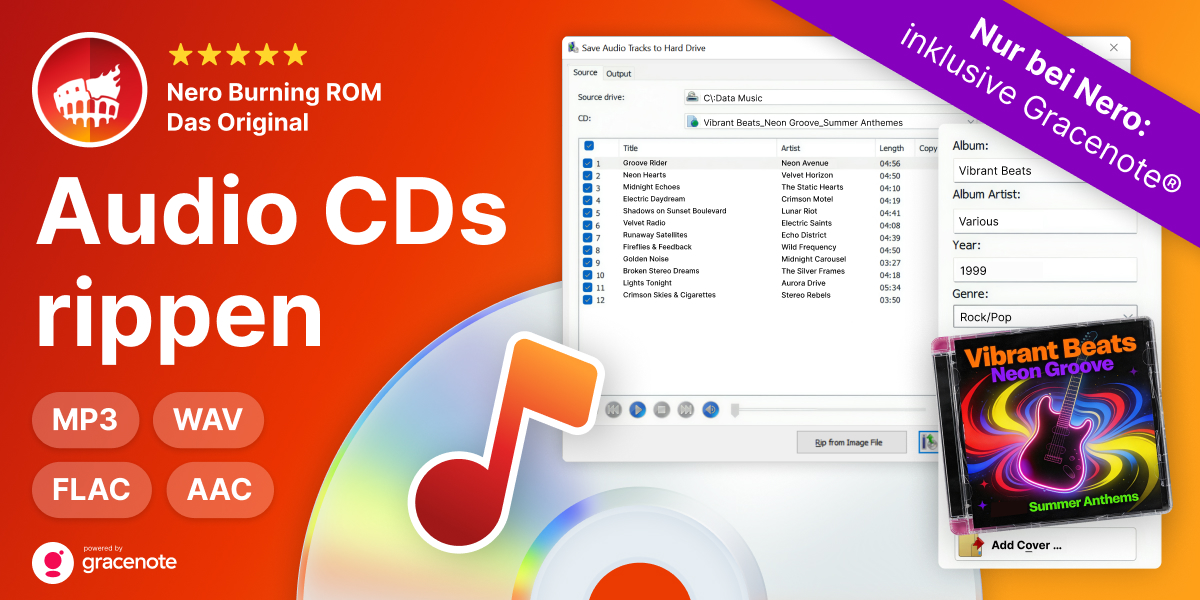

Maximale Power für Ihre Medien!
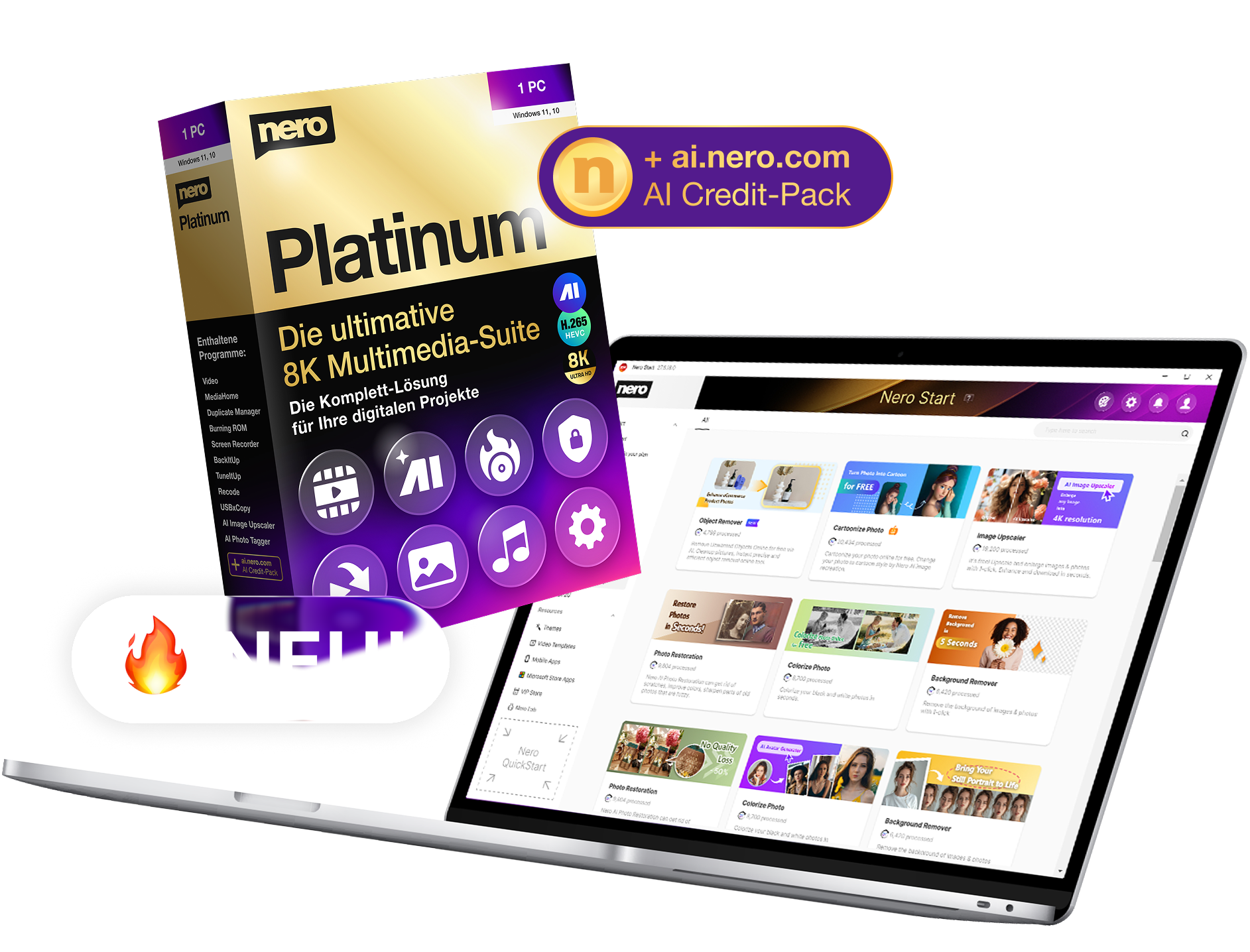
NEU: Nero Platinum Suite 2026
Die komplette Software-Sammlung für Ihre digitalen Projekte – jetzt zum Einführungspreis.


Nero Platinum Suite 2026
Die neue Version unserer All-in-One Multimedia-Suite setzt neue Maßstäbe:
mehr Leistung, mehr Funktionen, mehr Komfort!
🎬 Zum Info-Video »
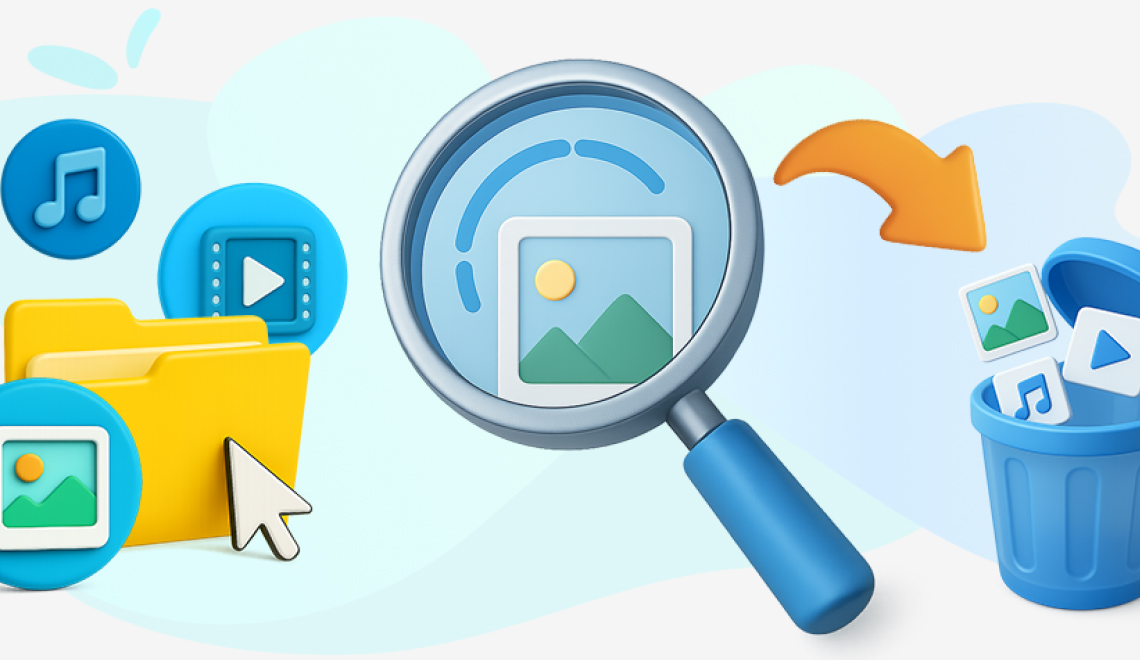
Noch mehr Platz auf Ihrem PC
Jetzt auch doppelte Musik- und Videodateien finden und löschen in Nero DuplicateManager.
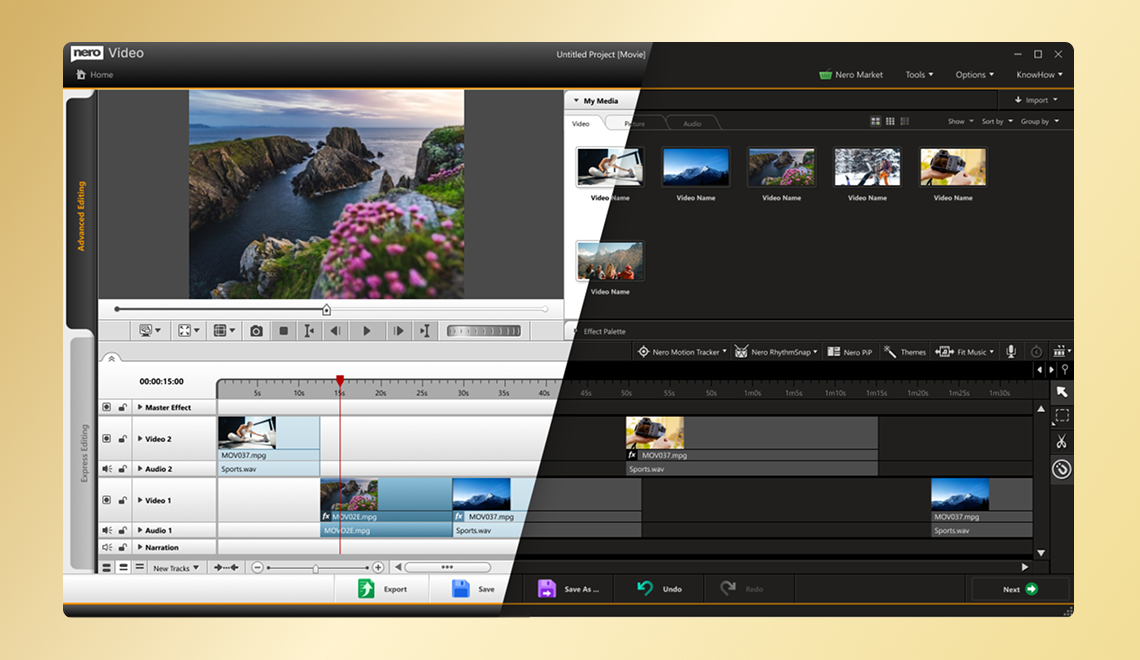
Entspannter Filme schneiden
Wechseln Sie zwischen heller und dunkler Benutzeroberfläche in Nero Video.
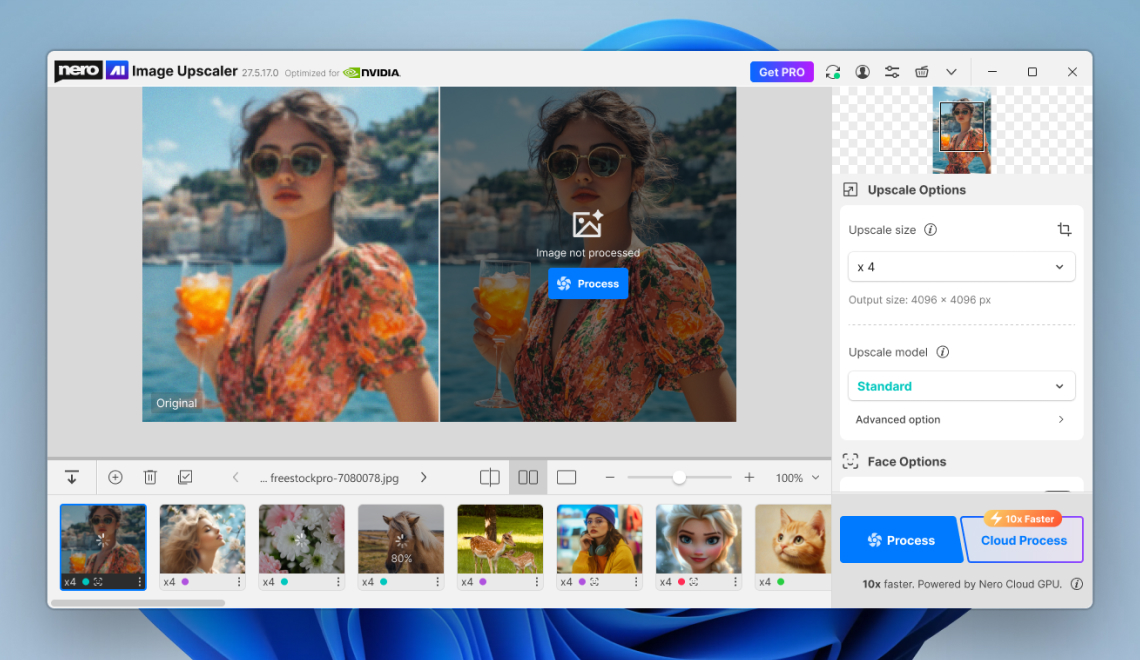
Ihre Bilder - jetzt noch besser
Nero AI Image Upscaler mit neuer Oberfläche und noch mehr lokalen KI-Modellen.
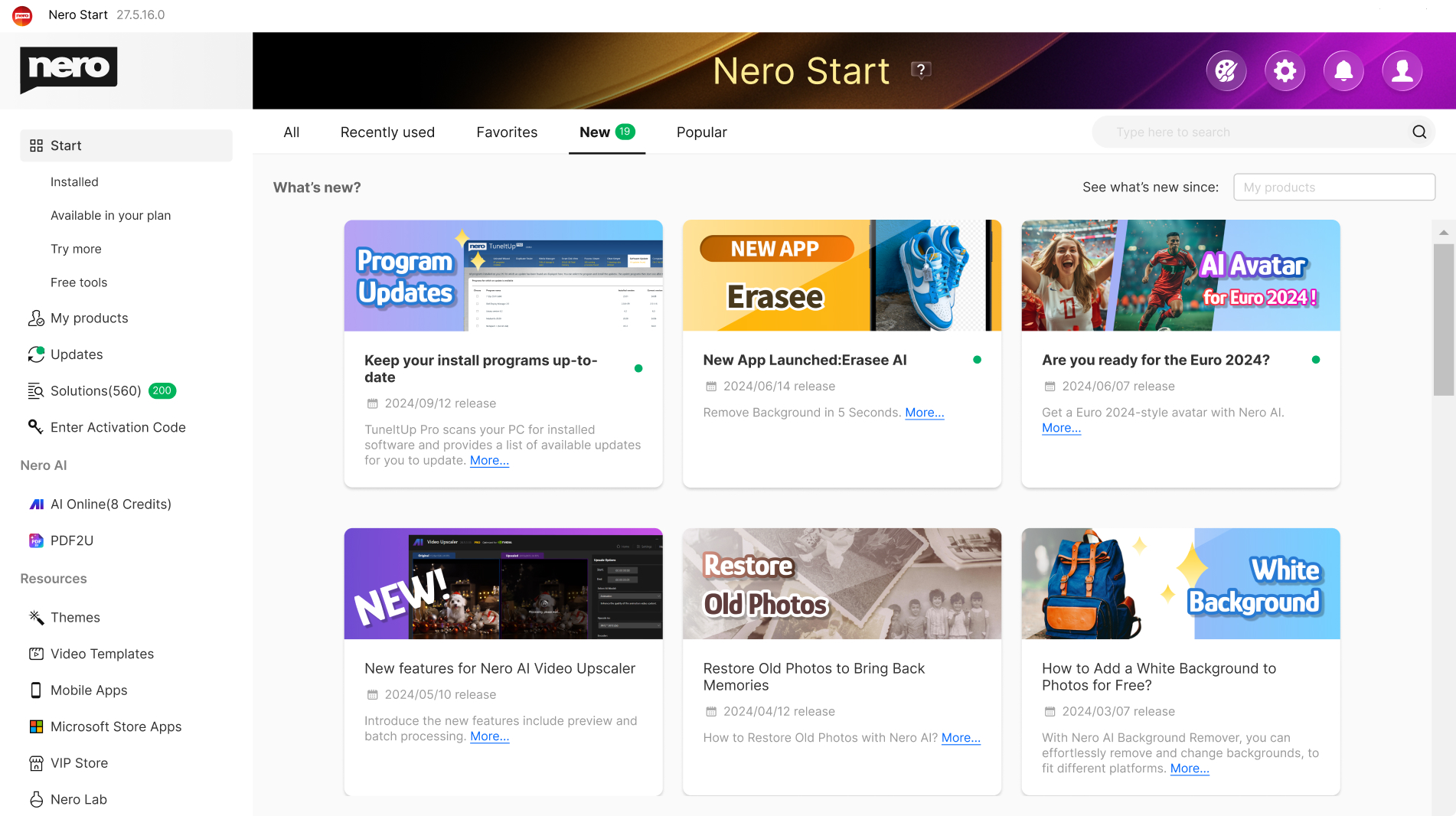
Ein Klick, alles da – der zentrale Startpunkt
Nero Start: Ihre Zentrale für alle Nero-Downloads und Aktivierungen
👉 Nero Start (virtuelle Vorschau). Hier klicken »
Welche Version passt zu Ihnen?
🙌 Alle Unterschiede auf einen Blick klar, transparent und fair.
| Feature | Nero Platinum Subscription | Nero Platinum Unlimited |
|---|---|---|
| Zahlungsmodell | Günstige jährliche Zahlung | Einmalige Zahlung |
| Laufzeit | Solange das Abo aktiv ist | Unbegrenzt |
| Immer die neueste Version | ✅ Ja, automatisch | ❌ Nein, nur die gekaufte Version |
| Funktionsaktualisierungen | ✅ Inklusive | ❌ Nicht enthalten |
| Planungssicherheit | ✅ Ja, konstanter Preis | ✅ Einmalige Zahlung |
| Preisstabilität | ✅ Abo-Preis wird garantiert nicht erhöht | ✅ Einmalige Zahlung |
| Nero TuneItUp,
Nero AI Image Upscaler | Vollversion enthalten | Nur die Basisversion ist enthalten |
| 100 Nero AI Credits Guthaben | ✅ Mit jeder Verlängerung neu | Einmalig |
| Ideal für | Nutzer, die immer die neueste Version möchten | Nutzer, die einmalig kaufen möchten |
| € 37,95 € 49,95 Jetzt sparen » | € 99,95 € 149,95 Jetzt kaufen » |
Warum sich die Nero Platinum Subscription lohnt
Mit der Nero Platinum Subscription profitieren Sie von maximaler Flexibilität und Zukunftssicherheit. Sie erhalten automatisch Zugriff auf die neueste Version, inklusive neuer Funktionen, Programme und moderner KI-Unterstützung – ohne zusätzliche Kosten oder Upgrade-Gebühren.
👍 Besonders wichtig: Ein einmal abgeschlossener Abo-Preis wurde bei Nero noch nie im Laufe der Zeit erhöht, und keine bestehenden Funktionen wurden jemals eingeschränkt. Sie behalten also dauerhaft den vollen Leistungsumfang zu fairen und verlässlichen Konditionen.
Die Subscription ist damit die ideale Wahl für alle, die immer auf dem neuesten Stand bleiben möchten, ohne sich Gedanken über Updates, Zusatzkosten oder Funktionsverluste zu machen.
🔔 NEWS: Windows stellt CD-Info ein
Ende 2025 hat Windows aufgehört, die Infos (Interpret, Titel, Album) von CDs automatisch zu erkennen. Falls Sie diesen Service weiterhin nutzen möchten, empfehlen wir Ihnen Nero MediaHome oder Platinum zu nutzen. Unser Service bleibt zuverlässig aktiv – garantiert.

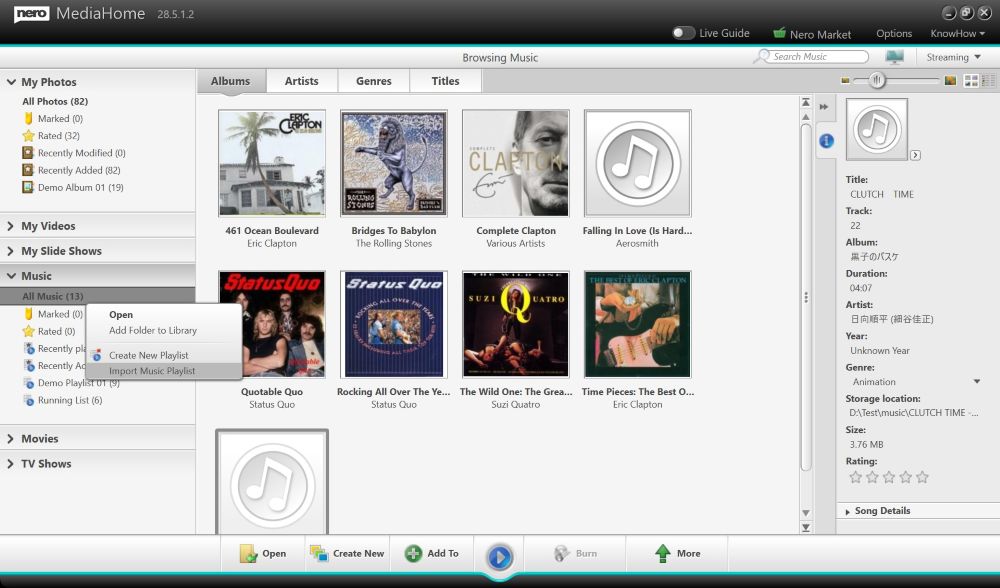
Die passende Lösung für jedes Projekt


Nie mehr Chaos im geliebten Fotoalbum dank neuer Nero AI: Sie können jetzt noch einfacher Fotos organisieren, Bilder taggen, bewerten und durchsuchen. Mit der AI-basierten Motiverkennung behalten Sie stets den Überblick, Gesichtern können Sie Namen zuweisen und doppelte oder ähnliche Bilder werden schneller erkannt und lassen sich leicht löschen. Sortieren Sie Ihre Fotos nach Orten und schauen Sie sich Ihre Abenteuer auf der Weltkarte an, oder betrachten Sie alle Ihre Fotos in einem übersichtlichen Zeitstrahl. 1-Klick Fotobearbeitung ist selbstverständlich inklusive. Und das funktioniert lokal auf Ihrem PC, ganz ohne Cloud!

Erstellen Sie im Handumdrehen aus Ihren bewegten Erinnerungen ein kleines Film-Meisterwerk: Hunderte hochwertige Themenvorlagen für Urlaube, Anlässe und Events unterstützen Sie dabei. Tolle Effekte sorgen für den professionellen Feinschliff: Erstellen Sie Videos mit Bild-in-Bild-, Alphakanal-, Tilt-Shift-, Zeitlupen- und Zeitraffereffekten. Bearbeiten, trimmen und exportieren Sie Ihre Videos. Schärfer als die Realität wird es mit der 8K Abspielfunktion. Beeindrucken Sie Ihre Freunde und streamen Sie Ihr Meisterwerk auf den großen Fernseher. Als Geschenk können Sie Ihren Film auf eine optische Disc brennen.

Musik belebt den Geist! Genießen und entdecken Sie Ihre Stars jetzt ganz neu: Speichere Sie Ihre Lieblingssongs aus allen Musikstreaming-Diensten einfach, schnell, legal und in bester Qualität. Bearbeiten und schneiden Sie Ihre Musikdateien nach Ihren Wünschen (Effekte, Fade-in/out, Lautstärke etc.). Importieren Sie Ihre CD-Sammlung und bearbeiten Sie ganz einfach Metadaten wie Artist, Genre und Albumcover.

Ihr Daten sind uns wichtig! Komfortable und sichere Backup Lösungen für Sie: Sichern Sie Ihre wertvollen Daten schnell und einfach auf externe Festplatten, optische Medien und jetzt sogar in Ihrer Cloud (Google Drive, OneDrive, MagentaCLOUD, HiDrive, pCloud und QLOUD). Erstellen Sie automatisierte Backups, inkrementelle Snapshots und Versionsverwaltungen. Schützen Sie Ihre Daten mit der 256-Bit Verschlüsselung für CDs, DVDs und USB Sticks.
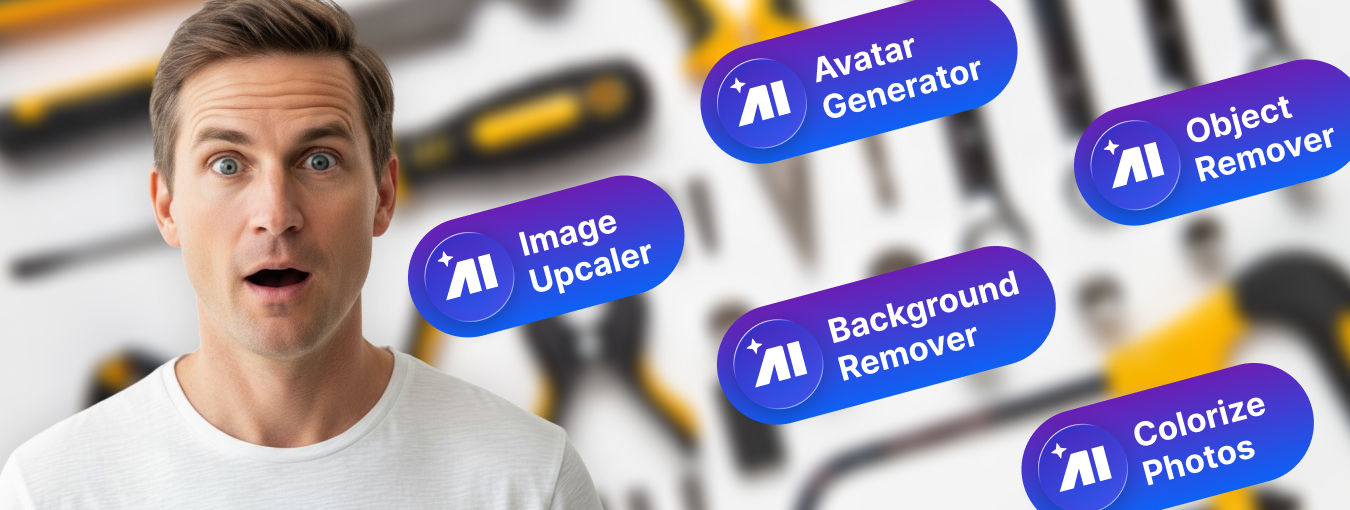
Nero Platinum bietet viele weitere Werkzeuge, die Ihren Windows PC perfekt ergänzen: z.B. durch die Wiederherstellung von gelöschten Daten, die einfache Verschlüsselung Ihrer persönlichen Daten oder das zuverlässige Formatieren und Vervielfältigen von Medien. Mit Nero Platinum erhalten Sie einen Werkzeugkoffer, der Sie für alle Fälle bestens ausrüstet.
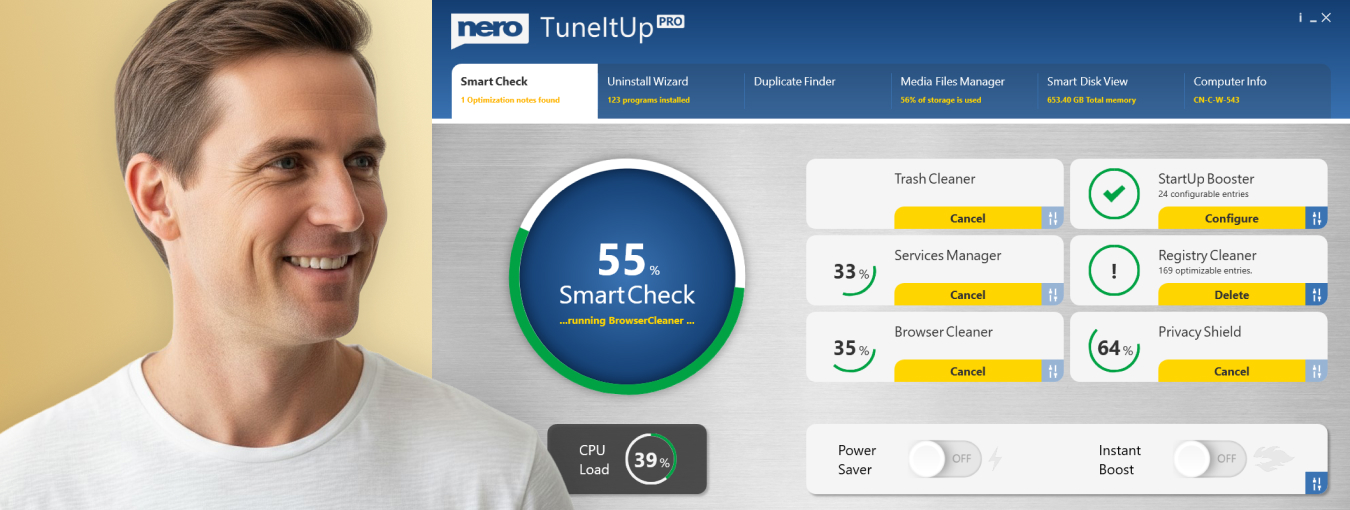
Nichts ist ärgerlicher als ein langsamer PC. Wir sorgen für mehr Leistung: Ab jetzt optimieren und beschleunigen Sie wie ein Profi: Nero macht ihren PC schneller, aktualisiert Ihre Treiber, und verbessert Ihre Internetgeschwindigkeit. Wir geben Ihnen die totale Kontrolle über Ihre PC-Performance. Sie entscheiden, ob Sie PC-Probleme einzeln lösen möchten oder doch gleich alle auf einen Schlag.
Was steckt in der Nero Platinum Suite?

- Nero Video: Videos und Diashows erstellen, bearbeiten und exportieren.
- Nero AI Image Upscaler: Vergrößert und schärft Ihre Fotos mithilfe künstlicher Intelligenz lokal auf Ihrem PC. Damit gehen Sie auf Nummer Sicher, da Sie Ihre privaten Bilder nicht in eine Cloud hochladen müssen.
- Nero AI Photo Tagger: Ordnung und Struktur in Ihrem Foto Archiv dank künstlicher Intelligenz.
- Nero Burning ROM: Rippen, kopieren, brennen und schützen von Daten.
- Nero TuneItUp PRO: Macht ihren PC schneller und verbessert Ihre Internetgeschwindigkeit. (Nur in der Version 1 PC / 1 Jahr enthalten.)
- Nero DuplicateManager: Bereinigt Ihr Bildarchiv mit exakten, doppelten sowie ähnlichen Bildern schnell und präzise.
- Nero MediaHome: Die Zentrale für das Archivieren, Sortieren, Erstellen und Abspielen Ihrer Dateien.
- Nero Recode: Konvertieren und rippen Sie Videos und Musikin alle Standardformate für Ihre Mobilgeräte.
- Nero BackItUp: Sichert Ihre Daten schnell und einfach auf eine externe Festplatte, optische Medien oder die Cloud.
- Nero USBxCopy: Dieses Tool hilft Ihnen, Ihre Daten auf mehrere USB-Geräte gleichzeitig zu kopieren
- Nero Screen Recorder: Erstellen Sie Bildschirmaufnahmen nach Ihren Vorstellungen mit einem Klick. (Nur die Basisversion ist enthalten)
- Nero Score: Machen Sie einen Speed-Test und bringen Sie Ihren PC an seine Grenzen
- Nero Motion Tracker: Automatisch bewegte Objekte erkennen und verpixeln
- Nero PhotoSnap: Lassen Sie Ihre Fotos in neuem Glanz erstrahlen
- Nero Soundtrax: Tonträger digitalisieren und Audioprojekte umsetzen
- Nero WaveEditor: Sound vom PC aufnehmen und Audiodateien aufnehmen
- Nero Express: Daten und Medien einfach brennen
- Nero CoverDesigner: Gestalten Sie Ihre Disks individuell
- Nero Face Beautifier Entfernen Sie Falten und verbessern Ihren Hautton, damit Sie im besten Licht erstrahlen
- Nero Rescue Agent: Dateien von beschädigten Disks und Laufwerken wiederherstellen
- Nero Disc to Device: Übertragen von Medien von Discs auf Geräte
Nero Platinum – erstaunlich gut.

NEU: Nero Platinum Suite 2026
Mehr Leistung, mehr Funktionen, mehr Komfort!
- Alles in einer Suite: Foto-, Video- und Musikbearbeitung plus Backup und Verwaltung
- Mehr Power denn je: Über 500 Lösungen mit modernster AI-Unterstützung
- Einfach und zuverlässig: Die stärkste Multimedia-Sammlung aller Zeiten

Auf Nummer Sicher
Einfache und sichere Bezahlung


Kaufen ohne Risiko

Geld-Zurück-Garantie
Das Original

Deutschland
Nero in Zahlen

Zufriedenheit

Installationen

Sprachen