
Official Nero Downloads
Here you will find exactly the right programme:
Current Highlights and Recommendations
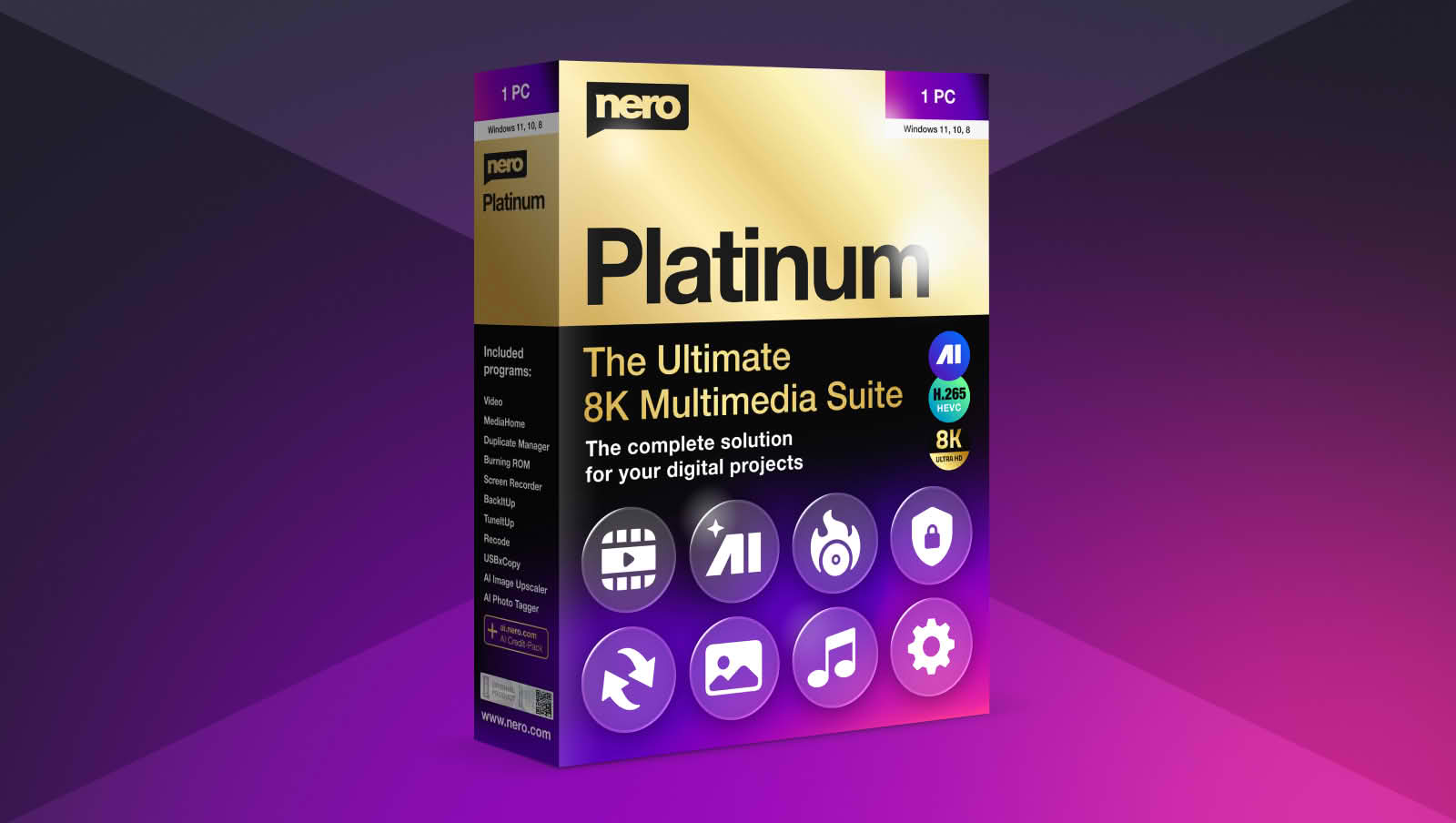
Nero Platinum Suite
Nero Platinum Suite is the professional toolbox for your Windows PC.
1001 TVs
Share your screen and send files easily, you deserve it.


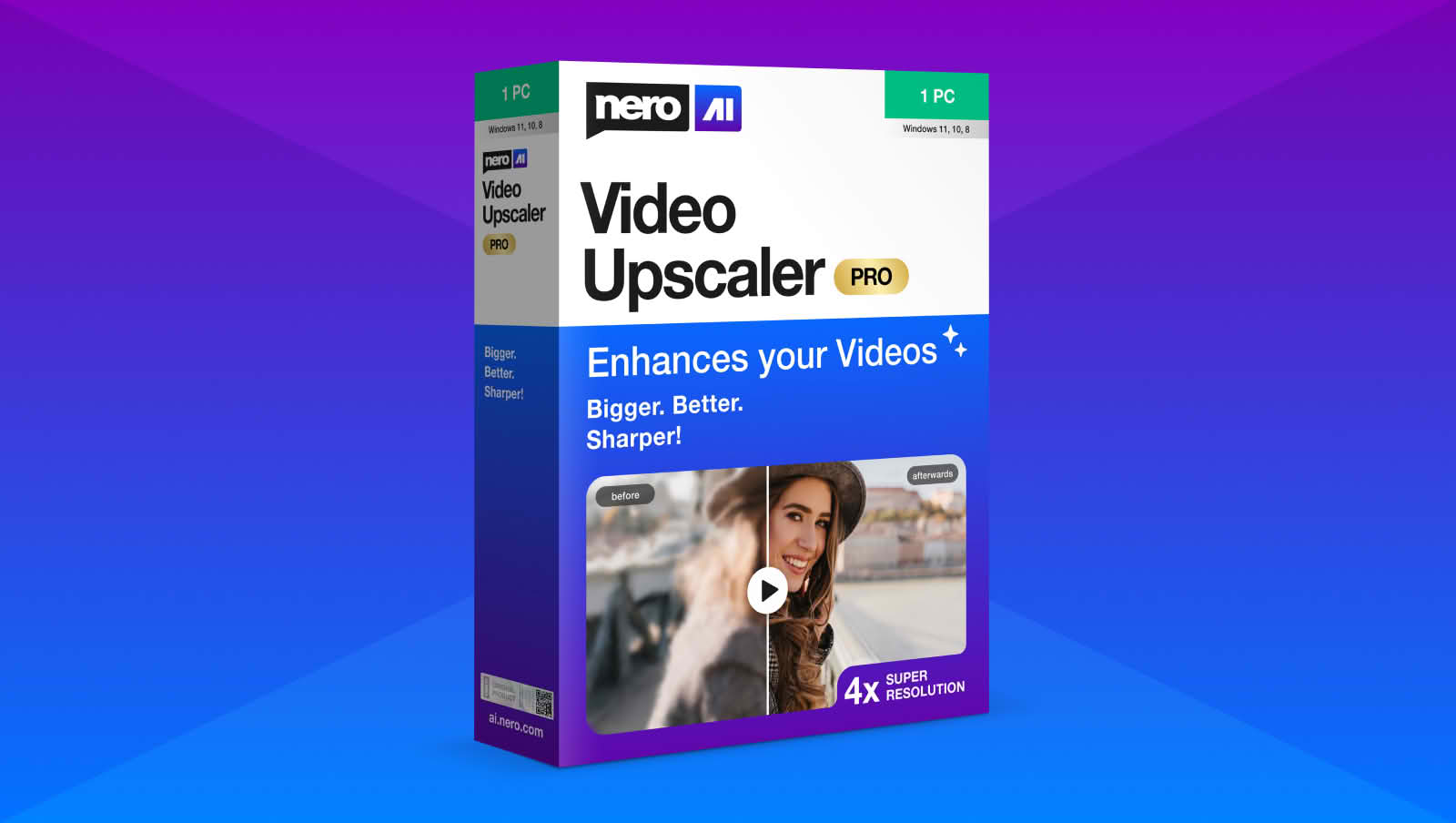
Nero AI Video Upscaler
Enhance Your Video Quality to Super Resolution with AI!
Nero Desktop Software
Nero Platinum Suite
Nero Platinum Suite is the professional toolbox for your Windows PC.
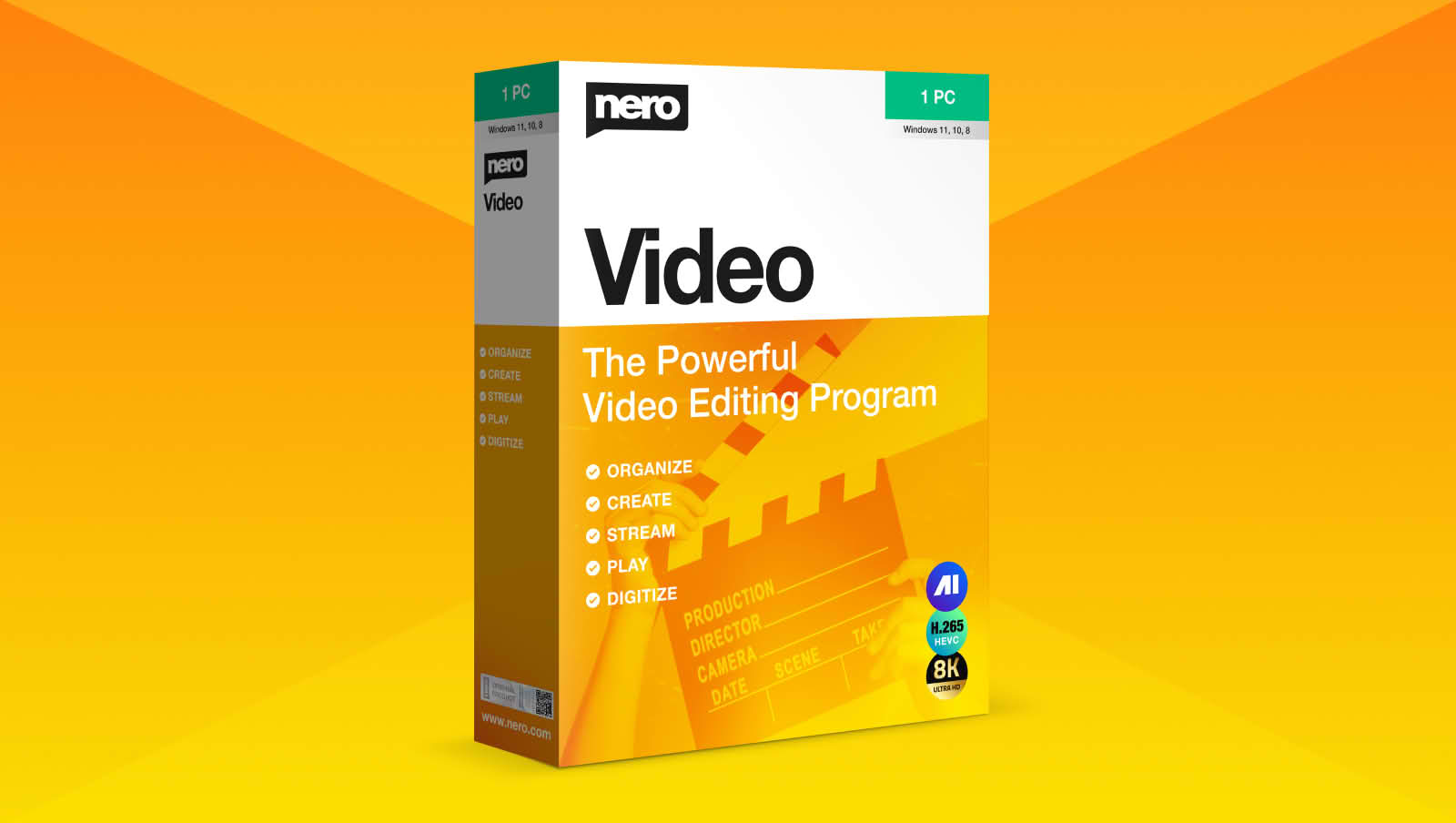
Nero Video
Leaves nothing to be desired when it comes to creating videos and slideshows easily, fast and professionally.
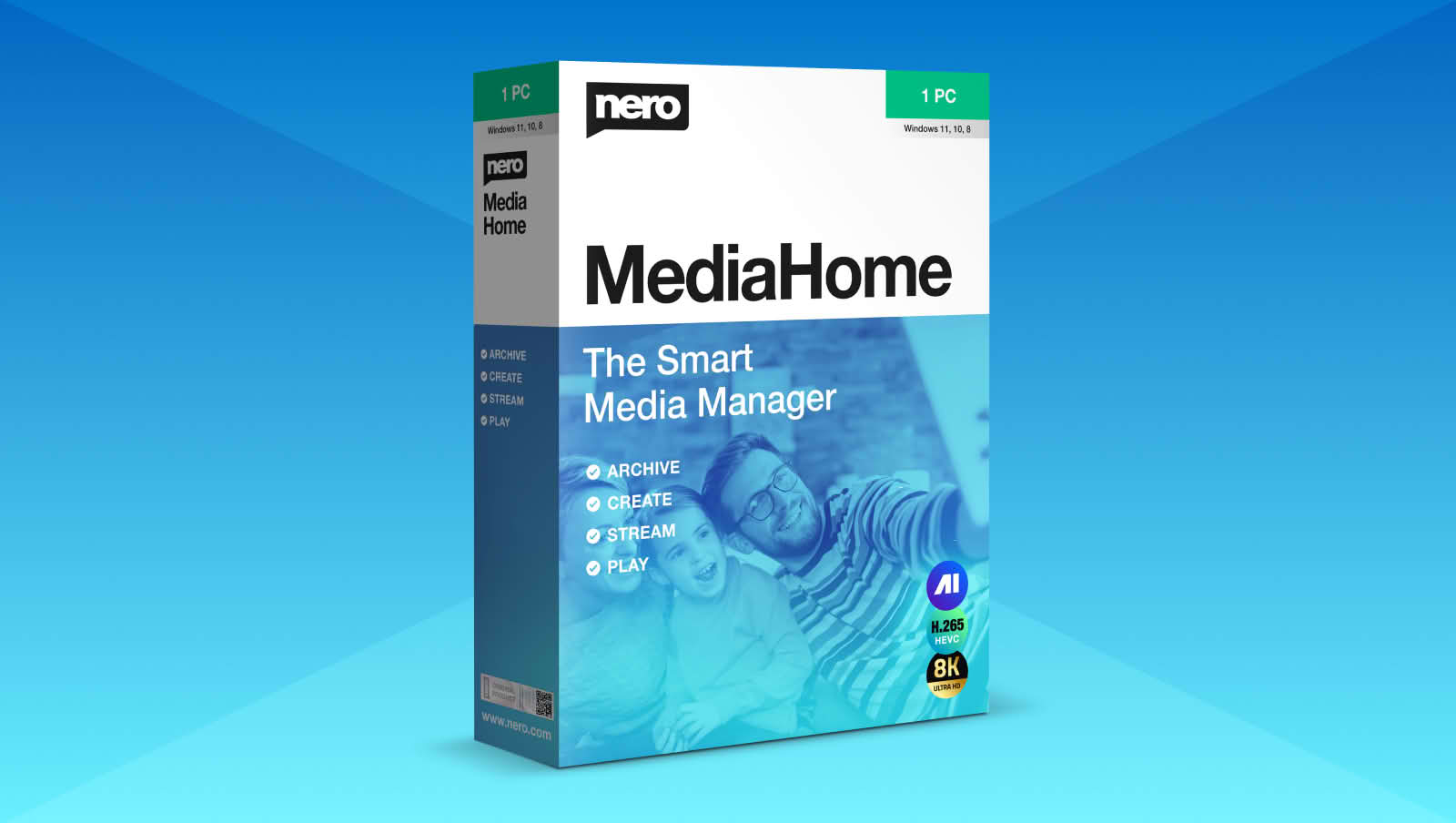
Nero MediaHome
It's your ultimate media organizer. Now with the world's first, Nero AI Photo Tagger.
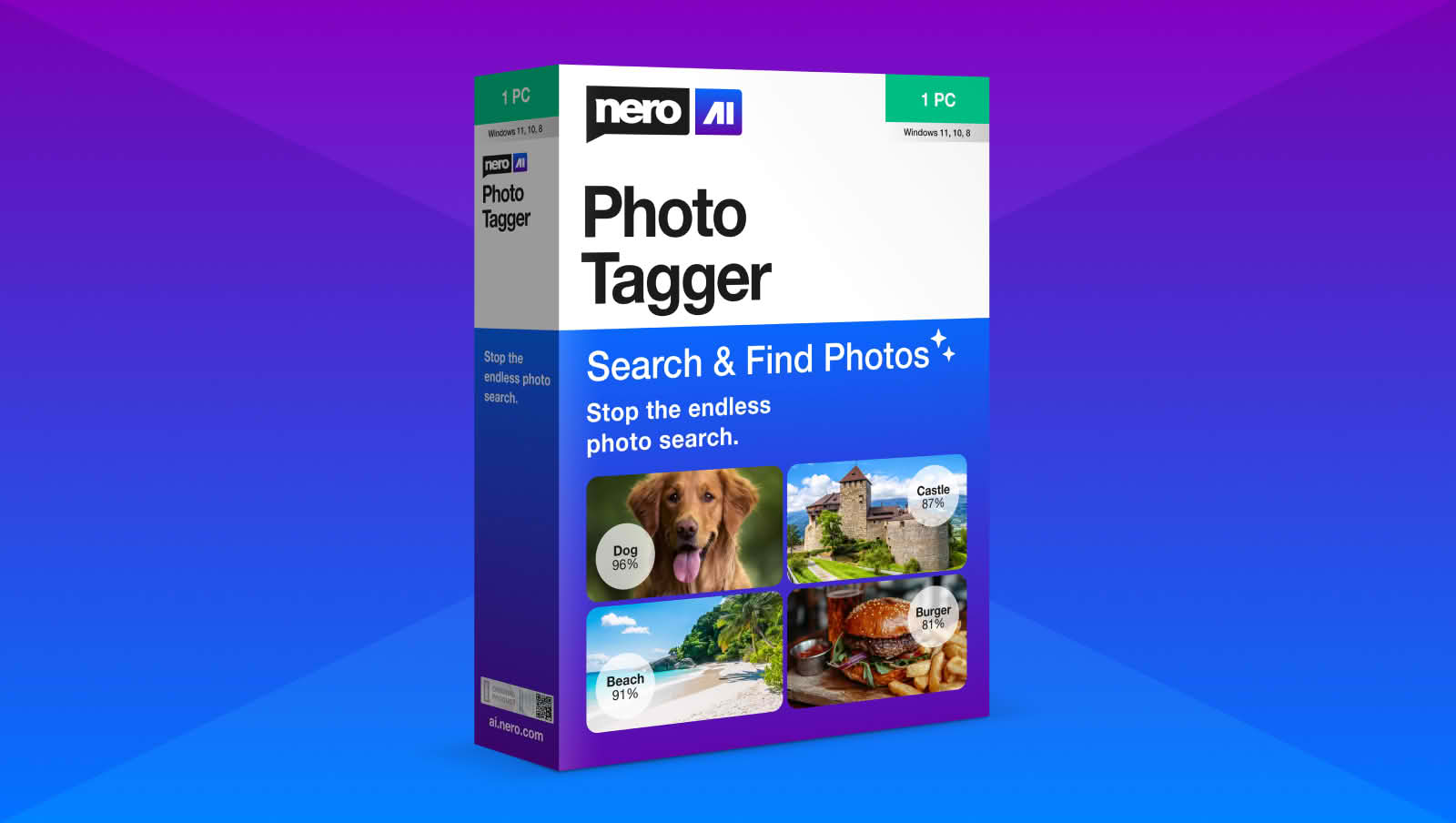
Nero AI Photo Tagger
Order and structure your photo Archive thanks to artificial intelligence.
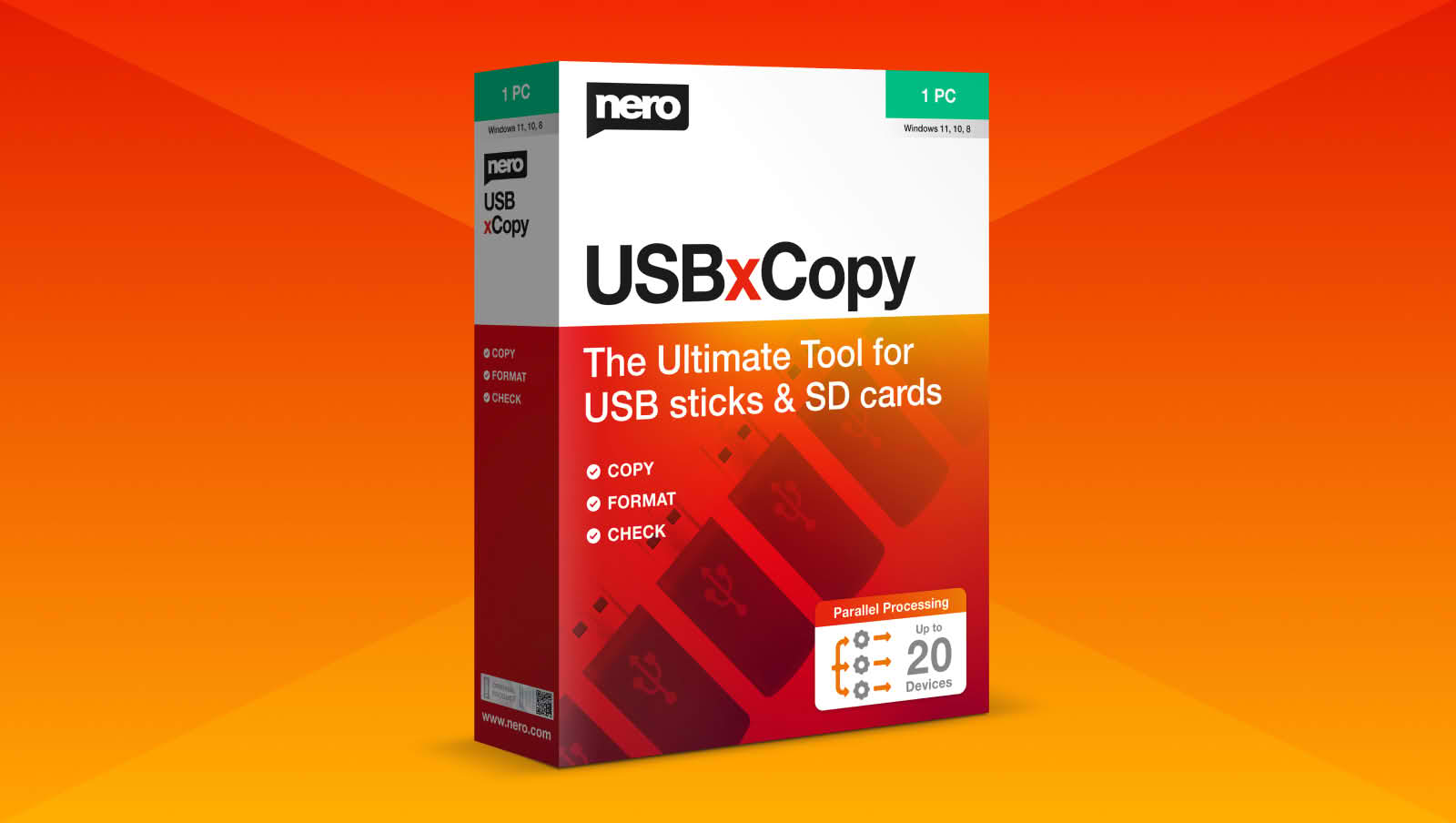
Nero USBxCopy
Helps you copy your data on multiple USB devices at once.
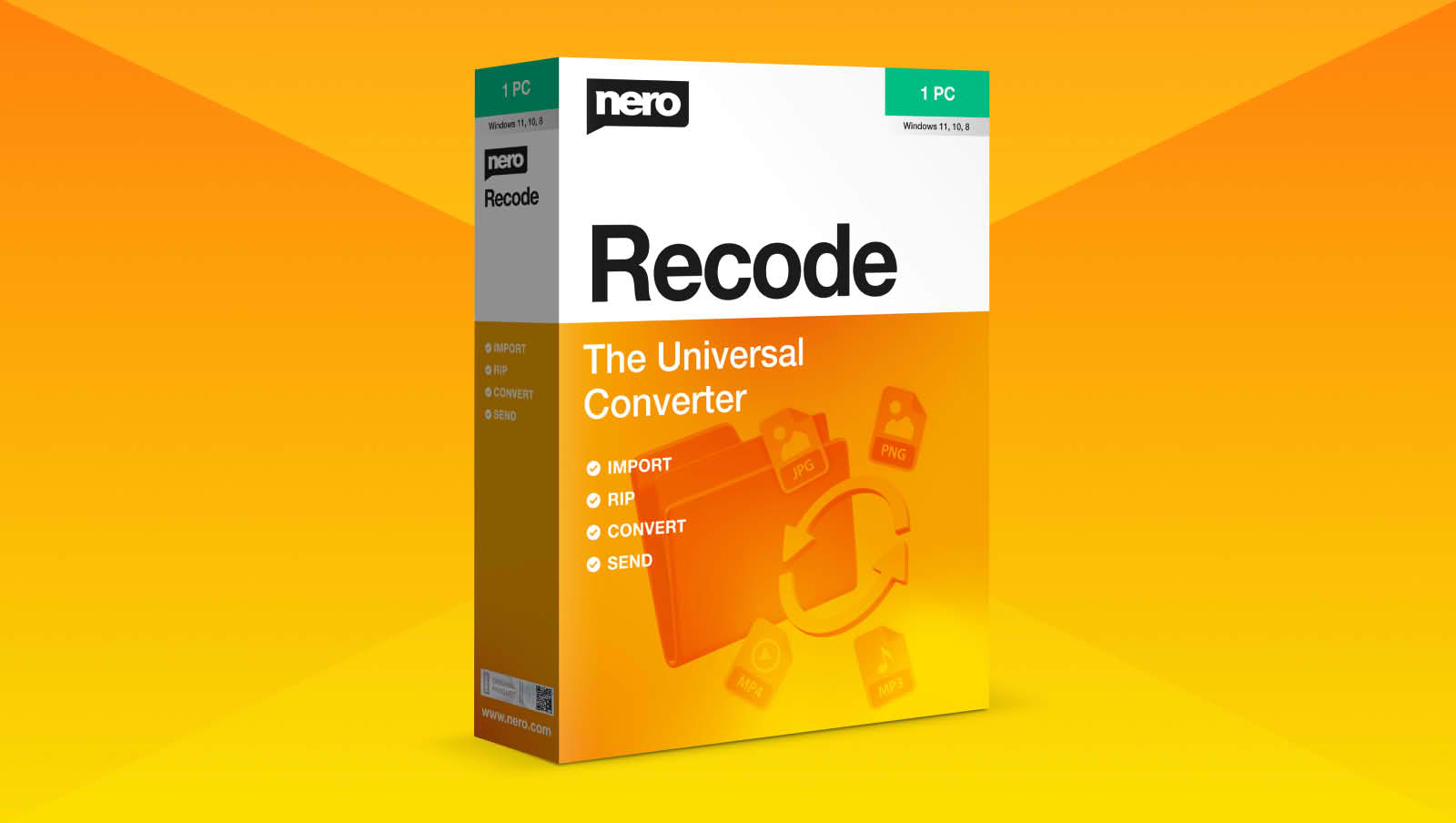
Nero Recode
Converts and rips videos and music to all standard formats for your mobile devices.
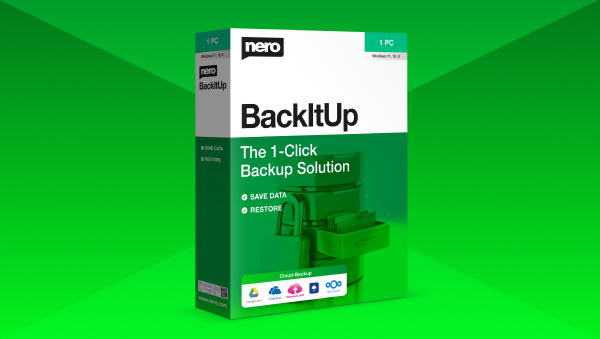
Nero BackItUp
Quickly and easily backs up your valuable data to an external hard drive, optical media, or the cloud.
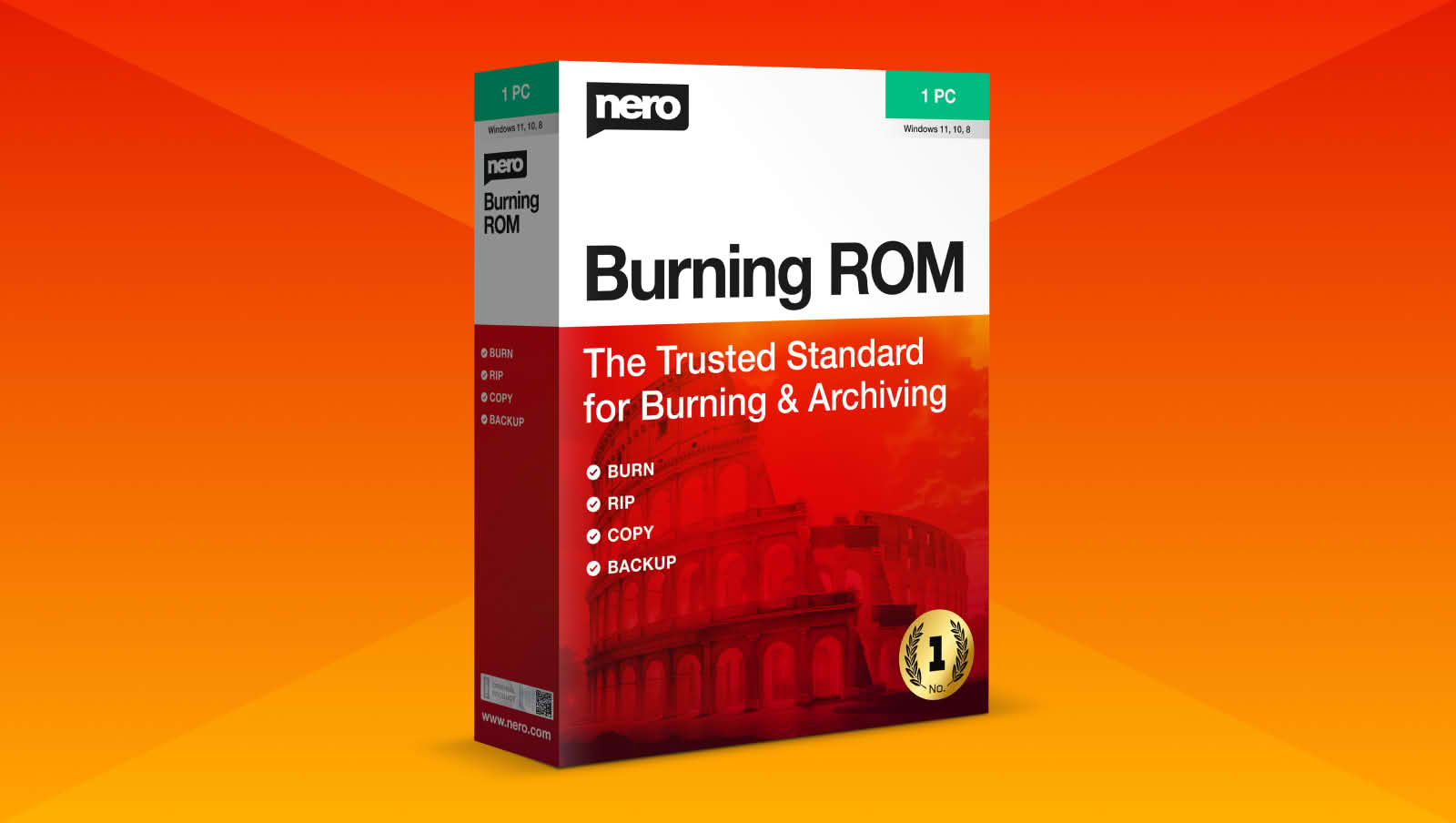
Nero Burning ROM
It's still the #1 burning software, burning and copying data, video, photo and music to CD, DVD and Blu-ray Discs™.
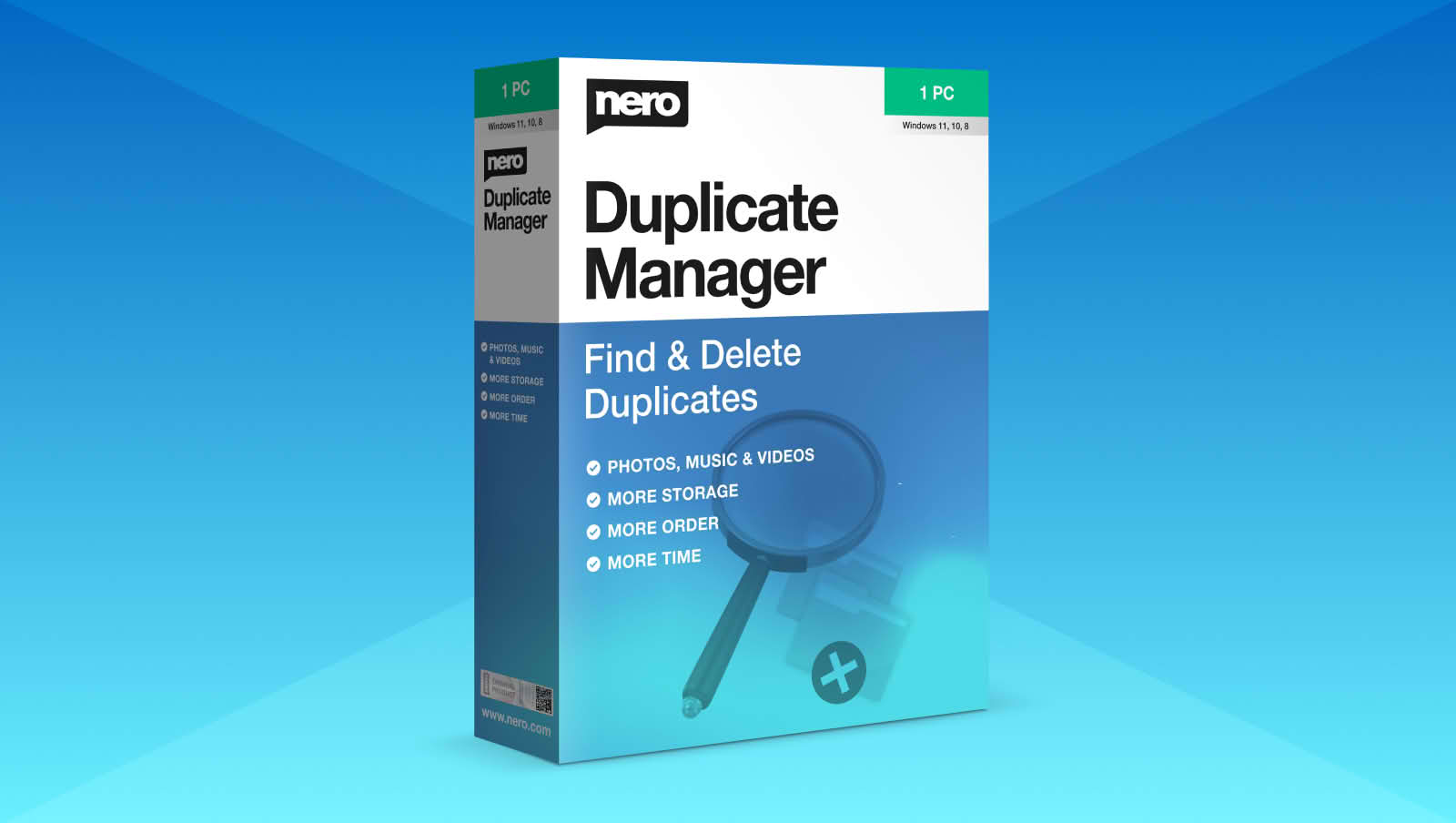
Nero DuplicateManager Photo
Easy, fast and reliable cleanup of your photo archive.
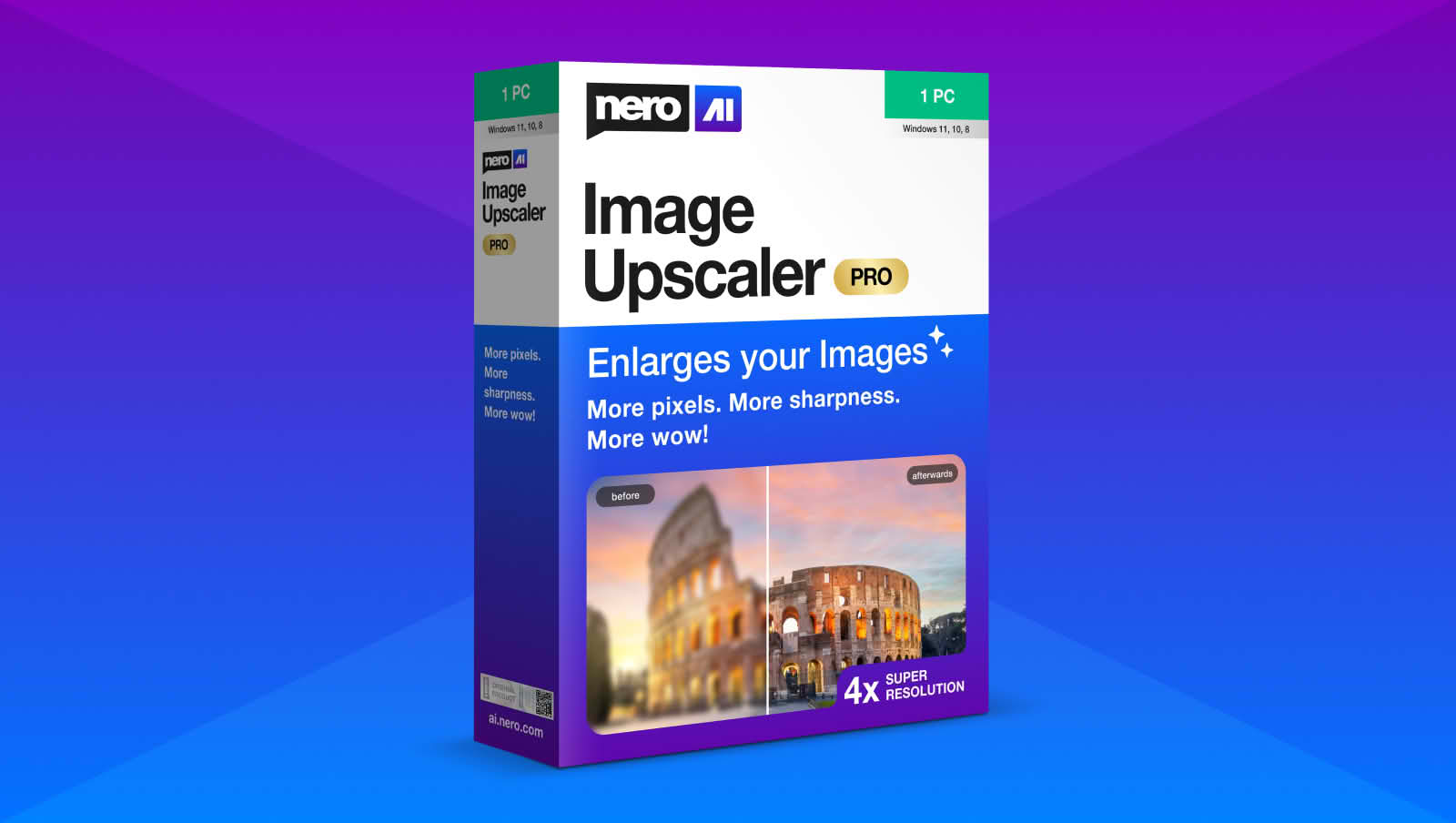
Nero AI Video Upscaler
Enhance Your Video Quality to Super Resolution with AI!
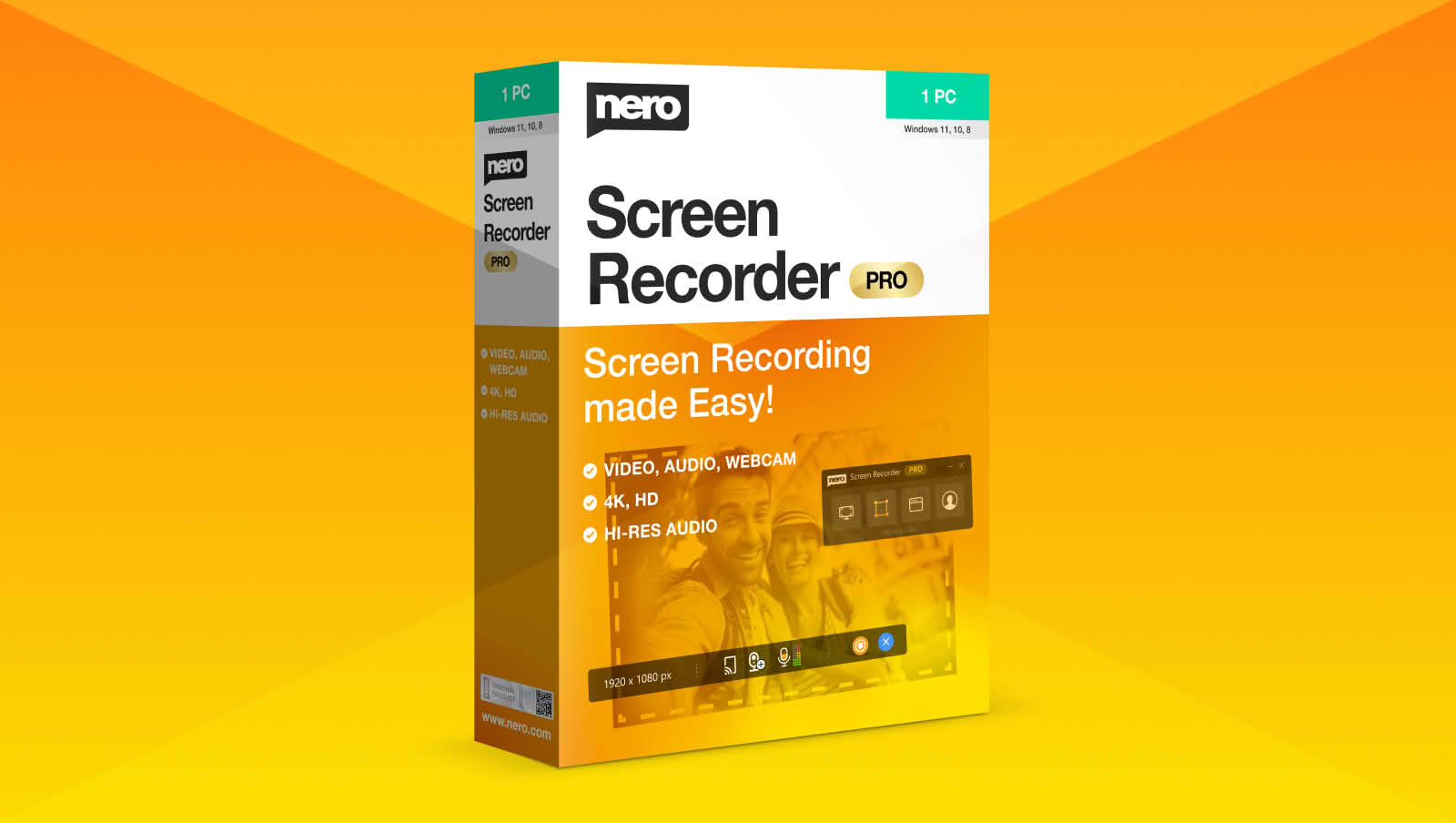
Nero Screen Recorder
A powerful tool that allows you to capture and record your computer screen with ease.
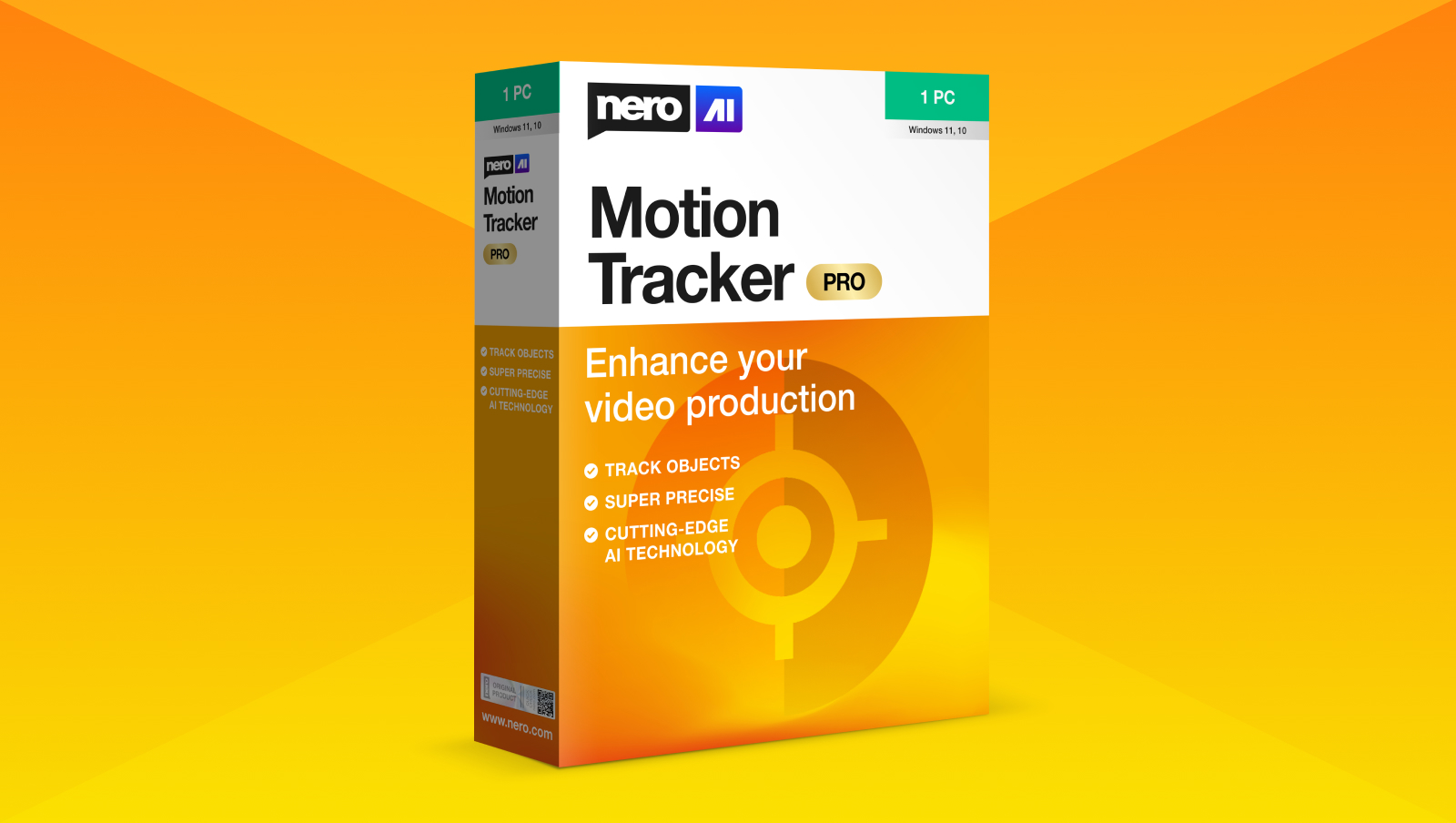
Nero Motion Tracker
Hide sensitive information: Automatically add blur or mosaic effects to moving objects in your video.
Nero AI
Innovation and efficiency!

Video tutorials
How to get the most out of your Nero product
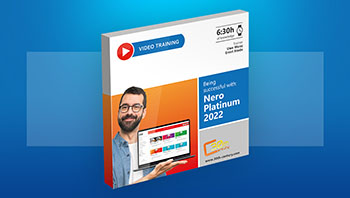
Training Course for Nero Platinum 2022
More than 6 hours of practical knowledge will guide you through managing, playing, editing, converting, copying and burning with Nero Platinum 2022.
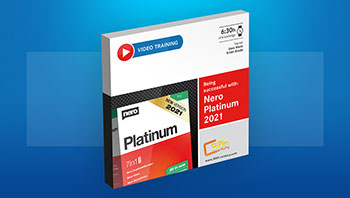
Training Course for Nero Platinum 2021
More than 6 hours of practical knowledge will guide you through managing, playing, editing, converting, copying and burning with Nero Platinum 2021.
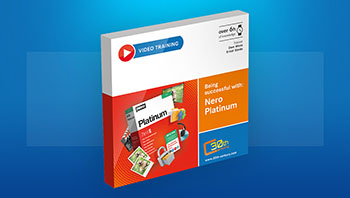
Training Course for Nero Platinum 2020
More than 6 hours of practical knowledge will guide you through managing, playing, editing, converting, copying and burning with Nero Platinum 2020.
Nero Content Packs
Templates for Nero Platinum Suite
Nero Content Pack 2
Discover more content & templates! (Only for the Nero Platinum Suite & Nero Video)
Nero LifeThemes PRO
Decorate your videos right away with the all-new Nero LifeThemes PRO. This is a guaranteed way to put your videos front and center.
Test Files for AI Agents
Video, audio, image, pdf test files for using Nero software with ai agents like Claude.
Also suitable for using Nero software regularly
Software recommendations from our partners
Discover the best products from our software partners
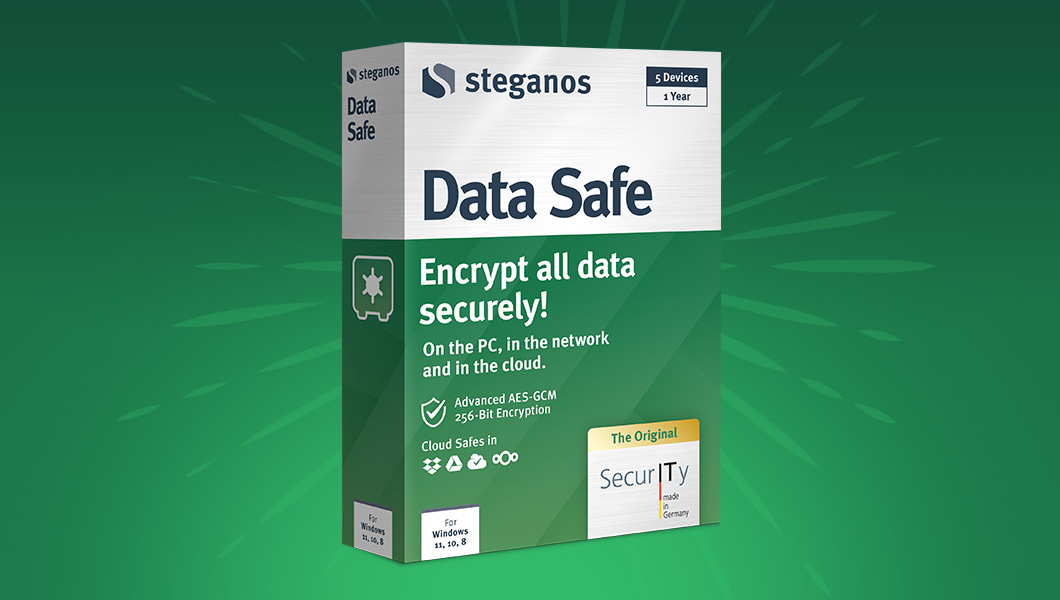
Steganos Data Safe
Encrypt all data securely! On the PC, in the network and in the cloud.
$34.95$39.95
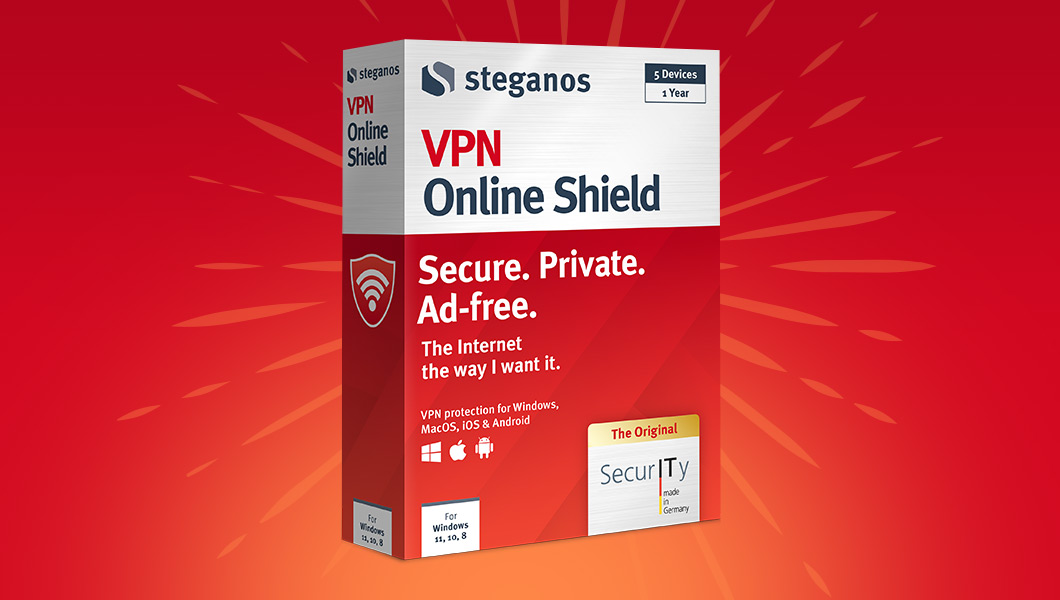
Steganos VPN Online Shield
Absolute security and privacy for all your devices - IT Security made in Germany
$44.95$49.95
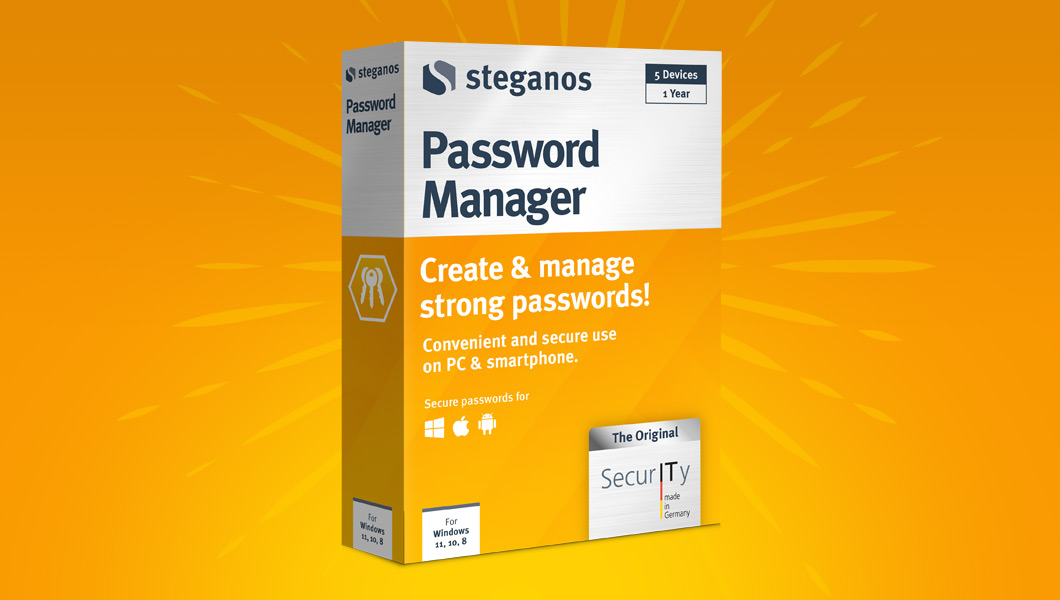
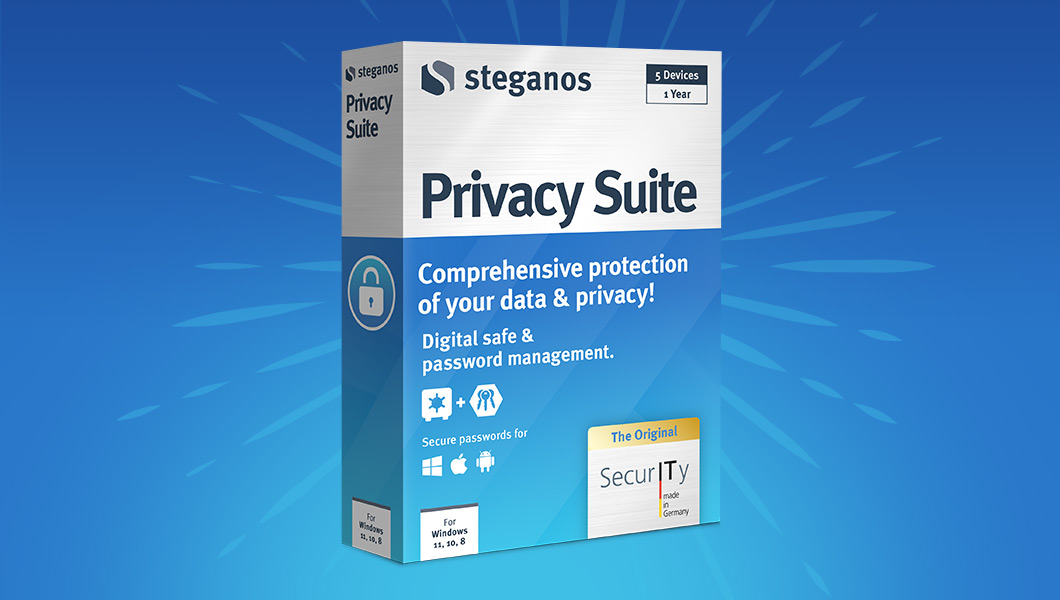
Steganos Privacy Suite
Digital safe and password management. To protect your data and privacy.
$44.95$49.95
Incomedia Website X5
The ideal solution for creating professional websites and blogs at a low price.
$49.95$89.95
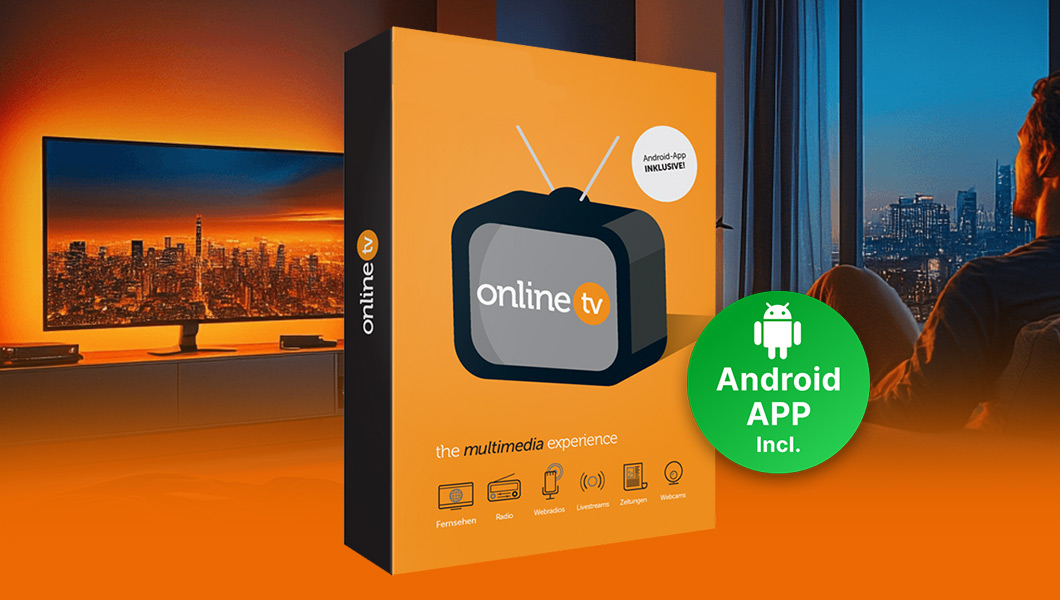
OnlineTV 20
Receive and record over 1,000 radio and television channels on your laptop.
$24.95$29.99
Free Products
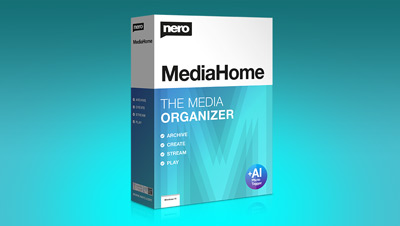
Nero MediaHome Free
Get a firm grip on your media: rely on the best organization, playback and streaming of music, videos, photos, slide shows and TV series.
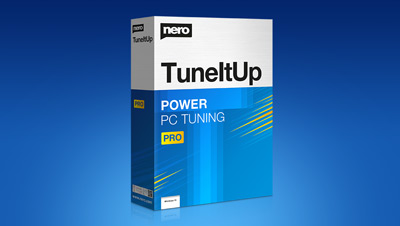

Nero Score
Nero Score – The real-world PC benchmark measures your processor’s (CPU) multi-core power and is pushing your graphics card (GPU) to it’s maximum limit with real world multimedia use cases.The initial version of Nero Score includes a CPU AI benchmark and measures how many pictures per second can be processed with artificial intelligence on the given CPU.

Nero WaveEditor
Record and edit audio files using various filtering and sound optimization methods.
Nero CoverDesigner
Create custom disc labels, jewel case inlays, booklets and much more for your CDs, DVDs and Blu-ray Discs™
Free+ Nero mobile Apps

Erasee - Background Remover
With just one tap, get a transparent background for any image.
AI Photo Enhancer & Upscaler
Enhance, restore, and colorize photos. Generate avatars and AI Art with Nero AI.
Nero Streaming Player
At home you’re the DJ!
1001 TVs
Share your screen and send files easily, you deserve it.
Nero AirBurn App
Unlimited burning!

Nero MediaHome WiFi Sync
Swim in sync with your media!

Nero KnowHow
Your digital assistant for completely successful multimedia projects!
Nero BackItUp
Easy, secure and reliable backup for all your Android devices!
Nero Microsoft-Store Apps
DVD Player & Video Player
by Nero
You don't have a DVD player on your TV anymore? No problem with the powerful DVD player for your PC!

AI Image Upscaler -
NeroAI
Use artificial intelligence to increase image resolution without losing quality. Try it out to see how fast and easy to use it is.
Nero Score - PC benchmark & performance test
Nero Score is a free tool that measures the multicore performance of your processor and pushes your graphics card to its limits in real-world multimedia use cases.

Movie Maker -
Video Editor by Nero
Become the director of your own videos and slideshows with Nero Video!
Backup and Sync 365
by Nero
Never lose valuable data again with automated backups to multiple destinations.

DVD CD Blu-ray Burner - Nero Burning ROM
The absolute burning classic in a fresh guise. With SecurDisc 4.0 you are always on the safe side!
Nero AI Video Upscaler
Enhance Your Video Quality to Super Resolution with AI!
Nero AI Photo Tagger
Order and structure in your photo archive thanks to artificial intelligence.
MKV to MP4 Converter by Nero
The easiest way to convert MKV files to MP4 files.

Video Converter!
Whether it's a smartphone recording, DVD-Video™ or Blu-ray Disc™, the ripping and converting specialist converts everything to suit your end devices.
Duplicate Cleaner!
More storage space, better overview - Put an end to unnecessary pictures.
Nero 360 VR
With Nero 360 VR you can view 360° panoramic images and panoramic videos.

Nero KnowHow
Here, the Nero developers answer frequently asked questions (FAQs), give tips, and reveal tricks.
1001TVs: Screen Mirror & File Transfer (translated)
Share your screen and send files easily, you deserve it.
DVD CD Blu-ray Burner - Nero Express
Nero Express 365 is the burning solution for easily copying, storing and protecting data and videos, ripping music from audio CDs and creating audio discs with just a few clicks.
CD Ripper by Nero
The free audio CD ripping software for Windows.

Cleaner+
Optimize and accelerate like a pro.
Nero Photo Editor - Easy photo editing
Perfect for beginners who want to enhance and personalise their digital images.

Blur Face - Motion Tracking Video Editor
Censor faces in your videos with just a few clicks.
Nero Lab products
Nero Face Beautifier BETA
Use artificial intelligence to make your profile picture on any social network stand out. Remove wrinkles and improve your skin complexion to shine in the best light.
Nero Photo Snap & Effects
Our photo filters unique technologies let you celebrate every mood, every skin tone, and every day. Make your pictures shine in a new light on your PC and on your Mac.
Nero Download Archive
Here you can find old Nero versions
Nero Video Templates
Here you can find Nero video templates
Software recommendations by Nero
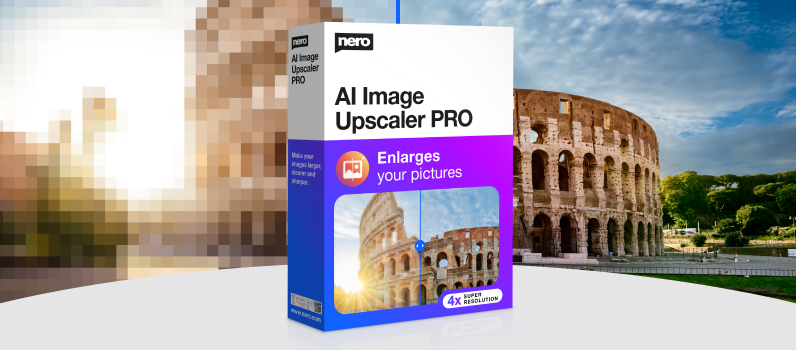
Nero AI Image Upscaler
Improve your blurred images up to 400%
$49.95
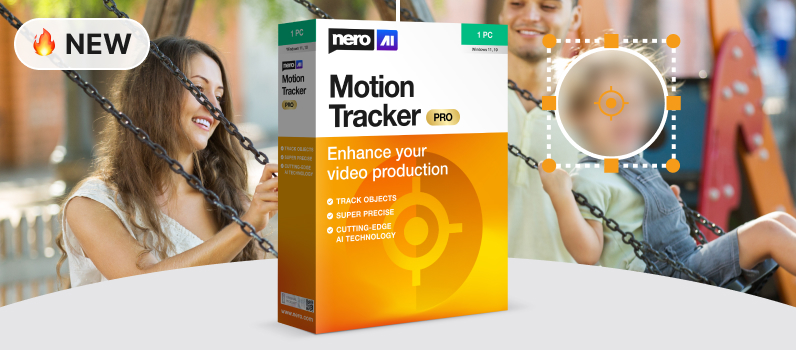
Nero Motion Tracker PRO
Hide sensitive information: Automatically add blur or mosaic effects to moving objects in your video.
$44.76$55.95
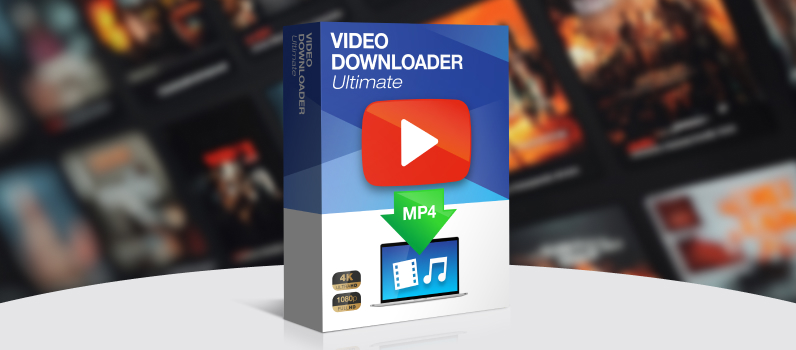
Video Downloader Ultimate
Save your favorite Internet videos to your hard drive
$29.95$47.95