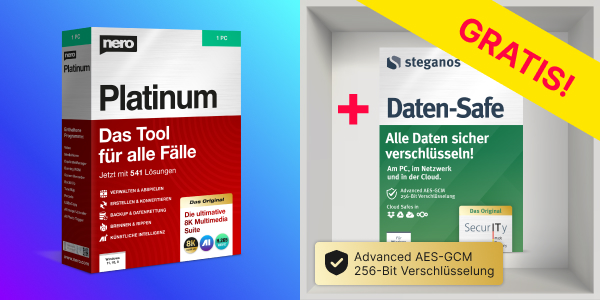

Die All-in-One Multimedia-Lösung!
Nero Platinum Suite 2025:
Die ultimative Multimedia-Software-Sammlung aus einer Hand für Ihren Windows PC.

für Windows 11, 10, 8 | Systemanforderungen


Nero Platinum Suite 2025 – das ist NEU
Jetzt mit 541 Lösungen: Viele leistungsstarke Tools für Video- und Fotobearbeitung, Datensicherung und Dateimanagement mit modernster AI-Unterstützung. Zum Info-Video »
Nero Video
NEU: Jetzt schnell und einfach Timeline-Clips austauschen, ohne dass Ihre Einstellungen verloren gehen. Der Schnell-Zugriff auf Nero PhotoSnap integriert Fotobearbeitung mit AI Unterstützung nahtlos in Ihre Videoprojekte.
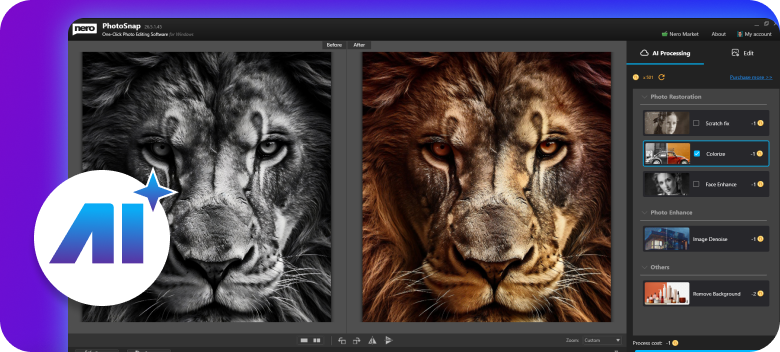
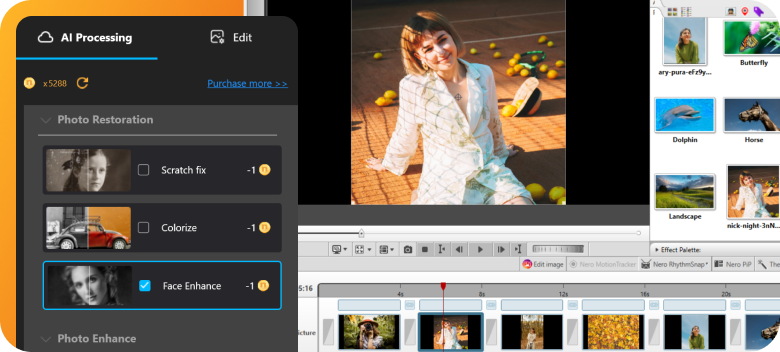
Nero Photo Snap
NEU: Jetzt mit online KI-Tools: Foto-Restaurierung, Hintergrundentfernung, Gesichtsverbesserung, Kolorierung sowie Bildentrauschung. So erzielen Sie mit nur wenigen Klicks professionelle Ergebnisse – Bildbearbeitung war nie so einfach.
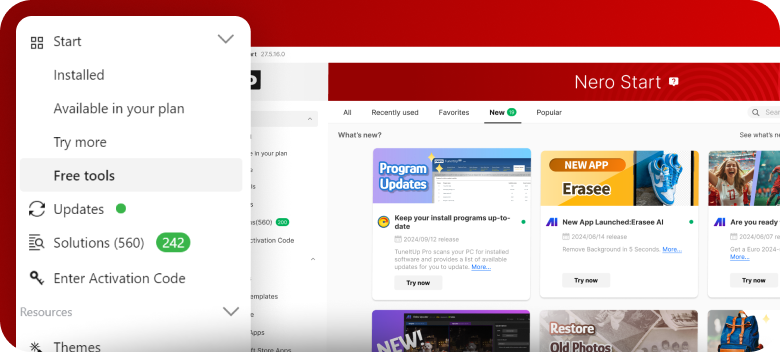
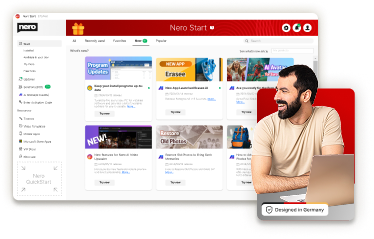
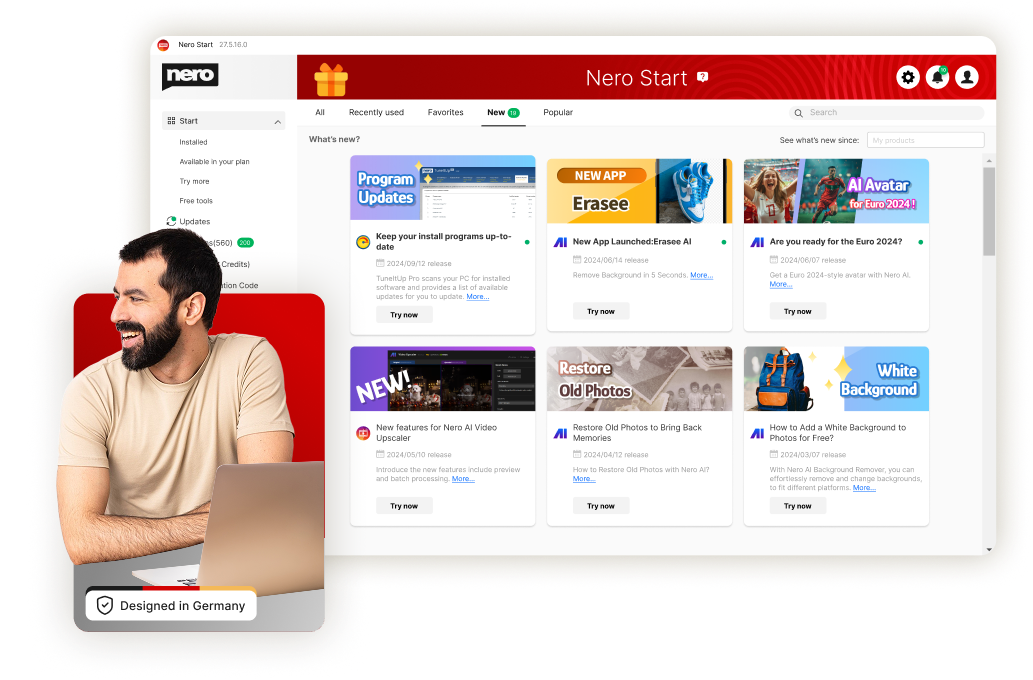
Nero Start
NEU: Viele Verbesserungen, um ihnen die Navigation durch die Nero-Welt noch weiter zu erleichtern: Sie können Sie ganz einfach Updates verwalten, Ihre Kontoeinstellungen anpassen und die neuesten Nero-Produkte ausprobieren.
Nero AI: Fortschrittliche Online-Dienste für alle.
✓ Trustpilot Rating: 4.8✓ Verarbeitete Bilder: 15.142.071✓ Sicherheit: Server in Deutschland
 Nero AI – Pro Pass 300 CreditsDie Nero AI Online-Dienste bieten zahlreiche Möglichkeiten für eine mühelose und hochwertige Medienbearbeitung.
€ 19,95 € 29,95 /Monat

Einfach übersichtlich
Nero Start: Ihre Zentrale für alle Nero-Downloads und Aktivierungen Viele leistungsstarke Tools für Video- und Fotobearbeitung, Datensicherung und Dateimanagement mit modernster AI-Unterstützung.
Jetzt klicken: Virtuelle Vorschau der Software
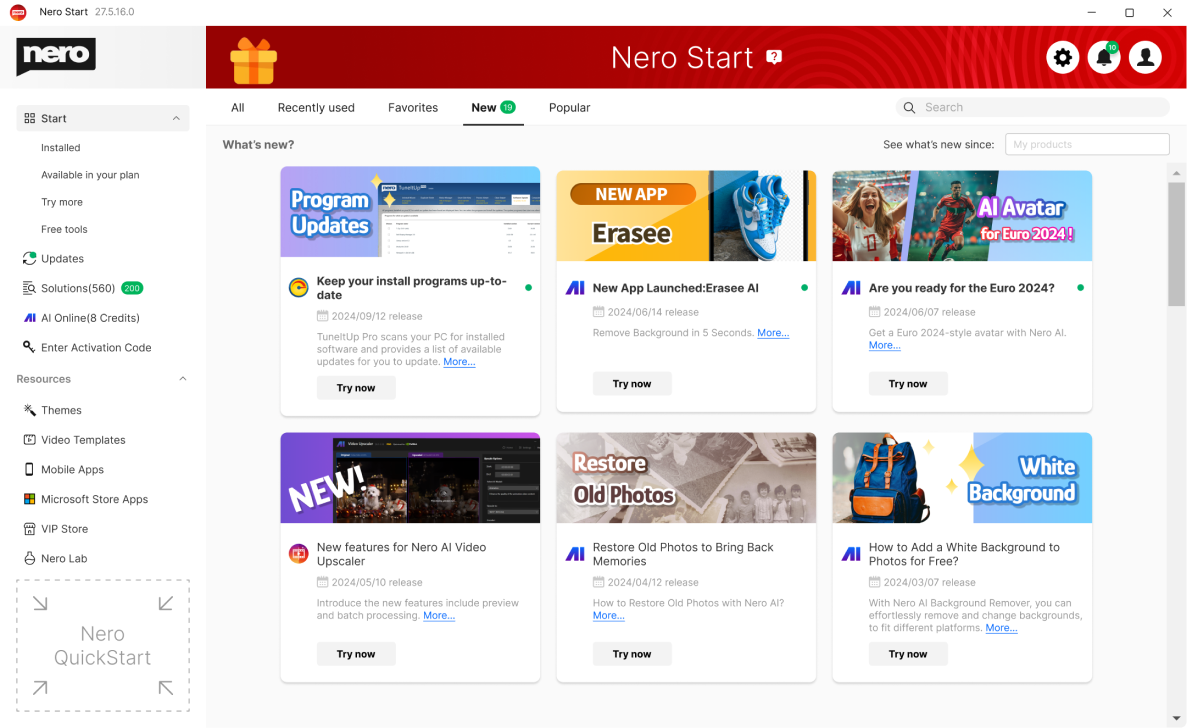

Jetzt mit 541 Lösungen:

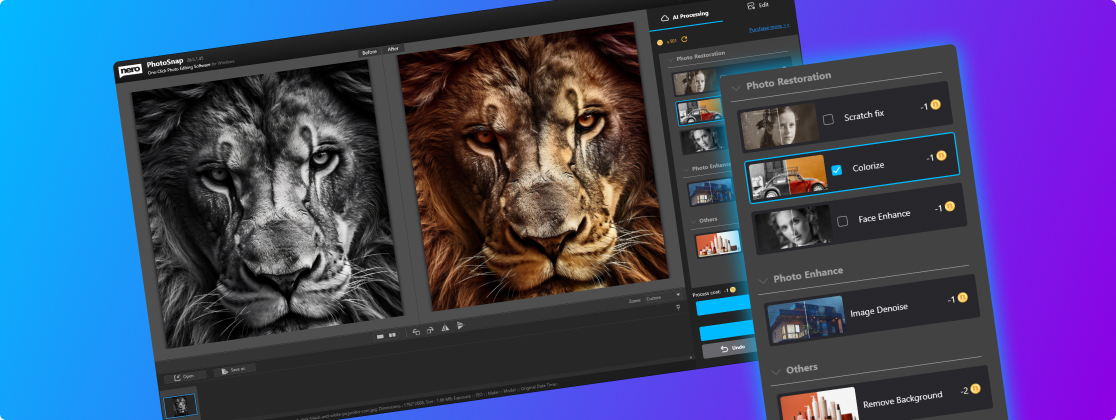
Nie mehr Chaos im geliebten Fotoalbum dank neuer Nero AI: Sie können jetzt noch einfacher Fotos organisieren, Bilder taggen, bewerten und durchsuchen. Mit der AI-basierten Motiverkennung behalten Sie stets den Überblick, Gesichtern können Sie Namen zuweisen und doppelte oder ähnliche Bilder werden schneller erkannt und lassen sich leicht löschen. Sortieren Sie Ihre Fotos nach Orten und schauen Sie sich Ihre Abenteuer auf der Weltkarte an, oder betrachten Sie alle Ihre Fotos in einem übersichtlichen Zeitstrahl. 1-Klick Fotobearbeitung ist selbstverständlich inklusive. Und das funktioniert lokal auf Ihrem PC, ganz ohne Cloud!
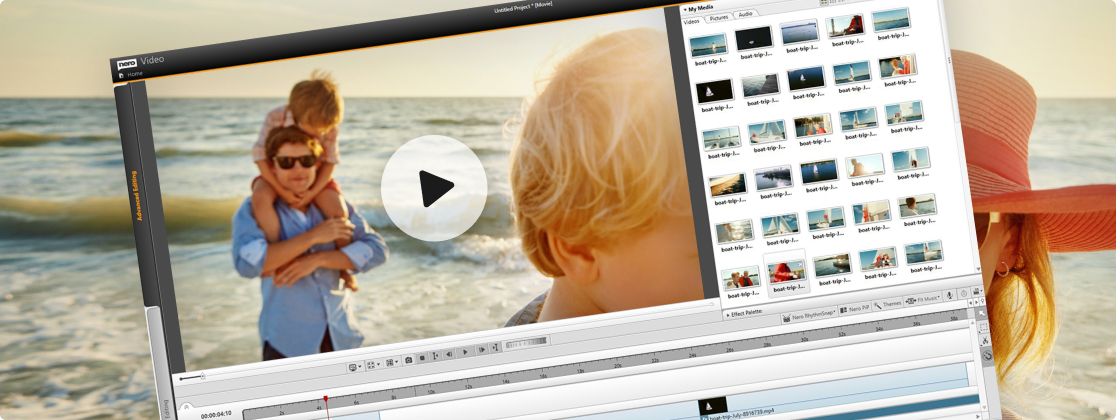
Erstellen Sie im Handumdrehen aus Ihren bewegten Erinnerungen ein kleines Film-Meisterwerk: Hunderte hochwertige Themenvorlagen für Urlaube, Anlässe und Events unterstützen Sie dabei. Tolle Effekte sorgen für den professionellen Feinschliff: Erstellen Sie Videos mit Bild-in-Bild-, Alphakanal-, Tilt-Shift-, Zeitlupen- und Zeitraffereffekten. Bearbeiten, trimmen und exportieren Sie Ihre Videos. Schärfer als die Realität wird es mit der 8K Abspielfunktion. Beeindrucken Sie Ihre Freunde und streamen Sie Ihr Meisterwerk auf den großen Fernseher. Als Geschenk können Sie Ihren Film auf eine optische Disc brennen.
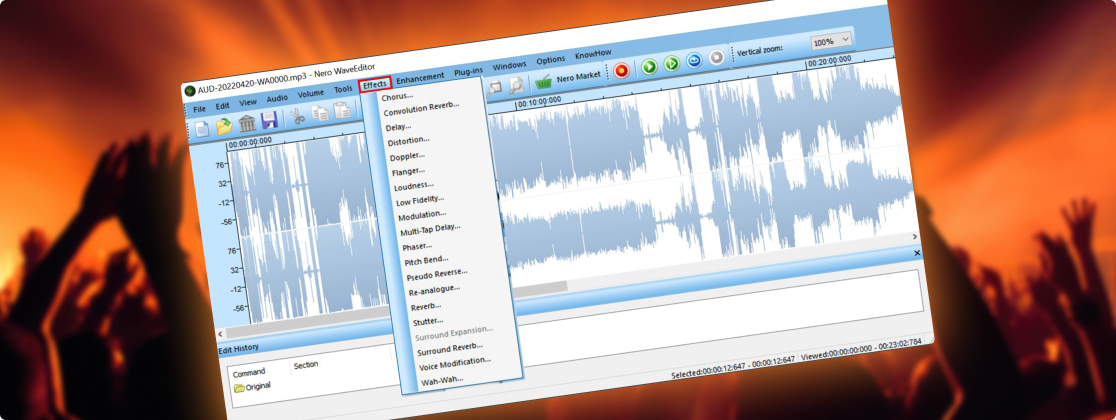
Musik belebt den Geist! Genießen und entdecken Sie Ihre Stars jetzt ganz neu: Speichere Sie Ihre Lieblingssongs aus allen Musikstreaming-Diensten einfach, schnell, legal und in bester Qualität. Bearbeiten und schneiden Sie Ihre Musikdateien nach Ihren Wünschen (Effekte, Fade-in/out, Lautstärke etc.). Importieren Sie Ihre CD-Sammlung und bearbeiten Sie ganz einfach Metadaten wie Artist, Genre und Albumcover.
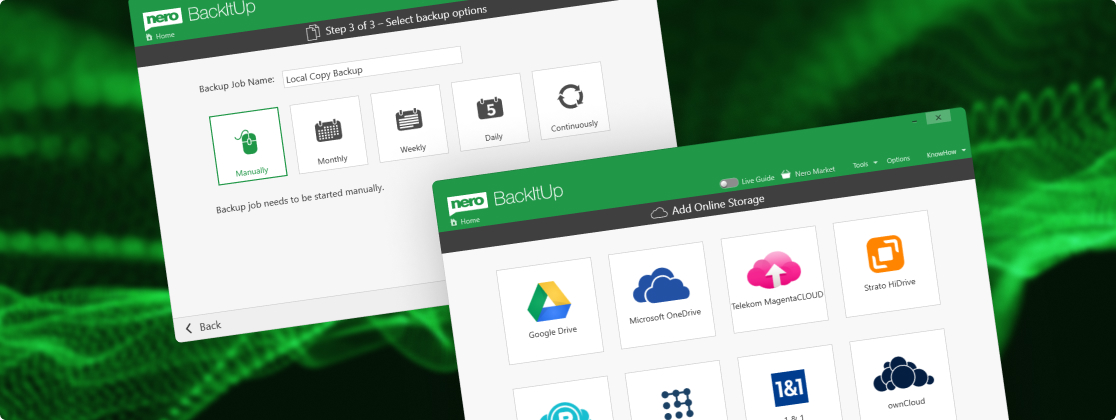
Ihr Daten sind uns wichtig! Komfortable und sichere Backup Lösungen für Sie: Sichern Sie Ihre wertvollen Daten schnell und einfach auf externe Festplatten, optische Medien und jetzt sogar in Ihrer Cloud (Google Drive, OneDrive, MagentaCLOUD, HiDrive, pCloud und QLOUD). Erstellen Sie automatisierte Backups, inkrementelle Snapshots und Versionsverwaltungen. Schützen Sie Ihre Daten mit der 256-Bit Verschlüsselung für CDs, DVDs und USB Sticks.
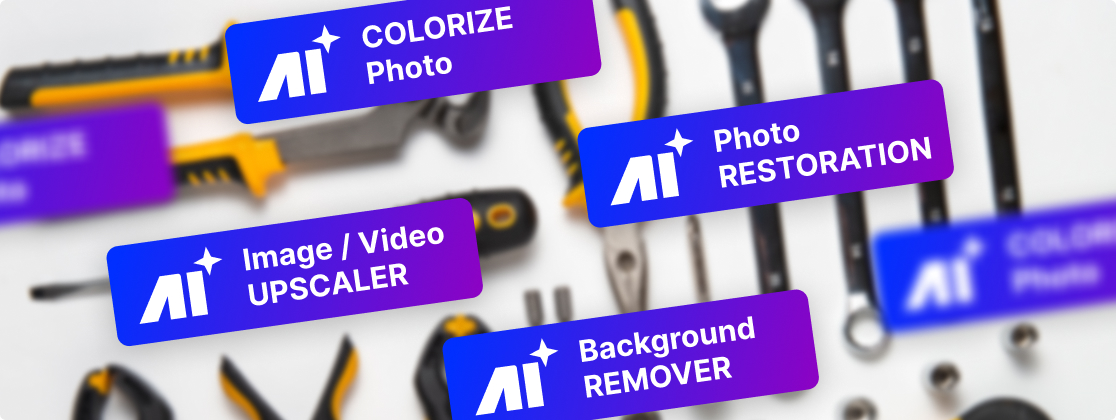
Nero Platinum bietet viele weitere Werkzeuge, die Ihren Windows PC perfekt ergänzen: z.B. durch die Wiederherstellung von gelöschten Daten, die einfache Verschlüsselung Ihrer persönlichen Daten oder das zuverlässige Formatieren und Vervielfältigen von Medien. Mit Nero Platinum erhalten Sie einen Werkzeugkoffer, der Sie für alle Fälle bestens ausrüstet.
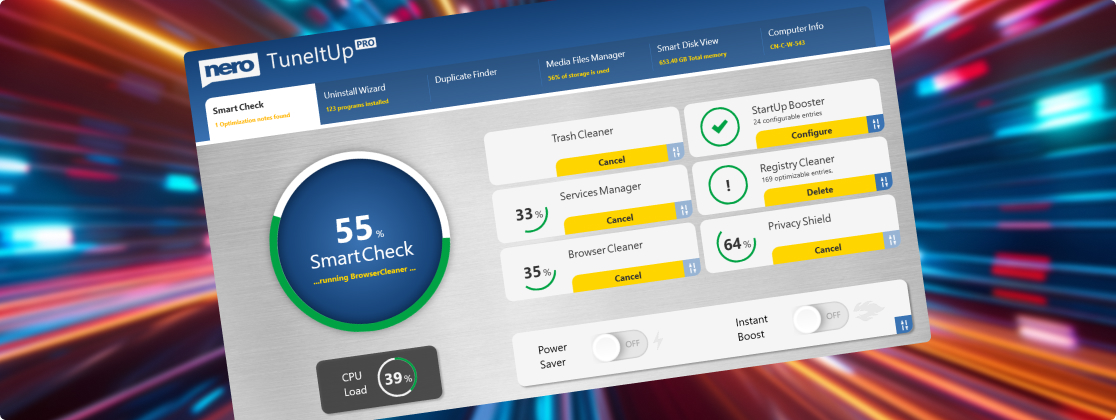
Nichts ist ärgerlicher als ein langsamer PC. Wir sorgen für mehr Leistung: Ab jetzt optimieren und beschleunigen Sie wie ein Profi: Nero macht ihren PC schneller, aktualisiert Ihre Treiber, und verbessert Ihre Internetgeschwindigkeit. Wir geben Ihnen die totale Kontrolle über Ihre PC-Performance. Sie entscheiden, ob Sie PC-Probleme einzeln lösen möchten oder doch gleich alle auf einen Schlag.
Was bekomme ich alles mit der Nero Platinum Suite?

- Nero AI Photo Tagger: Ordnung und Struktur in Ihrem Foto Archiv dank künstlicher Intelligenz.
- Nero Score: Machen Sie einen Speed-Test und bringen Sie Ihren PC an seine Grenzen
- Nero Video: Videos und Diashows erstellen, bearbeiten und exportieren.
- Nero Motion Tracker: Automatisch bewegte Objekte erkennen und verpixeln
- Nero Screen Recorder: Erstellen Sie Bildschirmaufnahmen nach Ihren Vorstellungen mit einem Klick. (Nur die Basisversion ist enthalten)
- Nero DuplicateManager: Bereinigt Ihr Bildarchiv mit exakten, doppelten sowie ähnlichen Bildern schnell und präzise.
- Nero MediaHome: Die zentrale Software für das Archivieren, Sortieren, Erstellen und Abspielen Ihrer Dateien.
- Nero BackItUp: Sichert Ihre Daten schnell und einfach auf eine externe Festplatte, optische Medien oder die Cloud.
- Nero Recode: Konvertieren und rippen Sie Videos und Musikin alle Standardformate für Ihre Mobilgeräte.
- Nero Burning ROM: Rippen, kopieren, brennen und schützen von Daten.
- Nero TuneItUp PRO: Macht ihren PC schneller und verbessert Ihre Internetgeschwindigkeit. (Nur in der Version 1 PC / 1 Jahr enthalten.)
- Nero USBxCopy: Dieses Tool hilft Ihnen, Ihre Daten auf mehrere USB-Geräte gleichzeitig zu kopieren
- Nero PhotoSnap: Lassen Sie Ihre Photos in neuem Glanz erstrahlen
- Nero Soundtrax: Tonträger digitalisieren und Audioprojekte umsetzen
- Nero WaveEditor: Sound vom PC aufnehmen und Audiodateien aufnehmen
- Nero Express: Daten und Medien einfach brennen
- Nero CoverDesigner: Gestalten Sie Ihre Disks individuell
- Nero Face Beautifier Entfernen Sie Falten und verbessern Ihren Hautton, damit Sie im besten Licht erstrahlen
- Nero Rescue Agent: Dateien von beschädigten Disks und Laufwerken wiederherstellen
- Nero Disc to Device: Übertragen von Medien von Discs auf Geräte
Ein echter Preis-Leistungs-Hammer
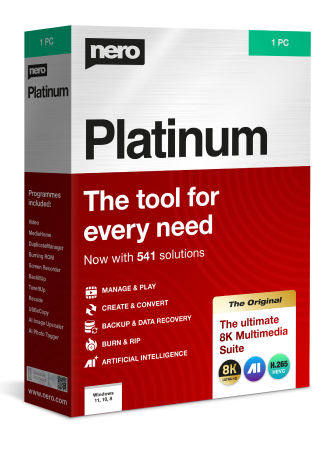
Die neue Nero Platinum Suite 2025:
Die umfangreiche Software-Sammlung für Ihren Windows PC ist ein wahrer Alleskönner, um Ihre digitale Projekte schnell und einfach zu meistern.
Brennen, managen, optimieren und bearbeiten Sie all Ihre Fotos, Videos und Musikdateien:
Nero in Zahlen

Zufriedenheit

Installationen

Sprachen

Funktionen




Einfache und sichere Bezahlung


Kaufen ohne Risiko

Geld-Zurück-Garantie
Das Original

Deutschland
Das sagen unsere Kunden

Manfred Bock

Diesen Service müssen andere erst nachmachen. Ich habe bei der Bestellung einen Fehler mit einer falschen Email gemacht. Nero hat mir schnell, qualifiziert und unproblematisch geholfen. Toll. Danke.

Maximilian Loidl
Nero Platinum Suite 2023 ist ein tolles Produkt. Ich bin begeistert was das alles kann. Auf meinem alten Computer hatte ich schon Nero 2017 mit Erfolg genutzt. Herzlichen Dank nochmal.

Heiko Müller

Schneller und kompetenter Kundendienst. Herzlichen Dank.